

Administrator guide
Sensitive information in prompts (Prompt Monitor and Prompt Protection)
The YuviRed browser extension, called the AI Prompt Monitor, looks at what a person types, pastes or attaches on supported AI websites in the browser, before it is sent. It can stay silent, warn the person and ask for a decision, or block the submission. This chapter explains what it detects, how you set the policy, what people see, how you review what happened, how raw content capture works and is audited, and what the extension does not do.
The example company is "Northwind Dental". Names, computers and numbers are made up.
1. The three separate ideas
- Detection finds sensitive information and says how sure it is. A checksum-valid payment card is high confidence. A bare label such as "password:" is medium. A sentence that only sounds clinical is low.
- Policy is yours. It decides what happens to each kind of finding and to content that could not be inspected. There is no hidden minimum: Monitor Only really shows nothing to the person typing.
- Enforcement is what actually happened to the submission. It is recorded truthfully in Prompt Monitoring: observed, warning cancelled, allowed after approval, blocked, allowed with incomplete inspection, or inspection unavailable.
Alerts follow findings, not outcomes. Every finding opens an alert, or joins an open alert for the same finding, at the rule's fixed severity. That is true under Monitor Only, and also when the person chose "Go back and edit" or the prompt was blocked and nothing was sent.
Prompt Protection is a control for users, not against the owner of the computer. A person who administers the Windows computer can uninstall or change the software. On Lite the Administrator is the account created at first run; there is no separate "policy administrator" role.
2. What is detected: rule families
Detection rules are grouped into categories that you see in the policy editor, and into four classes that the presets act on.
2.1 Categories
| Category (as named in the policy) | Examples |
|---|---|
| Passwords and authentication credentials | A labelled password ("password: ...", DB_PASSWORD=..., -p... on a command line), even a weak one |
| API keys, access tokens, session credentials and OAuth secrets | Provider keys, Authorization headers, live session tokens, connection strings with passwords |
| Private keys and recovery material | Private keys with key material, recovery codes |
| Government identifiers and sensitive personal records | Validated Social Security, National Insurance, SIN and Aadhaar numbers |
| Payment-card, banking and financial information | Luhn-valid cards with card context, IBANs, checksum-valid routing and account pairs |
| Employee, customer and health records | Personal-data tables, record dumps, a clinical detail tied to a patient identifier |
| Contact details and other lower-risk personal information | Phone numbers, email addresses, labelled dates of birth |
| Internal infrastructure and confidential business information | CONFIDENTIAL or internal-only markers, internal hostnames, roster schemas |
| Company-defined terms and internal domains | Words and hostnames that you list yourself |
| Medical, mental-health and care records; Children, students and education records; Special-category personal data; Biometric, genetic and identity-verification material; PINs, one-time codes and security answers; Legal, privileged and investigative material; Government and defence handling markings; Access-bearing links and invitations; Location, movement, travel and vehicle details | More specialized families, each with its own detectors |
| Behavioural categories | Prompt-injection and similar behaviours: always recorded, never blocked |
The exact rule-by-rule tables, confidence values and masking behavior are in the generated policy
reference that ships with the product (docs/PROMPT_PROTECTION_POLICY_REFERENCE.md in the source tree,
produced from the code). Detection is broad, not perfect.
2.2 The four classes that presets act on
| Class | What it holds |
|---|---|
| Credentials | API keys, tokens, private keys, session secrets, any labelled password. An access key ID alone is borderline; it becomes a credential when its secret key appears within about 320 characters. |
| High-risk personal and financial | Validated government numbers, IBANs, validated cards with card context, name plus date of birth plus identifier, a clinical detail tied to a patient identifier. |
| Confidential business | Personal-data tables, confidentiality markers, roster schemas, your own company terms and internal domains. |
| Borderline | Contact details, labelled dates of birth, passport or driving license numbers with a label, internal hostnames, weak "secret =" assignments, expired tokens, a card number with no card context, a private key header without the key. |
3. The policy: observe, warn or block, per rule
Open Configuration, then Prompt Protection. Only Administrators can change the policy; others see it read-only (the server refuses writes from anyone else, whatever the page shows).
3.1 Presets
A new installation starts in Monitor Only. A stronger preset is never applied by itself.
| Preset | Credentials | High-risk personal and financial | Confidential business | Borderline | Cannot be inspected |
|---|---|---|---|---|---|
| Monitor Only | observe | observe | observe | observe | allow, record |
| Light Warnings | warn | warn | observe | observe | allow, record |
| Warnings Only | warn | warn | warn | warn | warn |
| Balanced | block | warn | warn | warn | warn |
| Strong (recommended) | block | block | warn | warn | block |
| Strict | block | block | block | warn | block |
| Maximum | block | block | block | block | block |
The three actions:
- Observe: recorded silently; the person sees nothing.
- Warn: the person must approve explicitly before the submission is sent.
- Block: the submission is stopped before it leaves the browser, with no override in the page.
A prompt that is only too long to check warns at every preset except Monitor Only; no preset blocks it for its length alone.
3.2 Sensitivity settings (Advanced, "Custom")
Any change turns the policy into Custom. You can set:
- Classes: each of the four columns above to observe, warn or block.
- Categories: each administrator category to inherit or an explicit action. A category setting overrides its class.
- Rule overrides: a single detector's action.
- Minimum confidence: the lowest confidence that may interrupt a person. Below it, a finding is recorded but never interrupts. Every preset uses medium; Maximum uses low.
- Options: contact: bulk only (a single labelled phone number or date of birth is observe-only; lists still act) and card requires context (a valid number with no card wording is observe-only).
- Uninspectable content: six separate answers (allow, warn or block) for an unreadable attachment, an oversized attachment or form, encrypted or password-protected content, a scanner timeout or failure, a policy that could not be synchronized, and a prompt too long to check fully. Uninspected content is never recorded as "safe".
- Floors: minimums that scopes and exceptions can never go below (for example credentials: block everywhere).
- Scopes: different settings per AI website, matched on the exact hostname. A look-alike domain never inherits a scope. Priorities must be unique; the first match wins. Lite has no device groups, departments or directory.
- Exceptions: scoped, accountable relaxations with an owner, a reason, what they cover, an action they lower to (observe or warn) and an expiry of at most 365 days, or a deliberate "permanent" choice. A value-exception cannot name a password, key or identifier.
- Company terms and internal domains: your own words, phrases and hostnames to be detected as confidential business material (literal text, no regular expressions).
The supported AI sites can read your company terms. The check runs inside the AI site's own page, so that page can read the terms, internal domains, value-exception values and organization entries you add. Do not list anything that must stay hidden from those sites.
3.3 Procedure: choose a preset and apply it
Purpose. Move from watching to warning, or warning to blocking, on purpose.
Prerequisites. Administrator. The extension is installed on at least one managed browser and shows Protected on the Browser protection card.
Steps.
- Go to Configuration, open Prompt Protection.
- Read the active preset and revision.
- Choose a preset card (for example Balanced). This creates an unsaved draft. The page shows "Unsaved draft".
- Press Test this policy... to try it (section 3.4).
- Press Save / Apply.... A summary lists the impact. Anything that becomes more permissive is listed at the top. Read it, then confirm.
What you should see. A new numbered revision becomes active. Prompt Monitoring shows the new revision. The Browser protection card shows each browser as applied, pending or stale.
How to confirm. A successful save is not proof that every browser applied it. Browsers pull the policy
about once a minute. On a test computer, send a harmless made-up test prompt such as
password: Examplepass-123 to a supported AI site and see whether the dialog in section 4 appears.
How to undo. Open Revision history, find the earlier revision, press Restore. Restoring creates a new revision; numbers never roll back. If another Administrator saved in the meantime, the restore is refused: reload and try again.
Common problems.
- Browser shows Stale or Protection unavailable. It has not reported in 10 minutes, has no consent, or could not pull the policy.
- Monitoring only. Shown for a healthy browser under Monitor Only, with the reason "active policy is Monitor Only: warnings and blocking disabled". That is correct, not a fault.
- A very large policy is refused (over 700 KiB as delivered). Remove entries.
3.4 The policy preview in the console (64 KiB limit)
Test this policy... opens a dialog that runs your draft against built-in synthetic samples, or text you paste, using the same decision engine the browser uses.
- Press Test this policy....
- Pick a built-in sample (Ordinary question, Credential, Personal record, Internal business, Contact details, Uninspectable attachment, Too long to check fully), or type or paste your own text in the box. Choose the destination site.
- Run it. The result table shows, for the active policy and for your draft: the category, confidence, current action, proposed action and the reason chain.
The pasted sample is limited to 65,536 characters (64 KiB); longer text is refused. Use **made-up test data only**. The sample is inspected on your YuviRed server only. It is never sent to an AI provider and is not kept after the test.
3.5 Export, import and revisions
Export saves the policy as a JSON file (no credentials in it). Import... loads one, checks every rule, value, destination and expiry, and refuses a document with any problem (listing them) rather than dropping parts of it. Duplicate as Custom... saves a named copy. Policy changes cancel pending warning approvals: a relaxed policy never sends a draft or a cancelled prompt by itself, a person must press Send again.
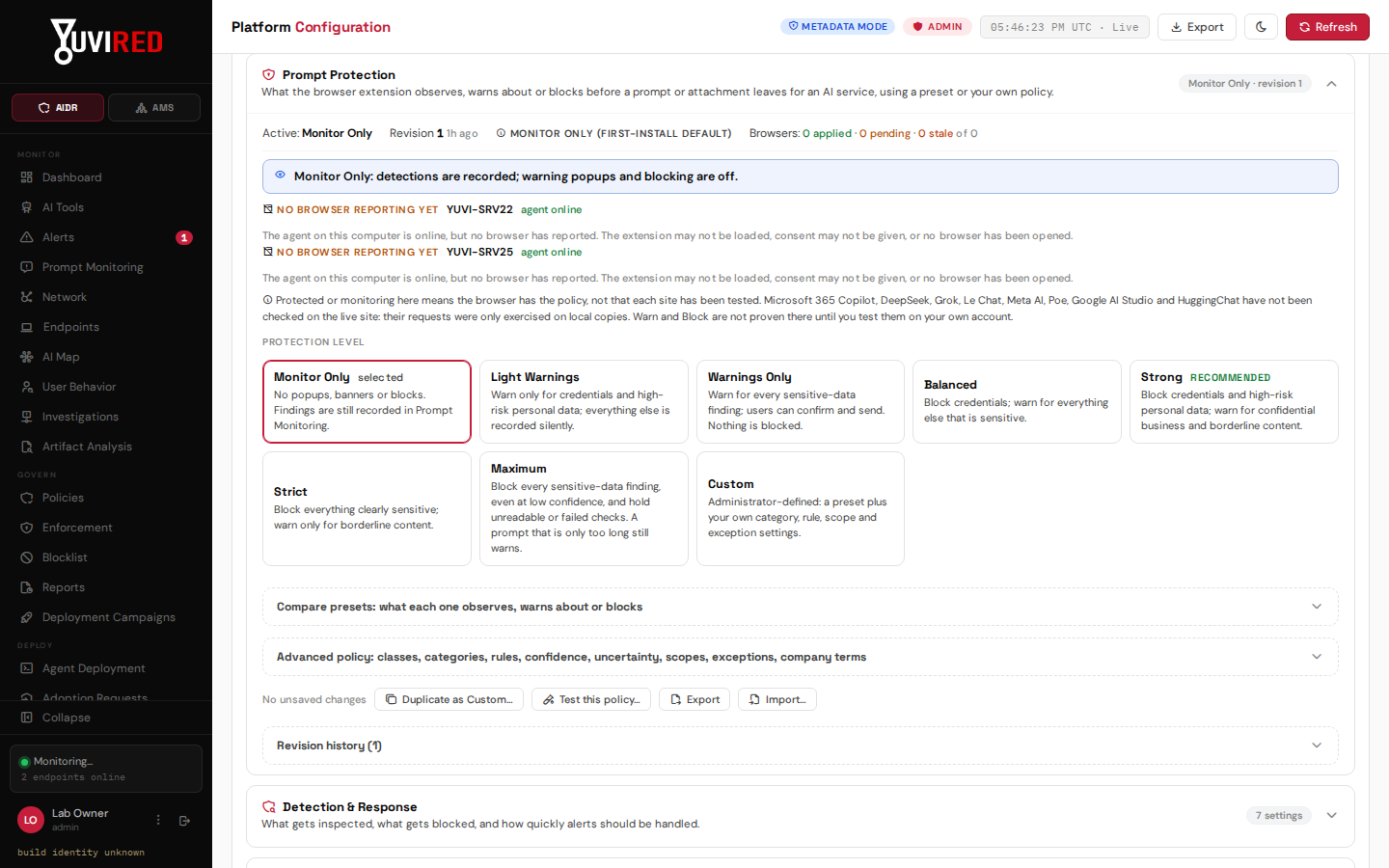
The Prompt Protection section. The active preset is marked; the buttons at the bottom open the policy test.
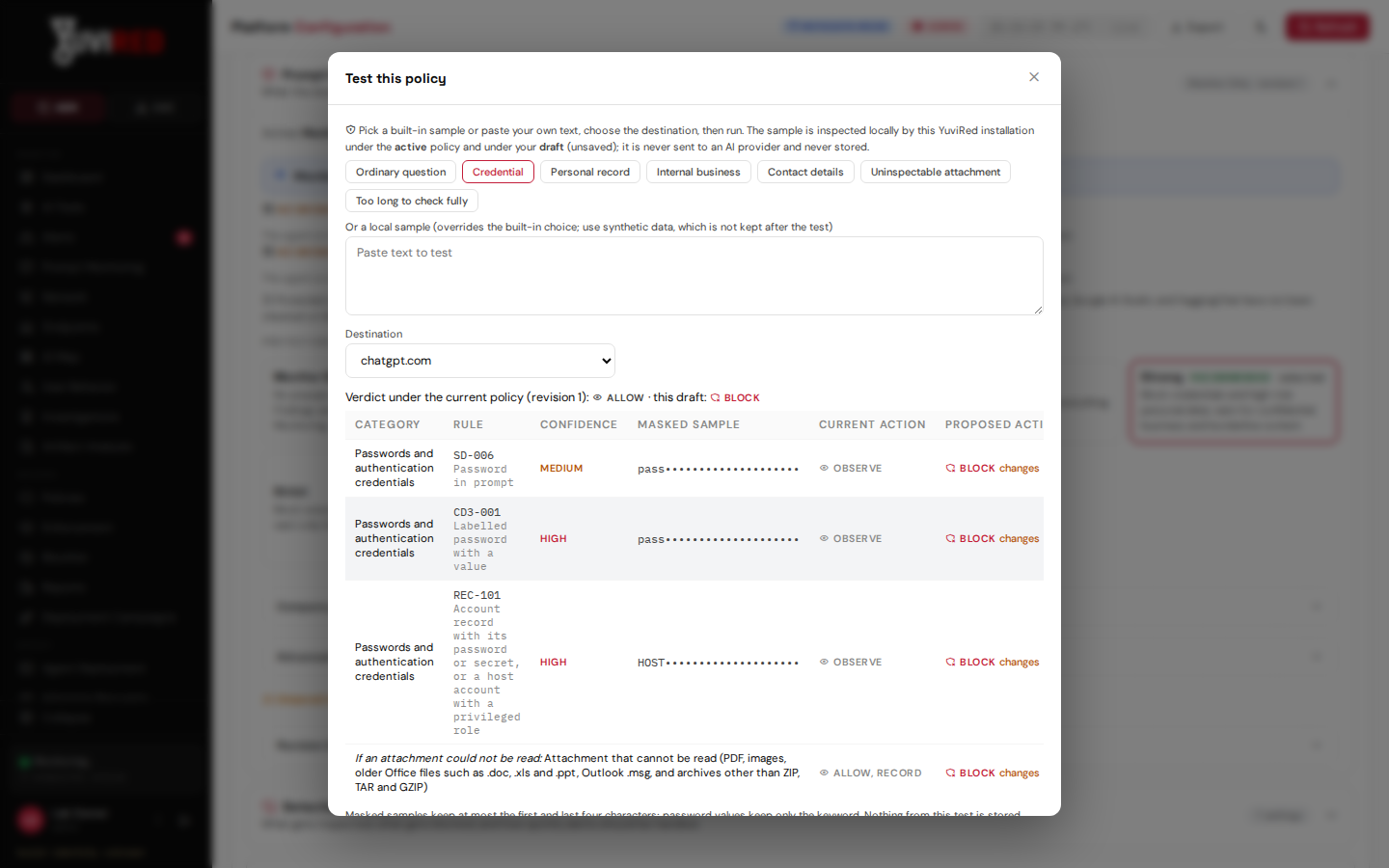
The Test this policy dialog. It compares what the current policy does with what a draft would do, and saves nothing.
4. What the person sees
| Situation | What appears |
|---|---|
| Observe | Nothing. The finding is recorded. |
| Warn | A dialog: "Potentially sensitive information detected", the categories and masked evidence, and "Are you sure you want to send this information to {service}?" with two buttons: Go back and edit (the default) and Send anyway. Pressing Escape, closing the dialog or clicking elsewhere never sends. One approval releases exactly one submission; editing, changing attachments or destination, or a policy change needs a fresh decision. |
| Block | "Prompt blocked: sensitive information detected", what must be removed, and Go back and edit or Close. There is no override in the page. |
| Draft notice | A small dismissible notice while typing, when the draft would be warned about or blocked. It never sends anything. It is silent under Monitor Only. The finding is recorded when the notice appears, even if the person then edits the text out. |
| Inspection unavailable | When the policy says to hold content that could not be inspected. |
| A ref | Warning and block dialogs end with a small "ref" and an id. The same id is the Correlation id (dialog ref) in the event's Guard decision panel and the Submission id in the Auditor's Report, so a ref a person reports leads straight to that submission. |
Evidence shown to the person is masked: at most four leading and four trailing characters of a provider token, and no characters of a password or free-form secret.
Where the person can reduce protection. On the extension's options page a person can remove a site from "Monitored sites" or set "Capture level" to "Disabled". A removed site is neither checked nor recorded; at Disabled the browser still warns and blocks but reports no findings. The console is not told about either setting, so that browser keeps reading Protected. A managed browser policy that sets these fields overrides the options page. YuviRed Lite writes no browser policy for this.
5. Capture levels: what is kept about a finding
Set under Configuration, Detection & Response:
| Setting | Choices |
|---|---|
| Prompt Content Capture (the most content YuviRed may keep) | Off: no capture at all; Activity only: no content (metadata only); Redacted excerpts (Recommended); Full content |
| Inspection Depth | Activity metadata only (Recommended); Full content inspection |
| Keep Original Prompt Samples | A switch. Requires Full content inspection. |
What each level means:
- Metadata only: records that AI was used, where and by whom, with the rule and confidence, never any text.
- Redacted excerpts (the default): a short masked excerpt of each finding. Keys and tokens keep at most their first and last 4 characters; identity and card numbers at most their last 2; passwords none of their own characters. The extension stores this masked fragment by default.
- Full content: the full text of a matched prompt or response may be stored. See section 7.
The top-bar badge shows Metadata mode (blue) or Full inspection (red, with "(raw capture ON)" when samples are being stored). Endpoints can capture less than the console setting, never more.
6. Reviewing what happened: the Prompt Monitoring page
Open Prompt Monitoring (Monitor section). The top row holds:
- The Browser protection card: per browser, Protected, Stale (no report in the last 10 minutes), Protection unavailable (no consent, or the last policy pull failed) or Monitoring only (a healthy browser under Monitor Only), each with its reason, with whether its policy is applied, pending or stale, and onboarding steps while no browser is protected.
- Category cards (Prompt injection / jailbreak, Sensitive data in AI content, PII in AI content, Malware generation, Phishing / social engineering, Exploit development, Data exfiltration intent, Policy bypass, Sensitive company data, Suspicious code generation, Unauthorized automation, AI agent misuse), each with a count of prompts and outputs and an Alerts button.
Below is Suspicious content events. Filters: All types (Prompt, Output), All categories, All severities, All outcomes (for example "Sensitive data blocked", "Sensitive data warning (any)", "warning pending", "warning cancelled", "warning approved (sent anyway)", "draft flagged", "Allowed by company policy; inspection incomplete", "Allowed by exception", "Inspection unavailable", "Enforcement unavailable", "Observed only"), Provider (origin), User, and a window of Last 1d, 7d, 30d or 90d.
Columns: ID (a display id such as SR-EVT-000456, click to copy), When, Type, Severity, Outcome, Category, Rule, Confidence, Endpoint and user, Provider, and the Matched excerpt (a lock icon means full content was captured). At most 200 events are listed with "Showing N of M events".
Click a row for the detail: rule, provider, computer, user, browser, time, the Guard decision panel (what the policy intended, what actually happened, when the person answered a warning, the policy revision, scope or exception that applied, what could not be inspected), the redacted excerpt, the linked alert and Open alert & triage.
Outcome wording, in plain words
| Outcome | What it means |
|---|---|
| Observed only | Recorded; the active policy does not warn or block for this finding. |
| Sensitive data warning, pending | The person was warned and has not decided; the submission is held in the browser. |
| Warning cancelled | The person chose Go back and edit. Nothing was sent. |
| Warning approved (sent anyway) | The person confirmed; that text was released once. This records permission to send, not delivery. |
| Sensitive data blocked | The extension cancelled the submission before it left the browser. |
| Draft flagged | The person saw an inline notice while typing. Nothing was sent at that point. |
| Allowed by company policy; inspection incomplete | Part could not be inspected and the policy allowed it. Never labelled safe. |
| Inspection unavailable | Inspection could not complete and the policy holds such submissions. |
| Enforcement unavailable | The enforcing part could not act; the submission may have left the browser. |
Exports
An Analyst or Administrator sees Export CSV on the page; it exports the events matching the filters, and every exported row carries its alert id. The Reports area also holds a Prompt protection section (Reports chapter) that counts prompts and findings in a period. Reports never include prompt text.
Procedure: review a blocked prompt
- Prompt Monitoring. Set All outcomes to Sensitive data blocked and a window.
- Click a row. Read Rule, Provider, Endpoint, User and the Guard decision panel.
- Press Open alert & triage to record a note and status.
What you should see. Outcome "Sensitive data blocked: blocked before transmission" and an alert for the same finding.
Common problems. No events at all. The extension may not be installed or consented to; check the Browser protection card. An event with Full content level but no content. The extension reported without content, or the sample was purged by the retention window.
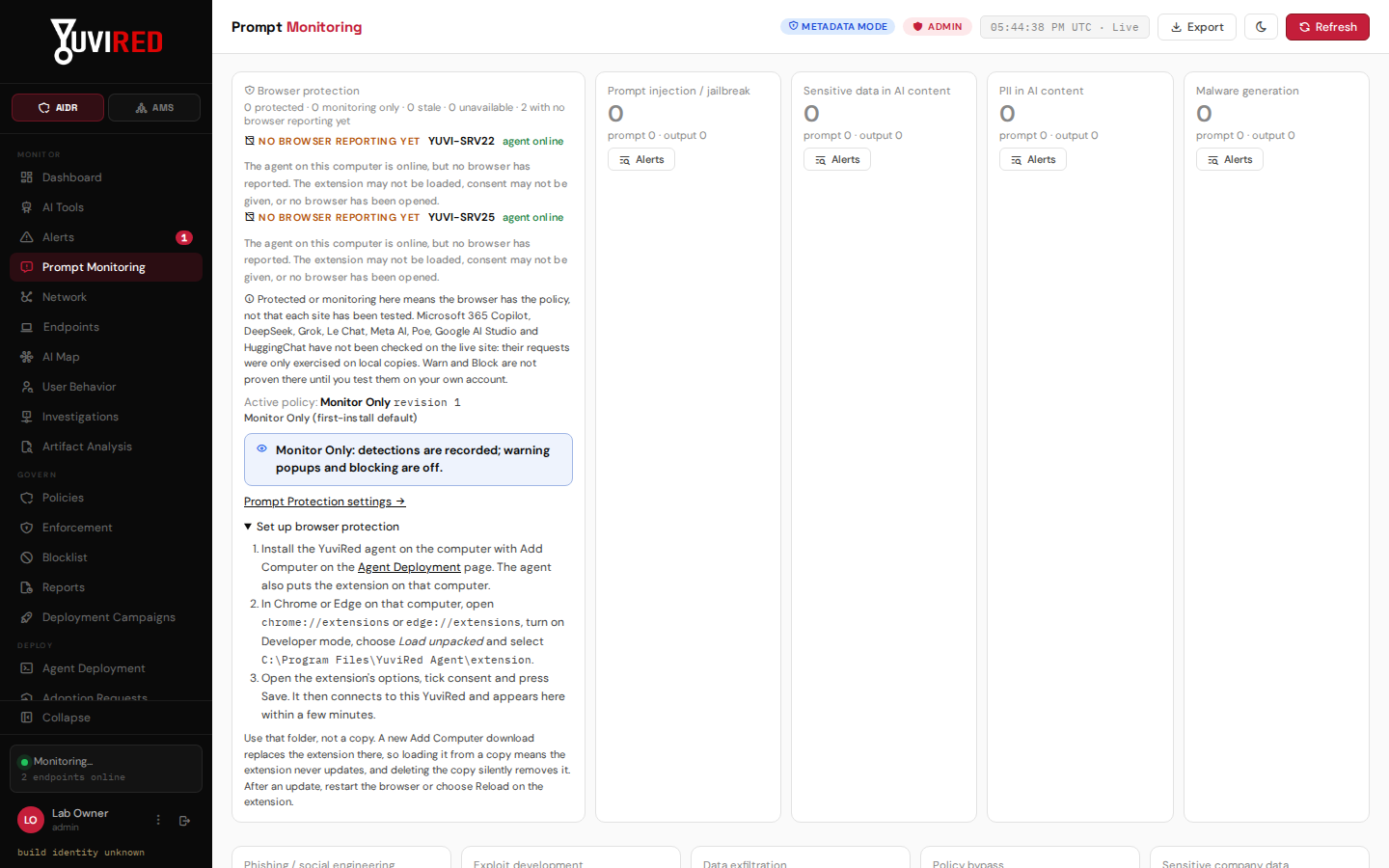
The Prompt Monitoring page. In this lab capture no browser had reported yet, so the status says so.
7. Raw capture: enabling it, and the audit
Raw capture is off by default. It exists for investigations that genuinely need the original text. Enabling it stores prompt content on your server. Read this whole section first.
What turning it on means. For matched events, up to the first 20,000 characters of the prompt (or AI response) are stored on your YuviRed server, encrypted, and erased automatically after a short window (24 hours by default; choices are 4 hours, 24 hours or 3 days). Only Administrators can view them, and every view is written to the audit log (
dlp.content_event_viewed). Passwords, keys and tokens that YuviRed detects are shown as [REDACTED]. Content that people typed is personal data and may be confidential; tell your staff before you enable it, and keep the window short.
7.1 Procedure: enable raw capture
Purpose. Keep original text of matched prompts for a limited time.
Prerequisites. Administrator. A reason you can state. Connections to the server over encrypted HTTPS (capture over plain HTTP is allowed only in a lab by a separate, clearly labelled setting).
Steps.
- Configuration, Detection & Response.
- Set Inspection Depth to Full content inspection.
- Set Prompt Content Capture to Full content. Confirm the dialog "Capture full prompt content? Complete prompt and output text will be stored for matched events instead of redacted excerpts."
- Turn on Keep Original Prompt Samples.
- Under Data & Retention, set Original prompt samples to the shortest window you can live with.
- Optional (Advanced): set Prompt samples: endpoint default, and tag lists **Always keep samples from endpoints tagged** and Never keep samples from endpoints tagged (if both match, "never" wins).
- Save.
What you should see. The top-bar badge turns red: Full inspection (raw capture ON).
How to confirm. Trigger a test finding with made-up data. In Prompt Monitoring open the event: the lock icon is present and an Administrator sees View captured prompt (audited).
How to undo. Turn off Keep Original Prompt Samples. Samples already stored are erased when their window expires. Set Prompt Content Capture back to Redacted excerpts (Recommended) and **Inspection Depth** to Activity metadata only.
7.2 How to view a captured prompt and where it is logged
- Open the event in Prompt Monitoring.
- Press View captured prompt (audited). The text appears below.
- The view is recorded in the audit log with who viewed it and when (Alerts and Integrations chapter, "The audit log").
An Analyst sees only that content exists, not the content.
Common problems. No content for an event although capture is on. The extension's own capture level may be lower, the content may be older than the window, or the prompt did not match a rule.
8. Limits: what it covers and what it does not
Sites. The extension is installed by default for 15 hostnames that make up 13 AI services:
ChatGPT (chatgpt.com, chat.openai.com), Claude (claude.ai), Gemini (gemini.google.com), Microsoft
Copilot consumer (copilot.microsoft.com), Perplexity (perplexity.ai), Microsoft 365 Copilot for work
accounts (m365.cloud.microsoft, copilot.cloud.microsoft), DeepSeek (chat.deepseek.com), Grok
(grok.com), Mistral Le Chat (chat.mistral.ai), Meta AI (meta.ai), Poe (poe.com), Google AI Studio
(aistudio.google.com) and HuggingChat (huggingface.co, chat pages only).
- Supported: ChatGPT, Claude, Gemini, Microsoft Copilot (consumer) and Perplexity. Every site uses the same two checks (the typing box and the page's own requests), and these five are the ones the extension's end-to-end test harness exercises against reproductions of each site's request shape (ChatGPT, Gemini and Copilot shapes among them; the 2026-10-27 run passed all 181 scenarios). The lab rule for this release was "no live AI site, no real account", so no run against the real sites is recorded for any of the thirteen; test on your own computers before relying on a block.
- Added, not yet verified on the live site: the other eight. The extension is injected and a reproduction of each site's request shape is inspected and blocked as expected on a local test, but nobody has run it on the real site. Treat them as best effort.
- Frames from another host (for example Copilot Chat inside a page from a different host) and Grok on x.com are not inspected. Google AI Studio sends what you type in the background before you press Run, so the dialog can appear while you type.
Browsers. Chrome and Edge only. Firefox is not supported. **In this release nothing installs the
extension into Chrome or Edge automatically.** The console setting "Remote Browser Extension Wiring"
exists but is inert on a Lite server (the Lite service does not serve the signed extension, so every agent
is told it is disabled), and the store route waits for the store IDs. The working route today: a person
with local administrator rights on the computer opens chrome://extensions or edge://extensions, turns
on Developer mode, chooses Load unpacked and picks C:\Program Files\YuviRed Agent\extension. After
store approval, an update will carry the IDs and the agent's installer will write the browser force-install
policy so the extension installs from the store (planned, not in this release); see the deployment guide.
Managed browsers carry consent by policy; the options page shows it.
Attachments that are read. Text files, .docx, .xlsx, .pptx, OpenDocument files, RTF, .eml, and
ZIP, TAR and GZIP archives.
Attachments that are not read (they follow your "unreadable attachment" answer): PDF, images, older
Office files (.doc, .xls, .ppt), Outlook .msg, and archives other than ZIP, TAR and GZIP.
Not inspected at all.
- Desktop AI applications and any AI site not on the list.
- Requests a page issues from a background worker thread (they are caught at the typing box, not at the network boundary).
- Text inside images or scanned documents.
- Clipboard history and keystrokes (the extension does not log either).
- Encrypted traffic: it never installs certificates or intercepts TLS (Transport Layer Security).
- Anything on a computer with no extension, a disabled extension, or a removed site.
Length. A prompt over 262,144 characters may be only partly checked; over 2,097,152 characters, about the first and last 1,040,384 characters are inspected and the middle is not. YuviRed raises a medium alert "Prompt only partly checked" for these at every preset, even Monitor Only, so a warning that replaced a block does not go unnoticed. Review those alerts.
Older extensions. Versions older than 0.5.0 receive only a legacy blocking setting and cannot show warnings. Update them.
Not against a hostile site. The check runs in the AI site's own page. It protects people from sending something by mistake through a site that behaves normally. It is not built to hold against an AI site whose own code works against it.
When something goes wrong. On the computer, open the extension's options page (Extensions, YuviRed AI Prompt Monitor, Details, Extension options) and press Copy status for support. It holds the extension version, browser, consent, policy revision, ruleset version, how many sites are monitored, whether the last policy sync worked, the last error code and counts of waiting or discarded detections, never content. Send it to support@yuvired.com with the computer, browser, site and time. Do not include the prompt or file.