

Administrator guide
Alerts, notifications, sign-in and the audit log
This chapter covers working with alerts day to day, getting alerts out of the console (email, Slack, Microsoft Teams, a webhook), single sign-on, the audit log, and the integrations that are off until you turn them on. The AIDR chapter explains where alerts come from and how to triage one; this chapter is about the list, the lifecycle, and everything that leaves the console.
The example company is "Northwind Dental". Names and addresses are made up (a.rivera, the mail server
smtp.example.com, the address 192.0.2.10).
1. The alerts list and the alert detail
1.1 The list
Open Alerts ("Alert Management"). Each row is one deduplicated alert: title, severity, status, classification, category, computer, user, last activity and days seen. The sidebar badge counts open alerts and shows "N crit" when any open alert is critical.
Filters (all combine): Sort (Recent activity, Risk first), All Severity, All Status, **All Classifications, **All Categories, All Tools, All Time (24 hours, 7 days, 30 days, by last activity), Search alerts..., All Endpoints, All Users. Selecting a point on the AI Map or a Dashboard card can open the list pre-filtered; changing a filter clears that pre-filter so the two never silently combine.
New and repeating alerts push live onto the page within about 2 seconds. The page also refreshes every 30 seconds, and Refresh reloads now.
1.2 Severities
| Severity | Meaning |
|---|---|
| Critical | Act now. A blocklisted destination, a policy violation on a server, a governed AI agent outside its approved boundary. |
| High | A policy violation. Triage today. |
| Medium | Classify it. A tool under review, a local model, an unknown extension. |
| Low / Info | Awareness. Known, sanctioned AI activity. |
The severity is fixed by the rule that raised the alert, not by who looks at it. A Prompt Protection alert keeps its rule's severity whatever the person decided on the warning.
1.3 Statuses
| Status | Use it when |
|---|---|
| open | New. Nobody has acted. |
| acknowledged | Someone is aware (press Acknowledge). |
| investigating | Under investigation. Pressing Investigate sets this and opens a case file. |
| resolved | Handled. |
| false_positive | Not a real problem. |
| suppressed | A visibility record from a scoped rule set to Suppress. Not counted as open and never notified. |
Open, acknowledged and investigating are the "active" statuses: repeats fold into an active alert. After resolved or false_positive, a repeat creates a new alert marked "Recurred after resolve".
1.4 Deduplication
One alert stands for "this thing on this computer", not for each event. The identity is the computer plus a stable subject (the AI tool, the extension, the destination, or for prompt findings the rule's name and the AI site), never the alert title. While an alert is active, repeats update Last seen and raise **Days seen** (one per distinct day). Reclassifying a tool does not create a duplicate. A Prompt Protection alert lists the events folded into it, newest first, with each event's own user, result and excerpt.
1.5 The detail
Click an alert. The detail holds Who, Owner, What, Where, When, Why, Action and Triage, as described in the AIDR chapter. Footer buttons: Close, a channel drop-down with Send, Investigate and Save. Closing with unsaved changes asks first.
1.6 Procedure: close an alert with a note
Purpose. Leave a clear record of why an alert is closed.
Prerequisites. Analyst or Administrator.
Steps.
- Open Alerts, click the alert.
- Read Evidence and Reason.
- Under Triage, choose Status: resolved (it was real and is dealt with) or false_positive (it was not a problem).
- Write what you found or did in Analyst Notes. Optionally put your ticket's id in **Ticket
reference** (for example
TICKET-1234). - Press Save.
What you should see. A confirmation toast, the status tag updated, and the sidebar count lower by one.
How to confirm. Reopen the alert: your note and status remain. The change is written to the audit log as
alert.status_update.
Common problems.
- "This alert changed since you opened it." Someone else edited it; reopen it.
- It came back. If the same activity happens again after you resolved it, a new alert appears marked "Recurred after resolve". For a false positive that will keep happening, create a scoped rule set to Suppress (AIDR chapter, Policies) instead of closing alerts one at a time. Critical findings and prompt findings can never be suppressed.
- A Rogue agent activity alert. The detail also offers Mark as expected behaviour, which records the behavior as normal for that agent and closes the alert as a false positive. That is stronger than resolving: it stops those facts from counting again for that agent. It needs a written justification.
1.7 Assigning and the response target
Use the Assigned to drop-down on the alert (or the person icon to assign it to yourself). The SLA due line comes from Configuration, Detection & Response, "Alert response-time targets" (Critical 4 hours, High 24 hours, Medium 1 week recommended; Low none). It is a tracking goal only: nothing happens automatically when it passes, except the alert shows "SLA breached". The target is set when the alert is first created and does not reset when repeats fold in.
2. Notifications
2.1 What triggers one
Notifications are sent for new alerts at the moment a computer's check-in creates them. Folded repeats do not notify. Three controls decide whether a new alert notifies:
- Severity threshold: "Notify me about" (default High and above (Recommended); choices: Critical only, High and above, Medium and above, Everything).
- Repeat suppression: "Don't repeat the same alert for" (1 hour, 6 hours (Recommended), 12 hours, 24 hours). A repeat of the same finding on the same computer inside this window is not re-notified.
- Hourly cap: "Max notifications per hour" (10, 20 (Recommended), 50, 100). When the cap is hit, YuviRed sends one "Notification rate cap reached" notice instead of silently dropping the rest.
Suppressed alerts never notify. A channel works only when it is both enabled and configured (a mail server and recipients, or a URL). Anything else is silent. These counters are kept in memory and reset when the YuviRed server restarts.
Daily summary email. If you turn on Daily summary email, medium and low findings are held and sent once a day after the hour you choose under Send after (shown in UTC, default 07:00 UTC). **High and critical findings always notify immediately** and are never held for the summary.
2.2 Where to set it up
Open Configuration and the Notifications section ("Which events reach your team, and where they are delivered"). Save with Save Changes. Below the fields a test panel lists each channel with a configured or not configured tag and a Test button that sends a small test message.
| Field (as labelled) | What to enter |
|---|---|
| Email alerts | Switch for the email channel. |
| Send alerts to | One or more addresses separated by commas, for example security@example.com, owner@example.com. |
| Mail server | The host name of your own mail server (SMTP, the standard mail-sending protocol), for example smtp.example.com. YuviRed does not provide a mail server. |
| Mail server port | Default 587. |
| Mail username | The account on your mail server, if it needs one. |
| Mail password | That account's password. Stored encrypted. The page shows only "not set" or "configured", never the value. |
| Encrypt mail connection (TLS) | On by default. YuviRed starts an encrypted session (STARTTLS) before logging in. Leave on unless your server cannot do it. |
| Send from address | The "From" address, default noreply@yuvired.local. Use an address your mail server will accept. |
| Slack / Microsoft Teams alerts | Switch for the chat channel. |
| Slack or Teams webhook URL | An incoming-webhook URL created in Slack or Teams. Stored encrypted. |
| Webhook feed | Switch for the generic JSON webhook. |
| Webhook URL | The address that should receive each alert as JSON (a SIEM, a ticketing or automation tool). Stored encrypted. Must start with http or https. |
Mail is sent through the mail server you specify, with a 5-second connection limit. A failure is logged and shown in the Test result; it never blocks monitoring.
2.3 Procedure: set up email notifications
Purpose. Get a message when a high or critical alert is raised.
Prerequisites. Administrator. A mail server that accepts connections from the YuviRed server, an account on it, and a recipient mailbox. YuviRed has to reach the mail server on its port: check your firewall.
Steps.
- Configuration, Notifications.
- Turn on Email alerts. Enter Send alerts to, Mail server, Mail server port, Mail username, Mail password, leave Encrypt mail connection (TLS) on, and enter Send from address.
- Leave Notify me about at High and above.
- Press Save Changes.
- In the test panel, find Email (it should read configured) and press Test.
What you should see. "Test Email sent" and a message in the mailbox within a minute, with a subject like "[YuviRed] HIGH: Unreviewed AI tool detected".
How to confirm. Open the message. It should follow the layout in section 2.4.
How to undo. Turn off Email alerts, or clear Mail server.
Common problems.
- "smtp.host not configured" or "notifications.email_to not configured": fill in the missing field and save.
- "SMTP send failed: ...": the text after the colon is the mail server's or the network's answer. Typical causes: wrong port, wrong password, the server requires an app password, the YuviRed server cannot reach the mail server, or TLS does not match your server.
- Test works but real alerts do not arrive. Check Notify me about, the repeat window and the hourly cap, and that the alert is not suppressed.
2.4 What each channel sends
Every message carries one fixed sentence: **"YuviRed is alert-only. No traffic, process, or access was blocked."** The sentence is there so nobody reads a notification as proof that something was stopped.
Email (plain text). Subject: [YuviRed] SEVERITY: alert title. Body, in order: severity, priority and
risk score; the title; the category and tactic; the disposition ("Alerted (alert-only, no enforcement)"); then
five labelled blocks, WHO (computer id, host name, signed-in user), WHAT (the AI tool, its
classification, its policy label, and evidence metadata such as domains or process names), WHERE
(operating system, the computer's IP address, agent version), WHEN (first seen, last seen, accessed time
and days seen), WHY (the rule's description and where the classification came from); then the
alert-only sentence.
Slack or Teams (a short text message). First line: YuviRed SEVERITY (NEW): title on hostname. Second
line: the tool name and its classification. Third line: the alert-only sentence. Slack and Teams incoming
webhooks both accept this simple form.
Webhook (JSON, sent as an HTTP POST). Fields:
| Field | Content |
|---|---|
source, kind | "yuvired" and "ai_detection_alert" |
alert_id, display_id | The alert's id and its human id (such as SR-ALRT-000123) for ticket titles |
external_ref | Your ticket reference, if you entered one on the alert |
recurred_from | The earlier alert's identity and ticket reference, if this alert recurred after being resolved, so your tool can route it to the existing ticket |
severity, priority, risk_score | How serious it is |
title, category, category_label, tactic | What it is |
disposition | "Alerted (alert-only, no enforcement)", with the policy label when a tool is labelled deny or block |
who | Computer id, host name, signed-in user |
what | Tool name, classification, policy label ("NOT enforced") and evidence metadata |
where | Operating system, IP address, agent version |
when | First seen, last seen, accessed time, days seen |
why | The rule's description and where the classification came from |
enforcement_note | The alert-only sentence |
What is not in any notification. Prompt text and raw prompt samples are never included: Prompt Protection alerts carry the masked evidence only. Notifications do include the computer's host name, the signed-in user's name and the computer's IP address. Think before you send them to an outside chat service. Webhook and chat URLs are secrets: anyone with the URL can post to that channel.
Manual send. On an alert, pick a channel next to Send and press it to push that single alert to the channel now, regardless of the threshold. A channel that is not configured appears as "(not configured)" and is disabled.
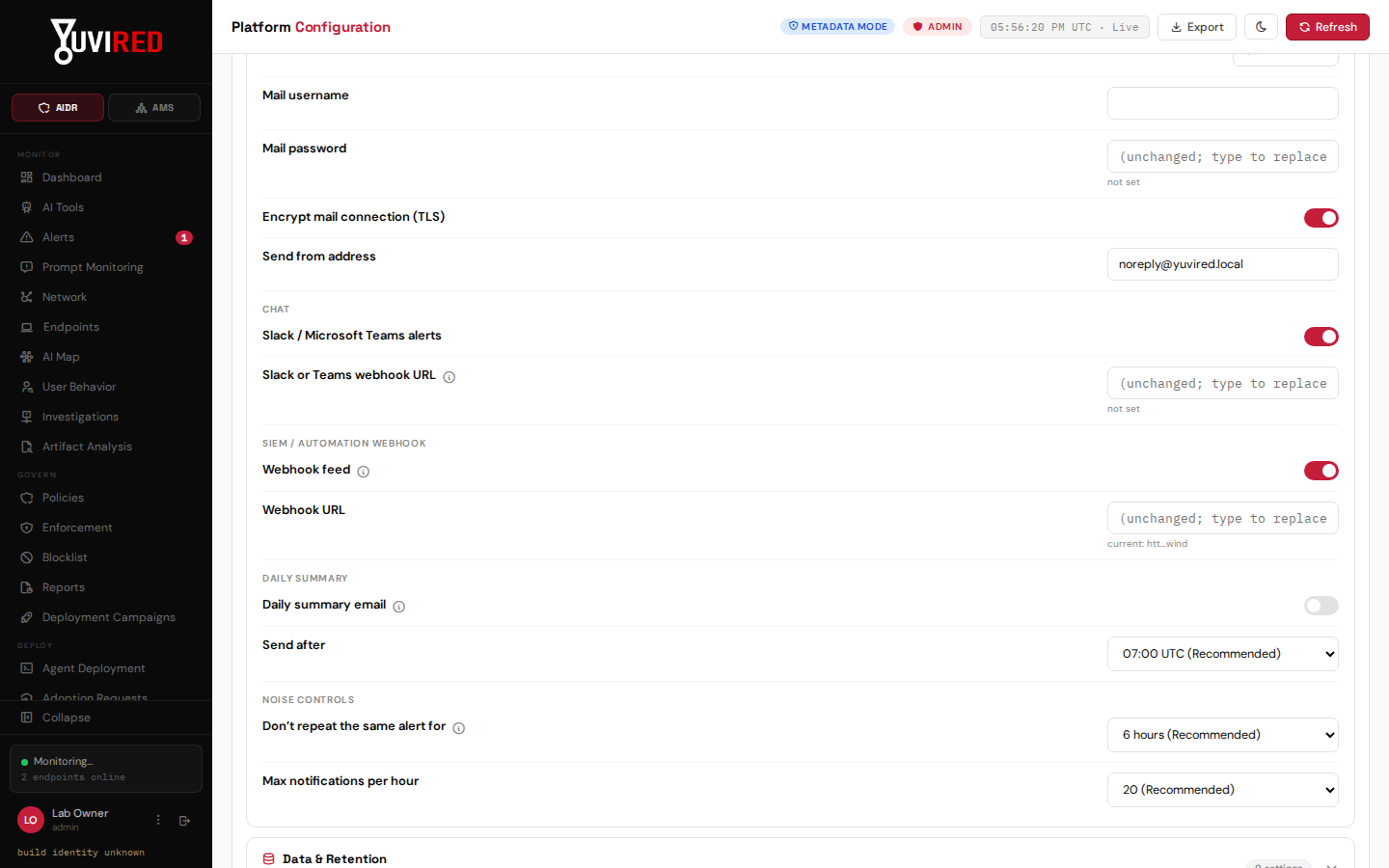
The Notifications section of Configuration. Email, chat and the webhook feed are set up here; the webhook address shown is a made-up lab example.
3. Single sign-on (OIDC), if you want it
OIDC (OpenID Connect) lets people sign in to the console through your organization's identity provider (Microsoft Entra ID, Google Workspace, Okta and similar). It is off until you turn it on. Local accounts keep working.
Prerequisites. Administrator. An application registered with your identity provider that gives you a client id and client secret. The provider's redirect (callback) address set to your YuviRed console address. YuviRed's own public URL (https) that people use to reach the console.
Settings. Configuration, Integrations, "Single sign-on (OIDC)": Single Sign-On (switch), Login button label (for example "Sign in with Northwind"), Identity provider URL, Client ID, Client secret (stored encrypted), This appliance's public URL (required). It stays inactive until the provider URL, client details and public URL are all set. Advanced: **Auto-create accounts on first SSO sign-in** (new people get a read-only account; has no effect until **Approved email domains for auto-created accounts** is set), Extra trusted identity-provider hosts, **Requested sign-in strength (OIDC acr_values)** and Require provider MFA for roles that require MFA.
MFA and SSO. People who sign in through SSO do not go through YuviRed's own multifactor stage: your identity provider is the authority. Turning off "Require provider MFA for roles that require MFA" silently exempts SSO users from any MFA requirement you set on YuviRed roles. Leave it on.
Steps.
- Register the application with your provider; note the client id and secret.
- In Integrations, fill in the fields above and turn on Single Sign-On. Save.
- Sign out. The sign-in box now has Sign in with SSO (or your label) under an "or" divider.
- Sign in with a test person. You should return to YuviRed signed in.
How to confirm. The audit log records auth.sso_login_success (and, for a new person,
auth.sso_user_provisioned).
Messages a person may see and what they mean. "No account exists for your SSO identity" (automatic
creation is off and no local account matches: create or link one); "Your email domain is not approved for
automatic access"; "Your identity provider email address is not verified" (the provider did not say the email
is verified); "This account is already linked to a different SSO identity"; "An administrator must link this
privileged account to SSO before you can sign in this way" (an Administrator account needs linking first);
"Your role requires multi-factor authentication. Your identity provider did not report an MFA method";
"This account is deactivated"; "SSO sign-in expired or was already used, try again"; and generic provider
errors, for which you should retry once and then read the audit log for auth.sso_login_failed.
Limits. SSO has been exercised against test identity providers; this guide has no record of a live sign-in test against a named provider on Lite. Test with your own provider before relying on it, and keep one local Administrator account for emergencies.
4. The audit history
4.1 What is logged
Every sensitive action is written to the audit log with who did it, when, the address they came from, what it acted on, and a detail record. Examples (the action names you will see in exports):
| Area | Actions |
|---|---|
| Sign-in | auth.login_success, auth.login_failed, auth.login_locked_out, auth.logout, auth.change_password, auth.mfa_challenge, auth.sso_login_success, auth.sso_login_failed |
| Settings | config.update (with before and after values), config.update_rejected |
| Alerts and tools | alert.status_update, alert.send, alert.expected_behavior, classification.*, ai_tool_catalog.*, blocklist.add, blocklist.remove |
| Enforcement | response action requests, approvals, rollbacks |
| Prompt Protection | gateway.prompt_blocked, gateway.prompt_warned_allowed, gateway.prompt_guard_unavailable, policy revisions |
| Raw content | dlp.content_event_viewed, dlp.raw_sample_viewed, aidr.events_exported |
| AMS | ams.agent.stop_requested, ams.agent.hold, ams.agent.message_sent, ams.approval.decided, ams.control_policy.update, ams.connector.test_requested, finding changes |
| Computers | agent.enrolled, endpoint.delete, endpoint.decommission, credential_rotation.* |
| License and legal | license.activate, legal.accept |
| Reports | generating, downloading, cancelling and deleting a report (report number, formats and sizes only) |
| The audit log itself | audit.export (pulling the audit trail is on the audit trail) and audit.retention_purge |
4.2 Where to see it
There is no Audit page in the console in this release. You can reach audit records in these ways:
- In context. Each AMS agent has an Audit history fold-out in its workspace (needs the audit read permission). The Reports area includes an Administration and accountability section (Auditor's Report) covering setting and policy changes and the account list.
- By export. The export exists **only as a web interface (API) route; the console has no button for
it.** An account with the
audit.readpermission (Administrators and View Only accounts have it; Security Analysts do not) can callGET https://<server>:8443/api/v1/audit/export?format=csv(orformat=json, orformat=cef) with theAuthorization: Bearer <token>header of a signed-in session. The three formats are CSV (spreadsheets), JSON (everything, including the detail record) and CEF (Common Event Format, the form most security information and event management systems read). Optional query parametersactor_id,actionandtarget_typefilter it; an export holds at most 50,000 rows, and each export is itself recorded asaudit.export. Typing the address into a browser is not enough, because the console signs in with a bearer token rather than a cookie; this is a task for a technical administrator with a tool such as curl or PowerShell. How to obtain a session token is not described in this guide. - Support. Contact support@yuvired.com if you need an export and cannot make the call yourself.
4.3 How long it is kept
The audit log is kept until purged. The setting Audit log under Configuration, **Data &
Retention** defaults to 0, meaning keep forever. Setting a number of days permanently deletes older
records. Uninstalling YuviRed keeps %ProgramData%\YuviRed (including the database) unless the purge
option is chosen.
4.4 Limits
- Records are in the same database as everything else. There is no tamper-proof chain: an administrator with database access could alter them. Export regularly to an append-only location if your auditors need that.
- Audit entries for prompt events say that someone viewed content, never what it said.
5. Integrations that are off by default
| Integration | Default | What turning it on does |
|---|---|---|
| Email, Slack or Teams, Webhook | Inert until a server or URL is set | Sends alert details (host name, user name, IP address, tool) to those destinations (section 2). |
| Daily summary email | Off | Sends one daily summary of medium and low findings. |
| Single Sign-On | Off | Sends sign-in requests to your identity provider (section 3). |
| Blocklist Feed URL | No token | Lets your firewall fetch the AI-destination list with a token (AIDR chapter). |
| Artifact Analysis | Off | Lets analysts have uploaded files examined by external providers (MetaDefender Cloud, Hive). With the policy on Upload disabled nothing leaves YuviRed, not even a hash; Hash only may send file hashes; the upload policies may send the files. The console states what each policy permits before it is saved. |
| Raw prompt capture | Off | Stores prompt text encrypted for a short time (Sensitive Data chapter). |
| Connectors (AMS) | All off | Edits other tools' settings to add YuviRed's hook (AMS chapter). |
| Remote Browser Extension Wiring | Off, and inert on Lite | On a Lite server the switch has no effect in this release: the server does not serve the signed extension, so every agent is told the wiring is disabled whatever the switch says. Nothing installs the extension automatically; see the Sensitive Data chapter, section 8, for the route that works today. |
| Daily license check-in | On after activation | Sends six facts: format, installation id, version, serial, computer count and AI agent count. No telemetry, no names. |
YuviRed has no connection to a SIEM, ticketing tool or directory beyond the webhook, the export files and the single sign-on described here. The product does not send telemetry to YuviRed.