

Administrator guide
Agent Monitoring System (AMS)
AMS (Agent Monitoring System) is the part of YuviRed that finds the AI agents running on your Windows computers, shows what is known about each one, applies your rules to them, and lets you step in: send a message, approve or deny one action, pause, hold or stop. An "AI agent" here is a program that acts on its own on a person's behalf, for example Claude Code writing and running commands. It is not a person and not a chat window in a browser (browser chat is covered by AIDR and Prompt Protection).
Everything below describes YuviRed Lite 1.0. Where a control has limits, the limits are in the same place. The example company is "Northwind Dental"; names, computers and numbers are made up.
1. Words used in the console
- AI agent: one kind of AI agent on one computer, for example "Claude Code on NW-DEV-01".
- Instance: one running copy of an agent (a process tree). Restarting an agent starts a new instance. YuviRed tells instances apart by process ID plus start time, so a reused process ID is never mistaken for the old one.
- Session: one conversation or task inside an agent. Sessions are visible only where a connector is turned on for that agent's tool.
- Collector (also "sensor"): YuviRed's own program on each computer. It is not an AI agent and AMS never stops it.
- Connector: a small YuviRed hook that runs inside an agent tool and asks the collector before each tool call. It is what makes messages, approvals, tool rules and task cancel possible.
- Intervention: a deliberate administrator action: message, approve or deny, cancel task, pause, hold or stop.
- Monitor only / Enforce: the policy mode. Section 6.
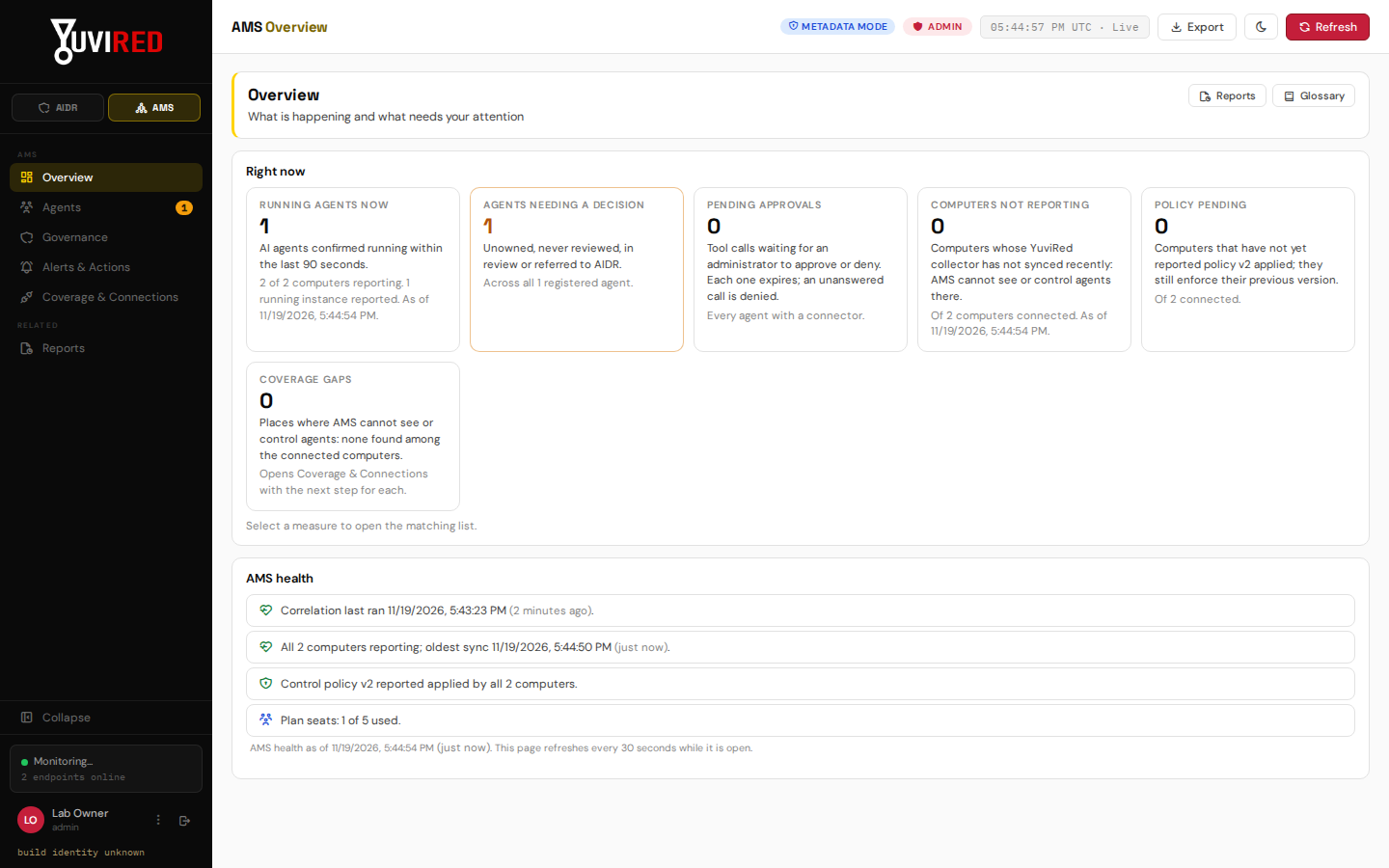
The AMS Overview. The tiles count running agents and the items that need a decision.
2. What is discovered, and how
2.1 Which AI agent tools
The catalog recognizes these by name (display names as the console shows them): Claude Code, Claude Desktop, Cursor, Windsurf, VS Code (AI agent), OpenAI Codex CLI, Gemini CLI, Aider, Open Interpreter, Goose, Continue CLI, local model hosts (Ollama, LM Studio, llama.cpp, Jan, GPT4All), MCP servers and MCP configurations (MCP is the Model Context Protocol that lets agents use tools), the AI browsers Perplexity Comet and ChatGPT Atlas, and automated browsers (browser automation). Anything else that behaves like an AI client appears as Unrecognized AI client.
2.2 How: three detection methods
Every agent shows its detection method:
- Catalog: a known tool recognized by its executable, install path or command line. A program is
never matched on part of its name alone, so
claudette.exeis not Claude Code. - Behavior: an unknown program (not a browser, not YuviRed) that connects to an AI provider's API, to a local model port (11434 or 1234), or to a company AI gateway you list in Governance. It is shown as "Unrecognized AI client" with its evidence. It is a candidate for review, not proof of a rogue agent.
- Connector: an agent that registered itself through the YuviRed connector kit for custom agents (the SDK, software development kit).
2.3 Process signals
The collector checks running programs every 2 seconds and network connections every half second, and sends redacted command lines (secrets removed), the Windows account that owns the process, a file fingerprint (SHA-256) of the program, the parent and child programs, and results of stop and hold actions. A new or stopped agent reaches the console within a few seconds.
2.4 Configuration signals
About once a minute, at each check-in, the agent also looks for AI agent settings files in every user
profile on the computer. It lists folder names two levels deep (at most 500 folders per profile; links and
junctions are skipped) and checks the fixed locations of the tools it knows (Claude Desktop, Claude Code,
VS Code, Cline, Cursor, Windsurf, Codex, Gemini CLI and Continue). It opens only files named
.mcp.json, mcp.json, claude_desktop_config.json, .claude.json or config.toml, plus those known
settings files. From them it sends: the file's path, MCP server names, the transport, commands with
secrets removed, the names (never the values) of environment variables and top-level settings, the
model or provider, and a SHA-256 of the file. Of a credentials file it sends only its path, that it
exists, and a fingerprint of its name, size and modification time, never its contents.
A computer that has a settings file but no running program shows the agent as "configured", never "active". A running program is judged on the time the server received the evidence, not the computer's own clock.
2.5 What AMS cannot see
Also listed under Coverage & Connections:
- Agents on computers without the YuviRed collector.
- Agents inside WSL (Windows Subsystem for Linux), containers or virtual machines, unless a collector runs inside them (section 10).
- Work an agent hands off to a provider's cloud after the local program finishes.
- A renamed program with no known marker that never talks to an AI endpoint the collector recognizes.
3. The five AMS areas
Switch the sidebar to AMS. Each area has a one-line purpose at the top and a Glossary button.
| Area | Purpose |
|---|---|
| Overview | What is happening and what needs attention. Six measures: Running agents now, Agents needing a decision, Pending approvals, Computers not reporting, Policy pending, Coverage gaps. Click a measure to open the matching list. A value shows "Not known" when monitoring is not working, never a reassuring zero. Below: AMS health. |
| Agents (heading "AI Workforce") | Find an agent and open its workspace. Filter by state, computer, runtime, user, control status, severity and Runs in. Select several agents to stop them together. |
| Governance | The rules agents must follow and whether each computer has applied them. |
| Alerts & Actions | Findings, the approvals inbox, and every intervention with its verified result. |
| Coverage & Connections | What AMS can see and control on each computer, which connectors are on, the connection test, boundaries, and known limits. |
"Running agents now" means confirmed running within the last 90 seconds.
Reports stay in the Reports area (Executive Summary and Auditor's Report). AMS data, interventions, approvals and messages appear in both.
3.1 The agent workspace
Open an agent from the roster. The header names the computer, runtime, user, session and instance, with first and last seen. A computer that stopped reporting shows "computer not reporting since ..." and never "Stopped" or "Healthy". Sections: Overview (what it is, where it runs, which rule applies and what is still unknown), Activity, Chat, Controls (each control shows its own readiness: available, or unavailable with the reason), History (commands, events, messages, approvals and audit entries).
3.2 The record kept for each agent
Owner, human manager, department, business purpose, assigned task and compliance status are declared by
your team. The computer reports what it observes beside them. The approval state is one of
Unreviewed, Under review, Approved, Restricted, Unauthorized, Referred to AIDR. "Needs attention" means
unowned, unreviewed, under review or referred. Ownership can be transferred but not cleared.
Changing a record needs the ams.manage permission.
4. Seats: 5 AI agents in Lite
Lite includes 5 AMS agents (Pro 50). A seat is used by an AI agent that has execution evidence: a running process or network activity. A settings file alone does not take a seat ("Registered (configuration only, uses no seat)"). Seats go to the agents with the oldest execution evidence first. Seated agents never lose their seat automatically.
What happens when all 5 seats are used. The audit of the pre-release build found that new agents were invisible and their evidence discarded. **The release behavior is different, and this is what you will see in 1.0:**
- A sixth agent is kept and shown with all its evidence, labeled **"Detected, not registered (seat limit reached)"**, and the Agents header counts it ("N more detected, not registered (plan limit 5)").
- It is not registered for governance: it cannot be approved, owned or referred to AIDR while it has no seat. The console explains this when you try.
- Restricting it never needs a seat. You can still mark it Restricted, Unauthorized or Under review.
- A running instance with no registry record yet (still linking, or over the limit) appears under "Running, not yet in the registry", and you can still Stop, Pause or Resume it there.
- It takes a seat automatically on the next correlation cycle (about 2 minutes) after a seat frees.
To free a seat, archive an agent you no longer need (Agents, the agent's controls). Archiving hides it and frees its seat; if it runs again it returns as the same record with its earlier decision and takes a seat again if one is free. Pro raises the limit to 50 through a new license.
The final-installer checks of this behavior were not run in the lab loop for the release build (the audit recorded them as outstanding). The text above comes from the release code; confirm it on your own installation by using the Detected, not registered label as your check.
5. Connectors for supported tools
5.1 Which tools
| Tool | Where YuviRed writes its hook |
|---|---|
| Claude Code | C:\Program Files\ClaudeCode\managed-settings.json |
| Codex CLI | %ProgramData%\OpenAI\Codex\requirements.toml (a delimited block) |
| Gemini CLI | C:\ProgramData\gemini-cli\settings.json |
| Cursor | C:\ProgramData\Cursor\hooks.json |
| GitHub Copilot CLI | C:\ProgramData\GitHub\Copilot\policy.d\yuvired.json (its own file) |
| Windsurf or Devin | C:\ProgramData\Devin\hooks.json |
Every connector is off by default and is turned on per tool under Governance, Connectors.
5.2 What turning one on does (read before you do it)
This changes another program's settings on every enrolled computer. When you set a connector to On and save, the collector on each computer adds YuviRed's hook to that tool's official managed settings. It keeps one copy of the original file and up to five rolling backups, adds or replaces only YuviRed's own entries, and on turning the connector Off removes only those entries. It refuses to touch a file it cannot parse, a path with a link in it, or a file not owned by SYSTEM, Administrators or TrustedInstaller. A JSON settings file is rewritten (content kept, formatting not). From then on, that tool asks YuviRed before each tool call.
5.3 What the hook does
The hook is one small script. Before each tool call it reads the tool's event, asks the collector on the same computer (a local address, 127.0.0.1 port 47811, never the internet), and prints the tool's own documented answer: no objection, deny with a reason, or wait for an approval. It never reads the agent's transcript or files. If the collector cannot be reached, it follows a small read-only copy of your policy (section 6.3).
5.4 What is sent and stored
- Tool-call previews. For a tool call that needs approval, was denied, or raised an alert, the hook sends a redacted preview of at most 2 KiB of the tool input, plus a fingerprint of the full input. Calls that a rule simply allows are only counted per session, not recorded.
- Replies. An agent's reply to a message you sent is kept, redacted, at most 8 KiB. A reply is sent only when an operator message is waiting for one. YuviRed does not read the agent's other conversation.
- Storage. AMS connector previews are opt-in (a connector is off until you turn it on) and are stored unencrypted in the YuviRed database on your server. Treat database access accordingly. Control events are kept 180 days, messages 30 days (section 12).
- The endpoint agent itself never reads prompts or documents. Content capture in the browser is a separate, off-by-default feature (Sensitive Data chapter).
5.5 What was verified
The AMS lab audit (coverage matrix, rows P01-C, P03, P04, P06-C and P22) records:
- Claude Code with the connector, in a live session: deny (13 of 13), approval bound to one call (12 of 12), task cancel (13 of 13) and an operator message that reached the model with its reply visible in the console (12 of 12).
- Agents built with the YuviRed SDK: message, approval, cancel and pause verified.
- Codex CLI and Gemini CLI: detected, monitored and governed; the hook passes the connection test; a live session through the hook was not tested (no provider login in the lab).
- Cursor: detected, monitored, governed and stopped in the lab; a live session through its hook (approvals, deny) is not recorded.
- GitHub Copilot CLI and Windsurf: the hook is written by the same code, but the audit has no row for them. Treat their behavior as unverified.
For every tool except Claude Code and the SDK, treat the connector as "installable and testable with Run connection test, not proven in a live session".
5.6 Procedure: turn on the Claude Code connector and test it
Purpose. Let YuviRed ask before Claude Code tool calls and allow messages and approvals.
Prerequisites. ams.policy permission (Administrator). Claude Code installed on at least one computer
that reports to AMS. A person who agrees that Claude Code settings on that computer will be edited
(section 5.2).
Steps.
- Open AMS, then Governance. Find Connectors.
- Set Claude Code to On.
- Press Preview the change. Read which computers and agents are affected and any warnings.
- Press Save policy. A dialog asks why; type a reason (at least 8 characters) and confirm.
- Open Coverage & Connections. For the computer, find the Claude Code connector row. Wait for it to read Installed. Press Run connection test and read each step.
- Start a Claude Code session on the computer. The row should change to "installed with a live session seen".
What you should see. A policy version number increases; each computer shows "v# applied" in Governance once it has pulled the new version (until then it keeps its previous one).
How to confirm. The connection test shows every step passing, including a hook run against the collector with a test event. A heartbeat alone is never taken as proof.
How to undo. Set Claude Code to Off and save. The collector removes only YuviRed's entries.
Common problems. An error state with a reason (for example the settings file does not parse, or the folder has a link in it): fix the file or folder, then wait. A failed write backs off 60 seconds, doubling to an hour.
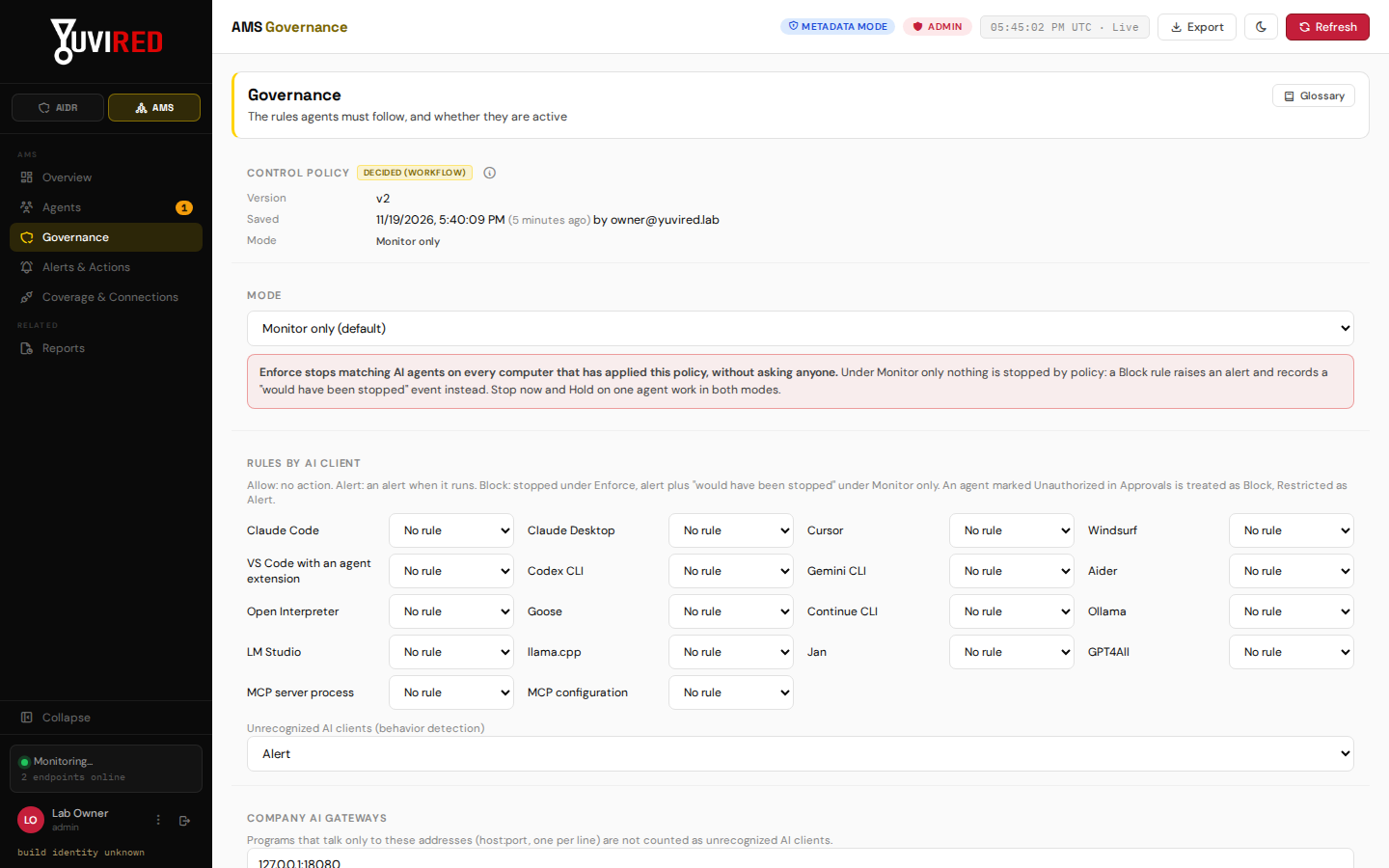
The AMS Governance page. The mode and a rule for each AI agent runtime are set here.
6. Policy: Monitor only versus Enforce
6.1 The mode
| Mode | What happens |
|---|---|
| Monitor only (the default on a new installation) | AMS records and alerts. Nothing is stopped by policy. A rule that would block shows "would have been stopped". An Ask rule is recorded as "would ask" and the call proceeds. |
| Enforce | The rules apply. A matching Block rule ends the AI agent's process tree (children first) on every computer that has applied the policy, without asking anyone. An Ask rule makes a tool call wait for approval. |
Stop before you switch to Enforce. Enforce can end programs that people are using for work. A person can lose unsaved work in an agent session. Start in Monitor only, read the "would have been stopped" events for a week, fix your rules, preview the change, and only then switch. Your own manual actions (stop, hold, pause, message) work in both modes and never change the policy or its mode.
6.2 The rules
Standard view
- Mode: Monitor only (default) or Enforce.
- Rules by AI client: for each known tool, Allow (no action), Alert (an alert when it runs) or Block (stopped under Enforce; alert plus "would have been stopped" under Monitor only). An agent marked Unauthorized in approvals is treated as Block; Restricted as Alert.
- Unrecognized AI clients (behavior detection): what to do with unknown programs that behave like AI clients. Default Alert.
- Company AI gateways: addresses (host:port, one per line) whose traffic does not count as an unrecognized AI client.
- Connectors: Section 5.
Advanced
- Scoped rules for the whole organization, one runtime, one computer, one user or one agent. The most specific matching rule wins; at the same level Block beats Ask beats Alert beats Allow. Tool rules (Allow, Ask, Deny, optionally only when the tool input contains given text) need a connector. Limits: maximum run time, maximum running copies per computer, tool calls per minute.
- Where it runs: limit a scoped rule to agents running on the computer itself, in a WSL distribution, a container, a virtual machine or an automated browser. Ticking none means anywhere.
- Exceptions: allow something a rule would stop, for a scope, with a reason and an expiry. Expired exceptions stop applying by themselves.
- An agent marked Unauthorized always wins over an allow rule or an exception.
- Approval wait: 10 to 90 seconds, 90 by default. The console refuses a value outside that range.
Every save runs a preview first: which computers, agents and running instances are affected, conflicts between rules, and warnings (for example an Ask rule for a tool with no connector, which cannot stop the action before it happens). Each save is a new version. A computer that cannot read a new policy keeps its last valid one.
6.3 When YuviRed cannot check a call
Under Enforce, a tool call from a tool with a connector is checked by the collector. When that check cannot happen:
- Hook tools (collector unreachable): a cached Deny or Ask rule that matches refuses the call. Any other call runs, unless the rule "A tool call YuviRed cannot check" is set to Block (default: Let it run).
- SDK agents: the call runs and the SDK logs a warning, unless the developer set
on_unreachable="deny". - A tool that ends its hook while an approval is still pending runs the call without the approval. YuviRed sets each tool's hook timeout to the approval wait plus 30 seconds, except Windsurf, which documents no timeout setting.
- Under Monitor only nothing is refused, except an SDK call whose developer chose deny.
6.4 Procedure: preview and switch to Enforce
Purpose. Move from watching to stopping, on purpose.
Prerequisites. ams.policy. You have run in Monitor only long enough to trust your rules, and you have
told the people who use AI agents.
Steps.
- AMS, Governance. Check each rule under Rules by AI client. For tools you allow, set Allow. For tools you forbid, set Block.
- Change Mode to Enforce.
- Press Preview the change. Read the affected computers, running instances, conflicts and warnings.
- Press Save policy. The dialog repeats: "Mode is Enforce: every computer that applies this version stops agents matching a Block rule, without asking." Type your reason and confirm.
What you should see. The policy version increases. "Applied on each computer" shows "Pending" for each computer until it reports the version applied, then "v# applied".
How to confirm. Start a blocked tool on a test computer. Within seconds the tool should end. Under Alerts & Actions, Interventions shows the result "Stopped (verified by the computer)".
How to undo. Set Mode back to Monitor only and save.
Common problems. "Someone else saved meanwhile": the save is checked against the version you loaded; nothing was overwritten. Reload and redo it. A computer that is offline keeps enforcing its old version.
7. Interventions
| Control | What happens | Needs |
|---|---|---|
| Message agent | Sends a message (section 8). | Connector, ams.message |
| Approve / Deny | Decides one waiting tool call. | Connector, ams.approve |
| Cancel task | Cancels the agent's current task through its connector. The program keeps running. | Connector, ams.stop |
| Pause / Resume | Suspends the agent's whole process tree, then resumes it. Resume is refused while a rule blocks or holds the agent. | Collector, ams.stop |
| Hold / Release | Stops the agent and keeps stopping it if it restarts, until you release it. Needs a known program identity. | Collector, ams.stop |
| Stop now | Ends the agent's process tree (children first) and checks they are gone. | Collector, ams.stop |
| Stop selected | Stops the agents you selected; you confirm the exact count; one result per agent. | Collector, ams.bulk |
| Stop container, Stop WSL distro, Close automated browser | Takes down a whole boundary (section 10). | Collector that can reach it |
Before you press Stop now, Hold, Pause or Stop selected. These end or freeze programs on a person's computer. Stop ends the agent and everything it started, which can lose unsaved work. Pause freezes the programs until you press Resume. Hold is stronger: it keeps ending the agent every time it starts, until you release it. None of them can undo work the agent already handed to a provider's cloud. YuviRed never stops its own collector, YuviRed's server or Windows system processes.
Every intervention asks for a reason, is audited, and shows Requested until the computer reports back ("the computer has not confirmed yet"). Only a computer-verified result reads as done. For Stop the answers are: "Stopped (verified by the computer)", "Partly stopped" (with what survived), "Not found", "Identity mismatch" (the process was replaced; nothing was touched), "Refused (protected)", "Expired" or "Failed". A command not delivered within 5 minutes expires and is never carried out later.
The confirmation for Stop does not list the processes it will end; the stop ends the whole descendant tree. The Hold command appears in the console at the next 30-second refresh.
7.1 Procedure: stop one agent
Purpose. End an agent that should not be running.
Prerequisites. ams.stop. The computer is reporting.
Steps.
- AMS, Agents. Find the agent (filter by computer or state).
- Open it, go to Controls, and read the readiness of Stop now. If it is unavailable, the reason is written there (computer not reporting, missing permission, and so on).
- Press Stop now. Read the confirmation, type a reason, confirm.
What you should see. The command reads Requested, then within seconds "Stopped (verified by the computer)". Under Alerts & Actions the intervention appears with the same result.
How to confirm. The agent's state changes and "Running agents now" on the Overview drops by one.
Common problems. "Identity mismatch": the program was replaced after you looked, so nothing was touched; reopen and try again. "Partly stopped": a child survived; the result names it. "Expired": the computer did not pick it up within 5 minutes; check the computer is reporting.
8. Messages and the Chat fallback
The Chat section sends a message to the selected agent session through its connector. Before you send, the console names the recipient session. Every message shows its delivery state: queued, sent, at the computer, accepted by the agent's inbox (not confirmed), handed to the agent, then the agent's reply, or failed, expired or unknown. A message is never resent automatically.
Which agents can receive a message. Message is offered only for runtimes whose hook actually delivers it: Claude Code and agents built with the YuviRed SDK. For Codex CLI, Gemini CLI, Cursor, GitHub Copilot and Windsurf, the hook does not deliver messages, so Message is shown as unavailable with that reason. A message is information to the agent: it grants no permission, and typing "stop" in chat stops nothing. Use **Stop now**.
The Chat fallback note. If an agent has no connector session, or the workspace cannot load, Chat shows "Messaging: Not available" with the reason, and a summary derived from telemetry marked "not agent speech". This note is a statement about what YuviRed can do for that agent right now, not a fault.
9. Approvals
When an agent with a connector attempts a tool call that an Ask rule covers (under Enforce), the call waits and an approval appears in Alerts & Actions and in the agent's Controls: the exact tool, a redacted preview of its input, the rule, and when it expires.
Procedure. Open Alerts & Actions, find the pending approval (the amber badge on the menu counts
them), read the preview, and press Approve or Deny, with a reason. Needs ams.approve.
- An approval is valid for that one call. The same call later needs a new approval; a changed input needs a new approval.
- If nobody decides before it expires, the call is denied.
- The decision reaches the computer on its next sync.
10. Boundaries: WSL, virtual machines, containers and automated browsers
An agent does not always run directly on the computer. It can run in a WSL distribution, a container, a virtual machine, or be driven by an automated browser (a script controlling Chrome or Edge).
What Lite can see.
- The Windows computer with its collector, and every agent that runs on it directly.
- That a WSL distribution, container, virtual machine or automated browser exists and is running on that computer. Coverage & Connections, Boundaries lists each one with its name, runtime, whether it is running, whether a collector is inside (present, absent or unknown), how many agents run in it, and when it was last seen. The agent list shows "Runs in WSL distro Ubuntu", "Runs in container web-1", "Runs in virtual machine ..." or "Runs in automated browser chrome". A Runs in filter narrows the list.
- A Windows virtual machine that you enroll as its own computer (Add Computer). It then links to its host by the machine's hardware identity and is seen as a full computer, shown as "Inside VM X on computer Y".
- An automated browser is attributed to the agent that drives it, seen from outside.
What Lite cannot see.
- Agents inside a WSL distribution or a container. Lite offers no Linux collector. The console says so on a red row with the next step: the Windows computer is monitored by its own collector, agents inside the distribution or container are not seen, and the whole distribution or container can be stopped from the host.
- Agents inside a virtual machine that is not Windows. Lite offers no installer for other guest systems.
- Work a local agent hands off to a provider's cloud.
A boundary with no collector is a coverage gap. These rows are never hidden. A computer that cannot read the Windows event feed is shown in Detection feed health: "Reduced visibility" means short-lived programs or connections can be missed.
Stopping a boundary is a separate control. It is named for what it does: Stop container, Stop WSL distro, Close automated browser. It is never what Stop on an agent does.
Before you stop a boundary. Stopping a boundary takes down everything inside it, including programs that are not AI agents, and can lose work. The confirmation names the boundary, the computer, how many agents are inside and that other programs there also stop, and asks for a reason. Stopping a virtual machine is never offered. A stopped boundary is not kept stopped: it can be started again.
If a boundary button is grey, it says why: the collector cannot reach into it, the computer is not
reporting, the kind is not supported, you lack ams.stop (or ams.bulk for several at once), or it is not
running. After you confirm, each boundary reads Requested or Refused with a reason; nothing is shown
as stopped until the computer reports back.
11. Alerts and findings in AMS
Alerts & Actions lists AMS findings with their evidence, the rule that caused them and links to the agent and its commands. You can acknowledge or assign a finding, and resolve it as *verified outcome* (only possible when a computer-confirmed result exists), no action needed or false positive, each with a reason. AMS can also send a finding to AIDR as an investigation (Referred to AIDR). Two optional detections ship off or report-only:
- Behavioral Detection (Configuration, AI & Agent Monitoring): learns an agent's normal behavior and flags large departures. Report only in this version: it blocks nothing. A "Detection mode" choice "Active response" is shown as not available.
- Rogue Agent Activity Detection: scores governed agents against their approved boundary and raises a Critical alert when one steps outside it. Ships disabled. Observed only: it blocks nothing. It evaluates agents that have been through a governance decision, so a brand-new unreviewed agent is not evaluated until someone reviews it.
12. How long AMS keeps records
Set under Configuration (the retention settings). 0 keeps forever. AMS applies the first three itself about once an hour, whether or not Automatic Data Cleanup is on.
| Records | Kept for |
|---|---|
| Control events from computers; decided or expired approvals (a pending approval is never deleted) | 180 days |
| Messages with AI agents, both directions | 30 days |
| AI agent instances that ended, with their ended connector sessions (running instances are never deleted) | 90 days after they ended |
| Agent lifecycle changes and MCP server set changes (governance decisions are always kept) | 365 days |
| Risk-score history (each agent's newest score is always kept) | 180 days |
AMS audit entries (who changed what, with before and after values) are part of the audit log, which is kept until purged.
13. Permissions
| Permission | Allows |
|---|---|
ams.read | view everything in AMS |
ams.message | send messages to agents |
ams.approve | approve or deny tool calls |
ams.policy | change rules and connectors, run connection tests |
ams.stop | stop, hold, pause, resume, cancel task, stop a boundary |
ams.bulk | act on several selected agents or boundaries at once |
ams.manage | edit agent records (owner, purpose, approval state) |
Administrators hold all of them; analysts and View Only accounts hold ams.read. The server checks every
action; a greyed button names the permission it needs.
14. Honest limits
- Windows computers only. Lite has no Linux or macOS collector.
- AMS stops programs and freezes them. It cannot undo what an agent already did, and it cannot stop work an agent handed to a provider's cloud.
- A message reaches only Claude Code and SDK agents. For the other five connector tools the console shows Message as unavailable, and a message that cannot be delivered is marked Failed or Expired and never resent.
- Live approvals and messages were proven in the lab for Claude Code and the SDK only (section 5.5).
- Agents inside WSL, containers and non-Windows virtual machines are not seen; only the boundary can be stopped.
- The workspace does not refresh by itself; press Refresh to see a new state.
- The Overview coverage-gap count does not include boundary gaps until you have opened Coverage & Connections once.
- A seat limit leaves extra agents unregistered (section 4); restricting them still works.
- "Healthy" in AMS means recent evidence, not "safe".