

Administrator guide
The YuviRed AI Prompt Monitor browser extension
For the person who administers a YuviRed server. Describes extension 0.5.5 with agent 1.8.2. Chrome and Edge (Chromium 121 or newer) on Windows. Firefox is not supported.
What it does and does not do
On 15 AI sites the extension checks, inside the browser and before anything is sent, what a person types, pastes, uploads or receives, for sensitive information such as passwords, keys, personal data and card numbers. It then applies your policy: observe silently, warn, or block. The sites are chatgpt.com, chat.openai.com, claude.ai, gemini.google.com, copilot.microsoft.com, perplexity.ai, m365.cloud.microsoft, copilot.cloud.microsoft, chat.deepseek.com, grok.com, chat.mistral.ai, meta.ai, poe.com, aistudio.google.com and huggingface.co/chat. (The extension's manifest lists 19 address patterns because some sites have a www form and HuggingChat has three.) Microsoft 365 Copilot, DeepSeek, Grok, Le Chat, Meta AI, Poe, Google AI Studio and HuggingChat have not been checked on the live sites; Warn and Block are not proven there until you test them.
It reports to your server only: the kind of finding, a masked fragment (at most the first 4 and last 4 characters; for a password only the beginning), the action taken, the site, the browser, and attachment counts. By default no prompt or reply text is kept. It does not read other websites, history, cookies or the clipboard, and it sends nothing to YuviRed LLC. It cannot see desktop applications or other browsers, and it is a control for people sending something by mistake, not against the computer's administrator.
How it reaches browsers in this release
Nothing installs the extension into Chrome or Edge automatically in YuviRed 1.0. The Add Computer installer
puts the extension's files in C:\Program Files\YuviRed Agent\extension and prints the steps below; a person with
local administrator rights then loads it into each browser profile by hand. That is the route today, and the only
one this guide can tell you works.
Two policy-based routes exist in the product but neither is active on a YuviRed Lite server:
- Store route (planned). When the Chrome Web Store and Microsoft Edge Add-ons listings are approved, their ids
ship in a later build (the file
setup\store-extension-ids.jsonbeside the agent; both ids are empty in 1.0). From then on the agent installer itself writes the Chrome and Edge force-install policy, the native messaging allowlist, and the extension's server address and capture level ("follow the console setting"). It never writes consent. Until the ids exist the installer writes no browser policy at all and prints "Browser extension: not in the Chrome and Edge stores yet. Add it by hand as the install guide shows." A store-hosted force-install works on any Windows computer that applies the policy, joined to a domain or not. - Self-hosted route (the console setting). Configuration, System, Remote Browser Extension Wiring (off by default) lets Windows agents write a force-install policy for a packed extension that the server signs and serves itself. It needs a signing key on the server. **The YuviRed Lite server removes that key from its environment at start**, so on Lite the setting is present but inactive: every agent is told "disabled" whether the switch is on or off. Where it does apply (other editions), Chrome force-installs an extension from outside its store only on a computer joined to an Active Directory domain, joined to Microsoft Entra ID or enrolled in Chrome Enterprise Core, and Edge only on a domain-joined computer. Note that this route, where active, also sets the extension's consent by policy (see "Consent").
What the employee sees. Loaded by hand: nothing is added until you or they load it; after loading, the
extension appears in chrome://extensions or edge://extensions with Developer mode on, and the person can
remove it. Force-installed (store route, later): "Installed by your organization" and no Remove button.
Load the extension by hand
Purpose. Put the extension in a browser profile on an added computer. Prerequisites. The agent is installed and the computer is shown Online under Endpoints. A local administrator signs in to the computer (Developer mode and Load unpacked need no special right, but the folder is under Program Files and the steps are the administrator's). Each Windows user and each browser profile needs the extension loaded separately.
- In Chrome open
chrome://extensions, or in Edge openedge://extensions, and turn on the Developer mode toggle on that page. (Without it the Load unpacked button is not shown.) - Choose Load unpacked and select
C:\Program Files\YuviRed Agent\extension. Use that folder, not a copy: a new Add Computer download replaces it, and deleting a copy silently removes the extension. - The extension's options page, titled YuviRed AI Prompt Monitor, opens by itself the first time (it opens whenever the extension is loaded without consent). If it does not, open the extension's Details and choose Extension options.
- On that page leave Backend URL and Deployment token empty: with the agent on the computer the extension finds the server through the agent's native messaging host. Tick **I consent to local inspection of prompts and attachments on the monitored sites above** and choose Save. Nothing is recorded or reported until that is saved.
- Restart the browser. If it offers to turn off Developer mode, keep it on.
What you should see. After Save the status next to the button reads "Saved. Ruleset loaded (n rules)." and the headline under Connection turns to "Connected to YuviRed Lite". Under Endpoint ID a green line reads "Auto-detected from local agent: <id> (used instead of the field above)". The disclosure card reads "Reports go to your organization's YuviRed server at https://<your server>:8443". Common problems. See Troubleshooting. Rollback. Remove it in the browser's extensions page.
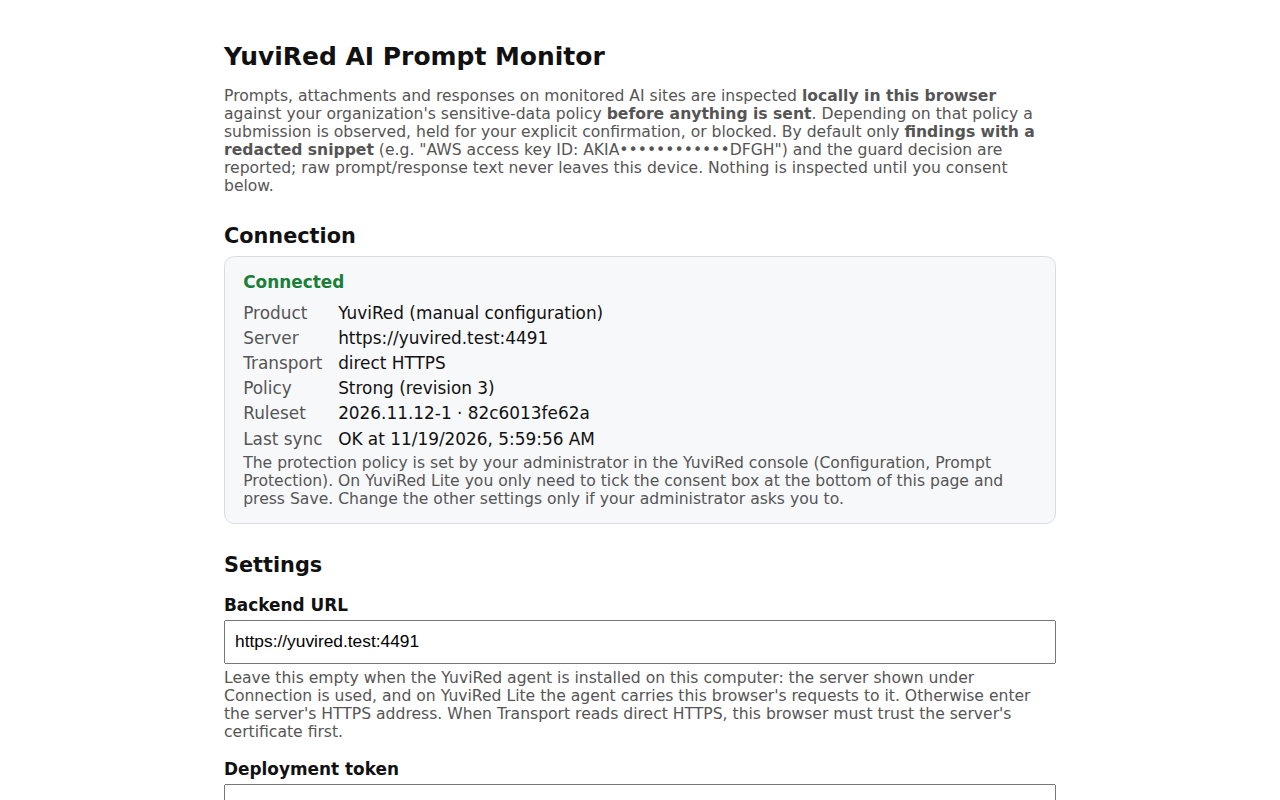
The extension options page after Save. Notice the Connected heading and the policy line. Captured in the YuviRed lab; your screen shows your own server's address.
Consent
Nothing is recorded or reported until consent is given. (The page hooks are in place as soon as the extension is loaded, so text passes through the extension's memory on the monitored sites, but nothing is kept or sent.)
- On a browser loaded by hand (every browser in this release) the person ticks the consent box on the options page and saves. They can untick it later. The disclosure card on the same page reads "Policy consent value: not set by policy".
- Consent by policy on managed browsers. The extension accepts an organization-level
consentedvalue from managed browser policy (the extension's managed schema). When it is true, monitoring is active without the checkbox, the options page does not open by itself, the person is not asked and cannot withdraw it; the options page shows "Policy consent value: true (consent given by policy)". **The Add Computer installer never writes this value.** Two things in the product do, neither of them on a Lite server: the console's Remote Browser Extension Wiring route described above, where it is active, and the appliance's own extension installer script. If you set the value yourself in your own browser policy (the3rdparty\extensions\<id>\policykey of Chrome or Edge), do it only after you have told people (the notice, see monitoring-disclosures.md).
What a person can change on the options page, and what they cannot. They can edit Backend URL, Deployment token, Endpoint ID, Monitored sites, Capture level (it can only lower what the console allows), and consent. With the agent on the computer, the endpoint id and the server the agent reports take precedence over the typed values. A site removed from Monitored sites is neither checked nor recorded, and capture level Disabled stops reports while warnings and blocks still run; the console is not told about either. A managed browser policy that sets those fields overrides the page. They cannot change your policy, the ruleset or the policy preset, and they cannot raise capture above what the server allows.
Monitor Only, Warn and Block
The policy is set in Configuration, Prompt Protection by an administrator. Presets: Monitor Only, Light Warnings, Warnings Only, Balanced, Strong (marked "recommended" in the console), Strict, Maximum, and Custom. A new installation starts in Monitor Only. Full tables are in the Prompt Protection guide.
| Action | What the person sees on the page |
|---|---|
| Monitor Only (observe) | Nothing. The finding is recorded and an alert opens. |
| Warn | A dialog "Potentially sensitive information detected" and "Are you sure you want to send this information to {service}?" with Go back and edit (the default) and Send anyway. "Send anyway" is recorded. Escape or closing never sends. |
| Block | A dialog "Prompt blocked: sensitive information detected" with the items to remove and Go back and edit or Close. There is no override. |
| Draft notice | While typing, a small notice with a close (x) button: "Sensitive information detected in your draft: ... Your draft has not been sent." It never sends, and the finding is recorded. |
| Inspection unavailable | "Prompt not sent: inspection unavailable" when your policy holds what could not be checked. |
Each dialog ends with a small line "YuviRed · ref <id>" that matches the event in Prompt Monitoring.
Raw capture
Off by default. When on, the first 20,000 characters of a prompt or reply that matched are stored on your server, encrypted, for 24 hours by default. It needs all of these: in Configuration, Detection & Response, Inspection Depth set to Full content inspection and Keep Original Prompt Samples on (an administrator with the configuration write permission), an HTTPS connection, and no per-endpoint exclusion. Reading a stored sample needs the separate "view raw content" permission, and every view is audited. Tell people first: the notice must say so.
Confirm the extension is connected
- In the browser, open the extension's options. Under Connection read the headline: Connected to YuviRed Lite (green) means the last policy sync worked. "Waiting for the first policy sync", "Not synchronized" or "Not connected. Consent and save to start" mean it is not.
- The rows show Product ("YuviRed Lite (local agent)"), Server, Transport ("local agent (native proxy)" on Lite), Policy (preset name and revision), Ruleset and Last sync.
- In the console open Prompt Monitoring and find the Browser protection card. Each browser row reads Protected, Monitoring only, Stale or Protection unavailable, with the computer, browser, "ext" and the extension version, "policy applied", "policy pending" or "policy stale", and "last check-in". An enrolled computer no browser has reported from shows "No browser reporting yet". "update needed" marks an older extension. Before any browser has reported, the card reads "No browser extension has checked in yet" and its Set up browser protection steps are open. A row appears within a few minutes of consent (the extension reports its status every 5 minutes).
Update, and remove
Update. Make a new Add Computer download and run it on the computer (see endpoints.md). It replaces
the files in C:\Program Files\YuviRed Agent\extension. Then restart the browser, or choose Reload on the extension.
Nothing updates it silently; the console marks a browser "update needed" until it reports the new version.
Remove. Loaded by hand: choose Remove in chrome://extensions or edge://extensions. Removing the agent deletes
the extension folder, so a hand-loaded copy stops working; remove the leftover entry in the browser (the Uninstall
script prints this reminder). Policy-installed (store route, later): delete the force-install entry, then restart
the browser.
Troubleshooting
| Symptom | Cause and fix |
|---|---|
| Not in the browser after the agent install | The installer only puts the files on disk in this release. Load it by hand. |
| Headline "Not connected. Consent and save to start" | Consent not saved. Tick the box and choose Save. |
| Headline "Not synchronized", Last sync "failed: the server rejected the request" or "failed: no credential yet" | The agent is not on this computer, has not enrolled yet, or the computer is no longer enrolled. Check Endpoints. |
| Under Endpoint ID: "Local agent not detected. Using the Endpoint ID entered above." and Transport "direct HTTPS" | The native messaging host is not found. The extension was loaded before the agent, or the agent was removed: reinstall the agent, then Reload the extension. |
| Browser log: "Access to the specified native messaging host is forbidden" | The extension id is not allowed by the host manifest (a copy of the extension with a changed manifest), or a baseline policy sets NativeMessagingBlocklist=* without NativeMessagingAllowlist. Add com.syntinelred.native_host (the host keeps the product's earlier name; it will change in a later release). |
| Policy blocks it | Your own browser policy (for example ExtensionInstallBlocklist=*) blocks it; add its id to ExtensionInstallAllowlist. The id is fixed by the extension's manifest and is the same on every computer. |
| Disclosure card: "No server configured: nothing is reported" and Server "not set" | Leave Backend URL empty on a computer with the agent. Without the agent, enter the server's HTTPS address (the browser must then trust the server's certificate, which a Lite server's self-signed certificate is not by default). |
| Both a hand-loaded copy and a store copy | Remove the hand-loaded copy; both would check every prompt. |
| Row stays "Stale" | The browser is closed, the computer is off, consent was removed or its credential failed. The console cannot tell which. |
Use Copy status for support on the options page for a support message. It holds counts and versions, no prompts.