

Administrator guide
AI Detection and Response (AIDR)
AIDR (AI Detection and Response) is the part of YuviRed that finds AI use on your Windows computers, sorts it into "allowed" and "not allowed", raises alerts when something breaks your rules, and gives you a few narrow ways to respond. This chapter explains what is discovered and how, how the AI Tools catalog classifies it, how alerts are named and deduplicated, how to investigate, which response actions really exist, and which do not.
The example company is "Northwind Dental". All names, addresses and numbers are made up (computers such as NW-FRONTDESK-01, the user a.rivera, the address 192.0.2.10).
1. Monitoring versus enforcement, once and clearly
Read this section first. Everything else depends on it.
- Monitoring means YuviRed sees something and records it. It may raise an alert. Nothing on the computer changes. The person using the computer is not told. Almost everything in AIDR is monitoring.
- Enforcement means YuviRed changes what the computer allows. YuviRed has three, and only three,
enforcement mechanisms in Lite:
- Browser policy actions on the Enforcement page: "Block browser access" to a website and "Disable extension", carried out by the YuviRed program on Windows Chrome and Edge by writing a managed-browser policy. Off until a person asks for one and a different Administrator approves it in the console (section 7.3 explains the one-Administrator case), and reversible. Section 7.
- Prompt Protection in the browser extension: warn or block a prompt before it is sent to a supported AI site. Off until an Administrator chooses a stronger policy than the default Monitor Only. See the Sensitive Data chapter.
- AMS Enforce mode: end an AI agent program when a rule says Block. See the AMS chapter. That is a different area of the console with its own switch.
- Alert-only labels. A tool classified Blocked or Denied is a label and an alert level. It does not stop the tool from running or the website from loading. The console says "alert only" next to these labels on purpose.
- No network blocking. YuviRed does not block network traffic, change your firewall, sinkhole DNS, intercept encrypted traffic or install certificates. To block at the network, you give your own firewall, proxy or DNS filter the blocklist YuviRed can export (section 8). That list is advisory: YuviRed publishes it, your device applies it.
If a screen or an email says "Alerted (alert-only, no enforcement)", that is the truth for that alert: you were told, nothing was stopped.
2. What AIDR discovers, and how
The YuviRed program on each Windows computer (the endpoint agent, version 1.8.2 in this release) collects metadata and reports to your server about every 60 seconds. It reports these kinds of facts:
| What is discovered | How it is found | Where you see it |
|---|---|---|
| Browser AI use: visits to AI websites such as chatgpt.com | The computer reads the browser history locally every 5 minutes (default) and sends only counts and times per AI site, not the full history | AI Tools, Alerts, AI Map |
| Installed AI tools: AI programs and software installed | A scan of installed software and running programs against the AI catalog | AI Tools, Endpoints |
| Local AI services: a model server such as Ollama listening on the computer itself | Checking ports and service names that local AI tools use | AI Tools, Alerts (Local / self-hosted model) |
| AI providers by network activity: connections to AI services | Every program's web connections (ports 443 and 80) are matched against known AI provider addresses. The agent sees which program connected to which destination, not the content | Network, AI Map, Dashboard |
| AI browser extensions | Extensions in Chrome and Edge are read from the profile folders: ID, name, version, permissions | Endpoints (Extension Changes), AI Tools, Alerts |
| DNS cache | Windows only. The computer's resolver cache is read for AI service names | Network, AI Map |
| AI agent signals | Redacted evidence of AI agents (see the AMS chapter) | AMS |
Honest limits of discovery:
- The agent reports every program's web connections on ports 443 and 80, not only AI ones, and the server keeps them as raw telemetry. Any signed-in console user can read endpoint identity and raw telemetry. This is stated in the data notice you accepted at installation.
- Browser history is read on the computer. Only AI-site aggregates are sent.
- It cannot see the content of what people type. Content is covered only by the browser extension and Prompt Protection (Sensitive Data chapter).
- A computer with no agent, a browser profile the agent cannot read, a phone, and a personal laptop are not seen.
- Detection depends on the catalog. A new AI product that is not in the catalog appears as an unknown or not at all until the catalog is updated, or until you add it (section 3).
- Firefox is not supported by the browser extension; Chrome and Edge are.
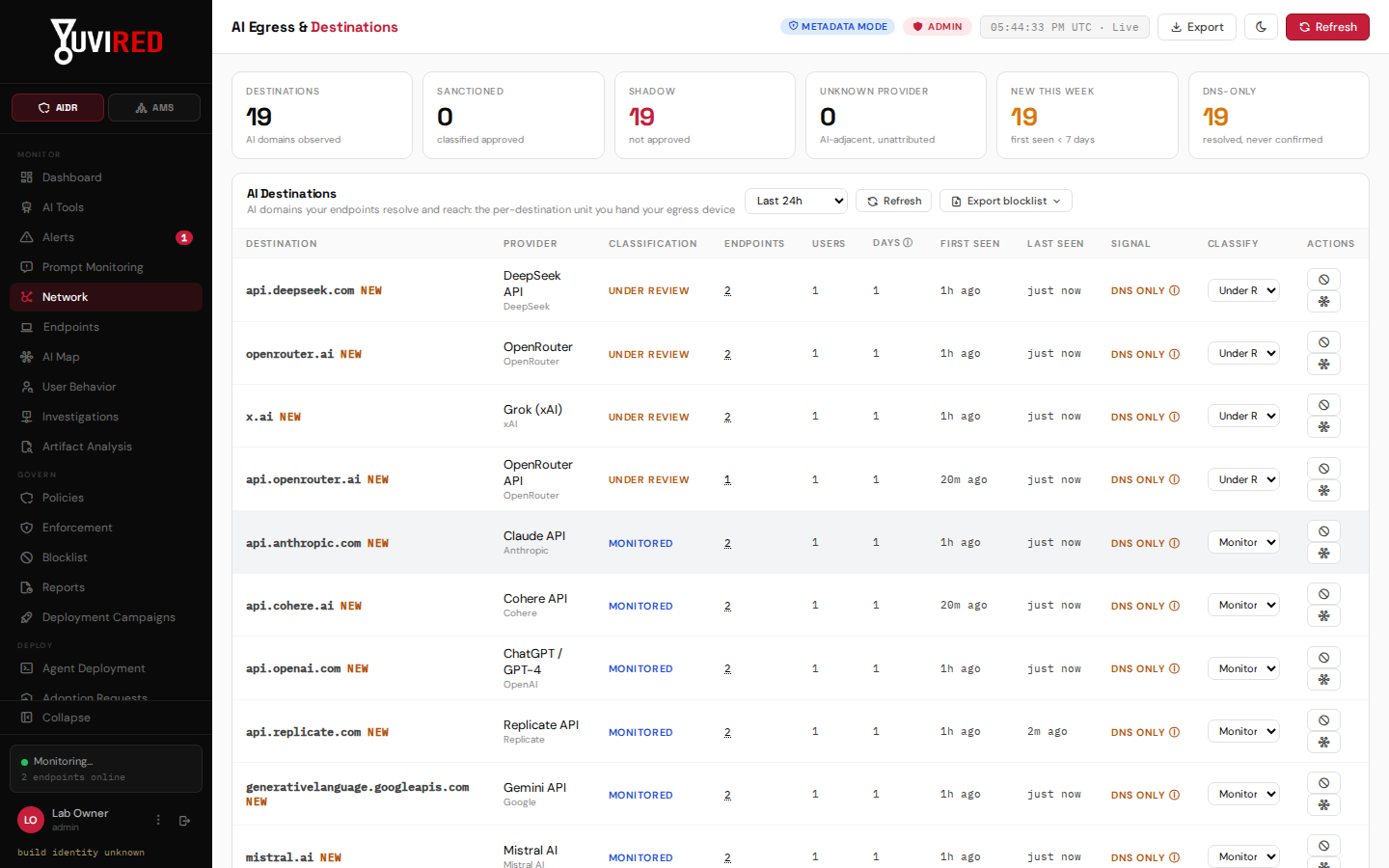
The Network page. Each row is an AI destination seen from your computers, with its provider and classification.
3. The AI Tools catalog and classification
3.1 What the page shows
Open AI Tools ("AI Tool Inventory"). Each row is one tool observed on your computers:
| Column | Meaning |
|---|---|
| Tool | The name. A lock icon means an administrator or analyst set the classification by hand (a manual override). |
| Vendor | Who makes it, or "Unknown". |
| Category | For example a chat assistant, a coding assistant, a local model, an extension. |
| Effective Classification | The decision currently in force (see below). |
| Severity / Risk | How serious this tool is considered, as a word and a score. |
| Endpoints | How many computers it was seen on. |
| Last Seen | When it was last observed. |
| Classify | A drop-down to change the classification (Analyst and Admin). |
| Actions | Admin only: remove an override, block browser access, delete, merge. |
Click a row to see which computers and users used the tool.
3.2 The six classifications
Every tool has exactly one classification. YuviRed ships six. Your terms may be "sanctioned", "unsanctioned" and "unknown"; here is how they line up:
| Classification | In your words | Alert it raises | Default severity | Counts as Shadow AI |
|---|---|---|---|---|
| Approved | Sanctioned | None (silent) | Info | No |
| Monitored | Sanctioned, but watched | None (silent, recorded) | Low | No |
| Under Review | Unknown | Medium alert | Medium | Yes |
| Unauthorized | Unsanctioned | High alert | High | Yes |
| Denied | Unsanctioned, policy label deny | High alert | High | No (it is a decision you already made) |
| Blocked | Unsanctioned, policy label block | High alert | Critical | No |
Remember section 1: Denied and Blocked are labels. They raise the alert and mark the tool, but they do not stop it from running. The console shows "(alert only)" beside them.
A tool never seen before and not in the catalog starts as Under Review. That is on purpose: YuviRed does not mark unknown AI use as known without a source.
3.3 Procedure: classify one tool
Purpose. Tell YuviRed whether a tool is allowed, so alerts match your rules.
Prerequisites. Analyst or Admin role.
Steps.
- Open AI Tools.
- Find the tool (use the Filter button in the top bar to search by name or vendor).
- In the Classify column, open the drop-down on that row and choose a classification, for example Approved for a tool your practice has licensed.
- You should see a green message such as "Classified" and the row's classification change. If the tool had open alerts that the new classification no longer raises, they are folded away; if the new classification raises alerts, they appear within one check-in cycle.
How to confirm. Reload the page (Refresh). The row shows the new classification and, if you changed it by hand, a lock icon.
Common problems.
- The drop-down is missing. A View Only account cannot classify.
- The classification changed back. An agent check-in or a catalog update can replace a catalog-set value. A lock icon (manual override) protects your decision from both. Use the button "Use catalog default" (Admin) to remove the lock deliberately.
3.4 Procedure: classify many tools at once (the vendor bundle)
Purpose. Approve or review every tool from one vendor in one step.
Steps.
- On AI Tools, type the vendor name in the Filter search so only that vendor's tools remain.
- Tick the box in the table header to select every visible row (or tick rows one by one).
- A blue bar appears: "N tools selected". Choose a classification in Classify as, then press Apply.
- Confirm the dialog. It tells you how many manually locked rows will be replaced.
What you should see. One toast, and every selected row updated. The change is one audited record listing each tool's before and after values.
3.5 The catalog (Admin)
Manage Catalog opens the catalog manager: the definitions YuviRed matches against (names, vendors, domains, process names, extension IDs, URL patterns) with their default classification, severity and action. Admins can add or edit entries and see a freshness report: entries not reviewed within the review cadence (Configuration, AI & Agent Monitoring, "AI Catalog Review Reminder": monthly, quarterly or twice a year) are marked overdue so detection content does not go stale silently. Editing the catalog changes what YuviRed recognizes; it is a separate act from classifying a tool you already see.
3.6 Other tool actions (Admin)
- Merge folds a duplicate into another tool, for example two spellings of the same product.
- Delete removes the tool record. If the tool is still being detected, it reappears on the next check-in. Alerts and telemetry keep their references.
- Use catalog default removes a manual override.
4. Detections and alerts
4.1 What raises an alert
An alert (also called a finding) is raised when what YuviRed sees breaks a rule. Each alert has a category from a fixed list, so alerts mean the same thing every time:
| Category | In plain words |
|---|---|
| Observed AI usage | A known AI service was used. Usually Info or Low. |
| Unreviewed AI tool | An AI tool nobody has decided on yet (Shadow AI). |
| AI policy violation | An Unauthorized, Denied or Blocked tool or destination was used. |
| Local / self-hosted model | A local AI service is running and could handle sensitive data without oversight. |
| AI browser extension | An extension with AI capabilities was found. |
| Potential AI data egress | A large transfer to an AI destination (dormant in this release, byte counts are not measured). |
| Prompt-level categories | Sensitive data in AI content, prompt injection, PII, and others, raised by the browser extension. See the Sensitive Data chapter. |
| Rogue agent activity | A governed AI agent acted outside its approved boundary (Critical). Observed only. |
Each category also has a tactic (such as Shadow AI, Policy Violation, Data Exposure) used for sorting.
4.2 Severity
| Severity | How to treat it |
|---|---|
| Critical | Act now. A blocklisted destination, a policy violation on a server, or a governed AI agent outside its boundary. |
| High | A policy violation. Triage today. An Unauthorized or Blocked tool running, or a flagged network destination. |
| Medium | Classify it. A tool under review, a browser visit to a flagged tool, a local model, or an unknown extension. |
| Low / Info | Awareness. Known, sanctioned AI activity. |
A single browser page-load of a flagged tool counts one level lower than the tool actually running, because a visit is weaker evidence. Computers whose operating system name contains "Server" raise policy-violation alerts one step higher (up to Critical).
4.3 Deduplication: one alert, not a hundred
YuviRed folds repeats. An alert is identified by the computer plus a stable subject (the AI tool, the extension, the destination, or the prompt rule and site), not by its title. While an alert is open, acknowledged or investigating, repeats of the same thing on the same computer are folded into it: the "Last seen" time moves and the "Days seen" count rises by one per distinct day. Several events on one day count once.
- If you resolve an alert and the same thing happens again, YuviRed creates a new alert marked "Recurred after resolve", pointing at the earlier one.
- Reclassifying a tool does not create a duplicate, because the title is not part of the identity.
- Findings from scoped rules set to Suppress appear as suppressed: visible under the Alerts status filter "suppressed", never counted as open, and never notified.
4.4 Reading the Alerts page
Open Alerts ("Alert Management"). Filters across the top:
- Sort: Recent activity, or Risk first.
- All Severity, All Status (open, acknowledged, investigating, resolved, false_positive, suppressed), All Classifications, All Categories, All Tools.
- All Time (Last 24 hours, Last 7 days, Last 30 days), by last activity.
- Search alerts..., All Endpoints and All Users.
New and repeating alerts appear on the page within about 2 seconds.
4.5 Procedure: triage one alert
Purpose. Understand an alert, decide, and leave a record.
Prerequisites. Analyst or Admin role to change anything (View Only can read).
Steps.
- Click an alert. A panel opens with sections Who (the signed-in user; a service account may show SYSTEM), Owner (assign it to a team member, or press the person icon to take it yourself), What (tool, action, evidence), Where (computer, operating system, address, agent version), When (first seen, last seen, days seen), Why (severity, classification, category, reason, and an expandable explanation of what each severity means), Action (the disposition) and Triage.
- Read Evidence and Reason. Evidence is metadata (domains, process names, masked samples), never a prompt.
- Under Triage, press Acknowledge to say you are looking at it. Its status changes to acknowledged.
- Set Status (open, acknowledged, investigating, resolved, false_positive), write Analyst Notes, optionally enter a Ticket reference such as JIRA:SEC-1234 and press Save.
- If it needs a deeper look, press Investigate (section 5). Use Send to push the alert to a configured channel (Alerts and Integrations chapter).
What you should see. A "saved" message. The alert's status tag updates; the sidebar badge count changes.
How to confirm. Reopen the alert. Your note and status are there. The SLA line ("SLA due") shows the response target for that severity from Configuration, Detection & Response, "Alert response-time targets" (a tracking goal only, nothing happens automatically when it passes).
Common problems.
- "This alert changed since you opened it." Someone else edited it. Close it, reopen it and decide again.
- You resolved it and it came back. That is correct: the activity happened again. See "Recurred after resolve" and consider a classification change or a scoped rule instead.
- A Prompt Protection alert lists several users. Those alerts group events from every user of the computer; each event row records its own user.
5. Investigating
5.1 The pages that help
| Page | Use it to |
|---|---|
| Alerts | Start from a signal and read its evidence. |
| Endpoints | Start from a computer: its tools, alerts, extensions, last check-in. |
| User Behavior | Start from a person (as the account that ran the program). |
| AI Map | See actors, apps and providers connected; switch between Activity and Detections. |
| Network | See which AI destinations were reached and export a destination list. |
| Prompt Monitoring | See flagged prompts and outputs and what happened to each. |
| Investigations | Keep one case file for several related alerts (below). |
5.2 The Investigations page
Investigations lists "Active Incidents". Press the + button to create one by hand (title and severity), or press Investigate inside an alert to open one that already holds that alert and moves it to investigating. An investigation has a status, an assigned owner, a checklist, linked alerts, and an Export evidence button that downloads what is attached. A button jumps to the Blocklist to add an entry. Deleting an investigation is a trash-can button, and is final.
5.3 Procedure: follow one user across computers
- Open User Behavior and find a.rivera in Top AI Users by Activity.
- Note the Hosts and AI Tools columns. A user on several hosts with many tools may be worth a look.
- Open Alerts, set All Users to a.rivera, and read the open ones.
- If several alerts tell one story, open one and press Investigate, then link the others in the investigation.
What you should see. One investigation listing the alerts and your notes.
Common problems. Attribution is by the account that owned the process. A shared Windows account, or a service account, appears as that account. YuviRed has no directory lookup, so it cannot tell you which human sat at a shared login.
6. Policies (tuning detection)
Policies ("Security Policies") lists rules that tune detection. An Administrator can create:
- Approved AI Tool, User Exception, Endpoint Exception and General Tuning rules. A rule limits itself by AI tools, provider domains, surfaces, detection categories, users, endpoints and severity, has an expiry (never, 24 hours, 7 days, 30 days or custom) and needs a **Business justification. The **Action drop-down offers Alert, **Log only (recorded as Suppressed, not raised)** and Alert-only (block requested, not enforced). In the page's own words, a rule either suppresses (records matching findings as monitor-only, still visible under the Alerts status filter "suppressed", never hidden) or escalates (its Minimum severity is a floor that can raise a finding but never lower one).
- Detector Toggle (legacy) rules, which switch auxiliary detectors on or off.
Critical findings, blocklist hits and browser-extension prompt findings can never be suppressed. All policies are alert-only: the page's banner says "Policies are alert-only: no traffic, process, or access is blocked", and the action "Alert-only (block requested, not enforced)" is a label. Nothing on this page writes to a computer; the only AIDR control that does is the Enforcement page (section 7).
7. Response actions that exist (Enforcement)
7.1 What it is
Enforcement (Analyst and Admin; hidden from View Only) is where an Administrator asks YuviRed to change browser behavior on named Windows computers. Two actions exist:
- Block browser access (managed-browser URL policy): adds a website to the Chrome and Edge
URLBlocklistpolicy on the chosen computers. People who open that site in a managed Chrome or Edge see the organization's block page. - Disable extension (managed-browser policy: Chrome/Edge, Windows): adds an extension ID to the
ExtensionInstallBlocklistpolicy so that extension is blocked from being installed or enabled.
7.2 Before you use it: what it changes
This writes to the computer. Enforcement adds a value to the browser's machine-wide policy in the Windows registry on each named computer. The effect is append-only and reversible: YuviRed never deletes extension files or edits browser profiles, and the rollback removes only the value it added. It applies on that computer's next check-in, and the browser usually needs a restart or a policy refresh to show it. It applies only to Chrome and Edge on Windows. Another policy source (a group policy already managing the same list) can interact with it. Other browsers, other devices and other programs are not affected.
7.3 Trial run versus real
| Mode | What happens |
|---|---|
| Dry run first (recommended) | A preview. YuviRed shows which computers would be affected and changes nothing. Status shows "Preview ready". |
| Enforce now | A real change, but it still needs approval from an Administrator before it is applied. Until approved nothing is enforced. |
Enforcement actions are never automatic: every real action is requested by a person, approved by an Administrator, and reversible. The approver must be a different person from the one who requested the action or who changed its target, scope or mode while it was pending; the server refuses the approval otherwise ("Separation of duties: the approver must differ from the requester").
A Lite installation with one Administrator. With a single Administrator account, the console can create dry runs and request enforce actions, but it cannot approve them: the Approve button sends the request as that same person and the server refuses it. The server does have a recorded exception for exactly this case (when only one active account can approve, the request may carry a "single administrator self-approval" flag with a reason, and the audit entry records it), but **this release's console offers no button for it**; it can only be sent through the YuviRed web interface (API) by a technical administrator or with support's help. The practical route is to create a second Administrator account under Team / Users and have that person approve. The moment a second approver exists, the exception switches off.
A fleet-wide Enforce is refused: real enforcement requires Specific endpoints (named computers). A dry run may cover all endpoints.
7.4 Procedure: block one website in the browsers of two computers
Purpose. Stop managed Chrome and Edge on NW-FRONTDESK-01 and NW-FRONTDESK-02 from opening an AI site your policy forbids.
Prerequisites.
- You are an Administrator or Analyst to request, and a different Administrator to approve (see 7.3 if your installation has only one Administrator).
- The two computers are online (check-in within 3 minutes) and run the YuviRed agent.
- You have decided that blocking the site is right. This stops people reaching it in those browsers; it does not stop other programs or browsers.
Steps.
- Open Enforcement and press New Action.
- Action: leave "Block browser access (managed-browser URL policy)". Domain: type
example-ai.test(use the real domain). Browser: leave "All supported" or choose Edge or Chrome. - Scope: choose Specific endpoints and type
NW-FRONTDESK-01, NW-FRONTDESK-02. - Mode: leave Dry run first (recommended).
- Business justification: write why, for example "Not approved by the practice owner". Required.
- If the domain is on the protected list (large shared services such as microsoft.com or google.com), a red warning says "Blocking this could break enterprise services." You must tick "I accept the risk (required to proceed)". Think before ticking: blocking a shared domain can break Office, sign-in or updates.
- Press Create dry run. You should see a new row with status "Preview ready" and a list of computers that would be affected.
- Review it. When satisfied, use the row's workflow button Enforce. A confirmation says "It still needs approval before it applies; nothing is enforced yet." Confirm. A new enforce action appears, pending. (If you choose Enforce now in the New Action dialog instead, the button reads **Create enforce action**; the result is the same pending action, still unapplied until approved.)
- A different Administrator opens Enforcement, opens that row and presses Approve (with a decision note), or Reject.
What you should see. After approval the action becomes active. On each named computer's next check-in (about a minute) it is applied and the result is reported back. The row shows "Enforced" and the computers that confirmed the change.
How to confirm. On a named computer, open the browser, go to edge://policy or chrome://policy,
and press "Reload policies". Under the URLBlocklist policy you should see the domain. Browsing to the site
shows the block page. In the console, the row's per-computer results say changed or not changed.
How to undo. Open the row and press Unblock / Rollback. Confirm. YuviRed removes only the value it added, on the computer's next check-in. For an extension action the button reads Re-enable / Rollback.
Common problems.
- "Enforce actions require specific endpoints, fleet-wide enforce is not allowed." Name the computers.
- You cannot approve. You are the requester or editor. Ask a different Administrator. If you are the only Administrator, see 7.3: create a second Administrator account.
- A computer reports "not changed". Possible reasons: it is not Windows, the agent has no administrator rights for the registry write, or the value was already present. The self-guarded design writes nothing when it cannot do it safely.
- Nothing happens. The computer is offline or stale. The action waits for its next check-in.
7.5 Other tabs and buttons
Tabs: All, Active, Dry Run, Enforced, Export Feed, Rolled Back, Failed, Disabled, Deleted/Archived. Row buttons include Approve, Reject, Cancel, Enforce, Retry, Place on export feed, Remove from export feed, Unblock / Rollback, Re-enable / Rollback. Delete archives a record: the record leaves the list, the audit history stays. Delete permanently removes the record and cannot be undone.
7.6 Honest limits
- Browser policy blocking is a Windows Chrome and Edge control. It has been run for real in lab testing, a limited number of times; it is not a general web filter and not a substitute for a firewall.
- A person who uses another browser, a phone, or a personal computer is not affected.
- YuviRed does not end processes, block applications or quarantine anything through AIDR. (AMS can end AI agent programs; see the AMS chapter.)
8. The blocklist and your own firewall (advisory)
The Blocklist page (Admin) holds manual entries (a domain, IP address, process or application, with a reason). YuviRed combines them with the domains of tools classified Denied, Unauthorized or Blocked into a destination list. You can:
- Export it from Network: Plain domain list (one domain per line, for Squid and generic proxies), Palo Alto EDL, pfSense URL-table alias or Cisco Umbrella.
- Publish it as a Blocklist Feed URL (Network page): a token-protected address your firewall polls on its own schedule. Generate a token, Rotate it, or Revoke it.
The page says it plainly: "Discovery only: YuviRed does not block." Your firewall, proxy or DNS filter does the blocking, if you configure it to use the list. A manual Blocklist entry matching a tool also raises a Critical alert when it is reached.
Procedure: add a manual entry. Open Blocklist, press Add Entry, choose Type (Domain, IP Address, Process, Application), type the Entry and a Reason, save. It appears in the next export and in the feed your firewall polls. To stop serving it, delete the entry.
9. Limits and honest notes
- AIDR is mostly monitoring. Do not describe a Blocked or Denied label to your staff as "the tool is blocked".
- Detection depends on the agent being installed, running and reporting. Check the Endpoints page.
- Nothing here inspects prompt content; that is the browser extension's job (Sensitive Data chapter).
- Classification is your decision. YuviRed's catalog gives a starting point, never a verdict.
- The catalog is not exhaustive. Use Manage Catalog to add what you find.
- Times are shown in your browser's local time.