

Administrator guide
Administering your YuviRed server
This guide is for the person who looks after a YuviRed server after it is installed: updates, copies of the data, moving to a new server, getting back into an account, who can do what, what is kept and for how long, privacy settings, and how to ask YuviRed for help.
It assumes the server is installed and activated. If it is not, start with the Installation guide and Licensing.
Example names used here are made up: the company "Northwind Dental", the server address
192.0.2.10, the administrator a.rivera.
What is on the server. YuviRed keeps its programs in C:\Program Files\YuviRed and everything it
learns in C:\ProgramData\YuviRed. Three Windows services run it:
| Service name | Shown in Services as | What it is |
|---|---|---|
YuviRedPostgres | YuviRed PostgreSQL | The built-in database. Listens on this computer only (port 5440). Runs as NT SERVICE\YuviRedPostgres. |
YuviRed | YuviRed | The web console and the server. Listens on port 8443. Depends on YuviRedPostgres. Runs as NT SERVICE\YuviRed. |
YuviRedAgent | YuviRed Endpoint Agent | The server's own endpoint agent. Depends on YuviRed. Runs as the local system account. |
C:\ProgramData\YuviRed holds:
| Folder or file | Holds |
|---|---|
pg | The database (pg\data), including its own logs in pg\data\log. |
config | The four generated secrets (yuvired.env), the database password file (pg.pwfile), the HTTPS certificate and private key (tls-cert.pem, tls-key.pem), the network setting (network.conf). |
identity | The server's identity record (appliance.json), its private key sealed for this computer (appliance_private.dpapi, see section 2.2), and markers. |
agent | The server's own agent: its settings, state and enrollment credential. |
status | Status files that hold no secrets: boot-status.json, platform-binding.json, network-status.json, legal-acceptance.json (the license acceptance record). |
logs | The server log syntinel-red.log and the agent start logs. |
backups, scratch, staging | Created empty. Nothing in this release writes a backup into backups (section 2.1). |
update.journal | The update engine's journal (not used by this release's installer updates). |
Windows allows only administrators, the system and the two YuviRed service accounts to read the
folder. The server's own agent writes its log elsewhere, in C:\ProgramData\SyntinelRed\logs
(the folder name is the product's earlier name; it will change in a later release).
The installation ID is created at the first start and kept in identity\appliance.json and in the
database. It is not calculated from the hardware; the hardware identity (the computer's firmware
serial numbers) is recorded next to it, and a change of hardware makes the server give itself a
new installation ID (section 3.1).
1. Updates
1.1 How a new version reaches you
YuviRed never installs an update by itself. There are two ways you learn that a newer version exists:
- The console notice. Once a day an activated server checks in with YuviRed (see
what YuviRed receives from your server). If a newer version exists, a banner says
"YuviRed
<version>is available. This server runs<current version>. Nothing is installed automatically." with a Download link when YuviRed has published one, and Dismiss. Dismiss hides the banner for that version in that browser only. - The website. New installers are published at https://yuvired.com. A server that cannot reach YuviRed never shows the banner, so check the website now and then.
Support and retirement policy (from the facts sheet):
- Email support, reasonable efforts, for Lite and Pro. There is no response-time promise. Enterprise is as agreed.
- Security fixes are made for the current version, and for 90 days for the version it replaced.
- YuviRed announces the retirement of a version at least 60 days ahead, on yuvired.com and in the console. (The console notice described above is the only update message found in the product code; a separate retirement message in the console was not verified.)
In practice: plan to move to the current version within 90 days of a new one appearing.
1.2 Install an update (in place)
Purpose. Replace the programs with a newer version and keep your accounts, computers, policy, settings, certificate, installation ID and license.
Before you start.
- You are signed in to Windows on the server as an administrator.
- You have the new
YuviRed-Lite.exefrom https://yuvired.com (or the link in the banner). Check its SHA-256 fingerprint against the one published with the download, and check the signature: right-click the file, Properties, Digital Signatures, and the signer reads YuviRed LLC. The Windows prompt that asks to allow the installer also names the publisher YuviRed LLC. A file whose prompt says Unknown publisher is not ours: do not run it. The installer, its removal program and the agent installer inside an Add Computer download are all signed the same way. - Pick a quiet time. The console is unavailable while the update runs, and the server does not collect while the service is stopped. Computers keep trying, and what a computer could not send in that time is lost (the agent has no offline queue for most telemetry).
- Take a copy of the data first (section 2). YuviRed takes no copy for you before an update.
- Read the notes that come with the new version.
Steps.
- Close any open YuviRed installer window.
- Double-click the new
YuviRed-Lite.exe. Accept the license page and click Install, then accept the Windows administrator prompt.
You should see: the installer window with the checklist (Preparing installation, Installing YuviRed, Configuring database, Starting services, Securing installation, Verifying YuviRed).
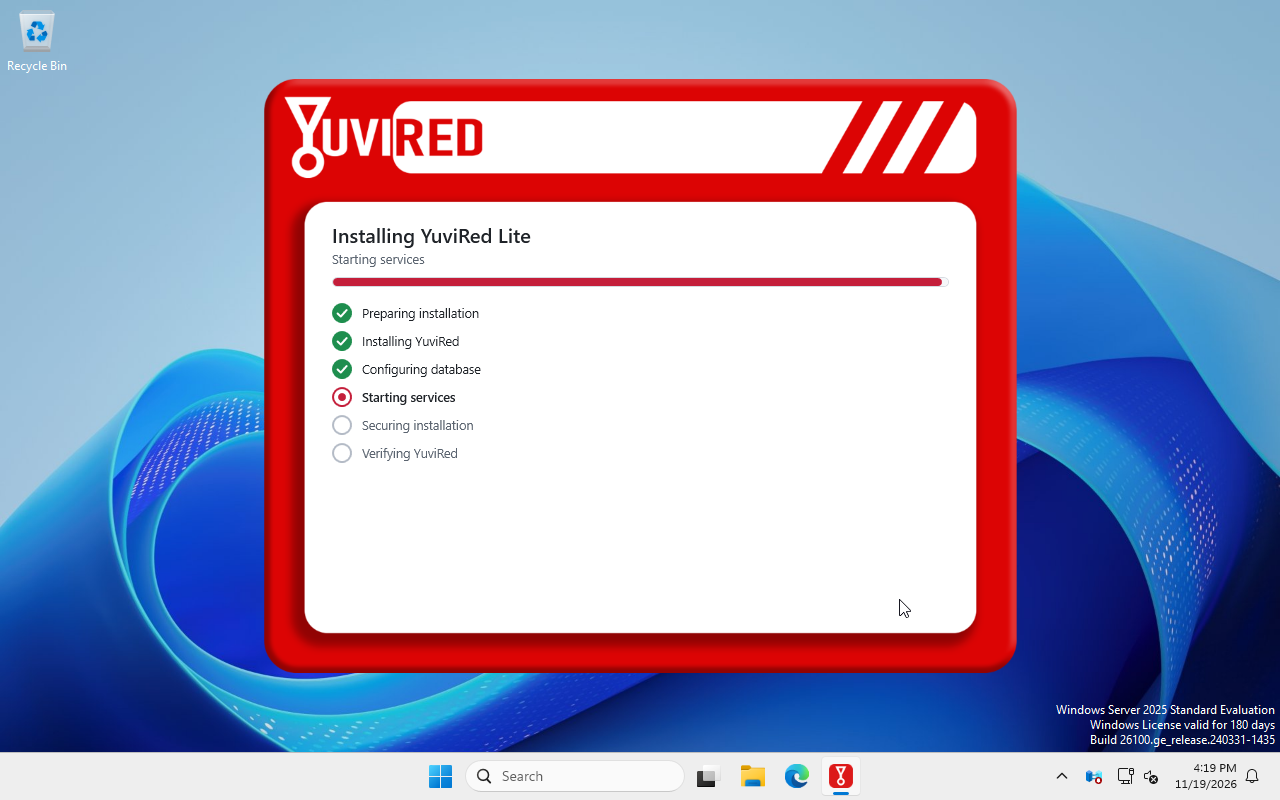
The installer progress page, as it looks during an install or upgrade. Captured in the YuviRed lab; the Windows evaluation watermark is not part of your screen.
- Wait for Installation Complete, then click Open YuviRed.
- Sign in with your existing administrator account.
An unattended update uses YuviRed-Lite.exe /quiet. An update of a server that already has its
acceptance record (status\legal-acceptance.json) does not need ACCEPT_EULA=1; the installer logs
"upgrade of an installation with a recorded legal acceptance". A record of the same license version is
kept, never overwritten.
How an update runs. The installer removes the previous version's registration first, then puts the new files in place, prepares the data folder, starts the services and waits up to five minutes until the new version reports YuviRed Ready and answers on port 8443. The whole update is one Windows Installer transaction: if any of those steps fails, the files and services of the previous version come back and the window says "The upgrade could not be completed. The previous YuviRed installation and your data were left in place; you can run the installer again."
What an update keeps. Everything under C:\ProgramData\YuviRed: accounts and roles, enrolled
computers, alerts and history, policy, settings, the TLS certificate and key, network settings, the
installation ID and the license. Computers keep their identity and keep reporting.
What an update does not do.
- It does not update the agents on your other computers. An agent installed from the Add Computer download never updates itself. A newer agent reaches a computer with a new Add Computer download (Agent Deployment page) run on that computer. A new extension reaches a computer the same way.
- It does not ask before it changes the database. The new version changes the database layout when
the service first starts (the boot step
migrate, phase Schema Current), inside the same installer run. - It does not take a copy of your data first.
How to confirm.
- The console footer shows the new build number.
- On the Windows server, open Services:
YuviRedPostgres,YuviRedandYuviRedAgentall read Running. The update stopsYuviRedAgentwith the server; the new version starts it again itself, trying for up to three minutes and writing each try toC:\ProgramData\YuviRed\logs\agent-start.log. If it still reads Stopped after that, runnet start YuviRedAgent. - In the console, Configuration, License still shows your plan as Active.
- On Endpoints, computers show Online within a few minutes.
Common problems.
| Problem | What to do |
|---|---|
| The installer says a newer version is already installed | You ran an older installer. Never run an earlier installer over a newer one. Use the newer file. |
| The installer fails and rolls back ("The upgrade could not be completed...") | The files and services return to the old version, but the database is not rolled back: if the new version had already changed its layout, the old version may not start ("Can't locate revision" in the log). Do not start trying again repeatedly. Run the support collector (Collecting diagnostics) before you reboot or retry, and send it to support@yuvired.com. Running the new installer again is usually the way forward, because the database then matches it. |
| The console asks you to activate after an update from an early build that had no license | A server upgraded from a pilot build that held no license has 7 days to activate. Your YuviRed contact sends a code. See Licensing. |
Rollback. There is no supported way to go back to an older version. A newer version changes the database layout, and an older version cannot read it: its service does not start. The way back is to restore the copy you took before the update (section 2.4) onto a server that has the older version installed. This path has not been tested by YuviRed (see section 2.1).
2. Back up (manual procedure)
2.1 What YuviRed offers, plainly
YuviRed Lite has no built-in backup or restore command. There is no backup button, no scheduled
backup and no restore wizard. Nothing in the installer or in the console writes a copy for you. The
backups folder under C:\ProgramData\YuviRed is created empty and stays empty. (The program contains
code that can write a backup set, a database dump plus the secrets file, but no command, button or
schedule runs it in this release: the server command yuvired_service.py has no backup command, and
the update engine that would call it is not used by the installer-based updates of this release.)
What follows is a manual procedure that a Windows administrator can follow. **YuviRed has not run this procedure end to end.** It follows from how the product stores its state. Test a restore on a spare computer before you rely on it, and do it again after each major update.
If your server is a virtual machine, a copy of the whole machine made by your hypervisor is a second option. YuviRed has not tested restoring a server that way either, and a restore that gives the machine different virtual hardware makes YuviRed treat it as a different server (see section 3).
2.2 What must be in the copy
Copy the whole folder C:\ProgramData\YuviRed. The parts that matter:
| Folder or file | Holds | If you lose it |
|---|---|---|
pg | The database: all computers, alerts, accounts, policy, history. | All history and accounts. |
config\yuvired.env | The four generated secrets: the token signing key, the encryption key, the token pepper and the database password. | The database cannot be opened by the server. Encrypted data in the database (MFA secrets, saved mail and webhook secrets, original prompt samples) becomes unreadable for good. |
config\pg.pwfile | The database password the database itself uses. | The database service cannot start with its data. |
config\tls-cert.pem, config\tls-key.pem | The server's HTTPS certificate and its private key. Enrolled computers trust exactly this certificate. | Enrolled computers stop trusting the server. Each needs a new Add Computer download. |
config\network.conf | The address or name other computers use to reach the server. | You must set network mode again. |
identity | The server's identity record (installation ID, public key, hardware binding) and its private key, sealed for this computer. (The license itself, and a copy of the installation ID, are in the database, pg.) | The server cannot start until the identity is dealt with (see below). |
agent | The server agent's own settings, state and enrollment credential. | The server's own agent cannot report until it is enrolled again. |
status | The license acceptance record and status files. | The acceptance record of the install is lost (the server still runs). |
Keep the keys with the data. The encryption key lives in the secrets folder (config). A copy of
the database without the matching config folder is not usable: the encrypted parts cannot be
read. The folder holds secrets and the server's HTTPS private key in plain files. Store the copy
only on encrypted storage that only administrators can read, never in a shared folder, a ticket or an
email.
How the identity key is sealed, and what it means for a copy. The private key in identity is
not stored in the clear. On a new install the service tries the computer's TPM (the Trusted Platform
Module) and, when the service account cannot use it, falls back to Windows Data Protection for the
machine (DPAPI, machine scope, file appliance_private.dpapi). The code records which one it used in
appliance.json (key_protection: tpm2-pcp or dpapi-machine); on the real installs YuviRed has
run, the TPM path was refused to the service account and dpapi-machine was recorded. What that means:
- A key sealed with DPAPI opens only on the same Windows installation (Windows keeps the master key with the operating system). It does not open on another computer, in a different Windows installation on the same hardware, or in a virtual machine restored as a new machine. A key sealed with the TPM opens only on that TPM.
- At every start the service loads the key before it serves. If the key cannot be opened, the start
stops at the step
provision_identitywith phase Error and the message "the appliance private key could not be loaded" instatus\boot-status.json. The console does not open. There is no command that repairs this: the way forward is a fresh identity (a fresh install, section 3.2). - So a copy of
C:\ProgramData\YuviRedrestores fully only on the same Windows installation (section 2.4). On other hardware, restorepgandconfigbut notidentity(section 3.3).
2.3 Make a copy
Purpose. A consistent copy of the server's data, taken while the database is stopped.
Before you start. An administrator account on the server. Somewhere to put the copy that is not
the same disk: encrypted, access-limited storage, for example E:\YuviRed-backup on an encrypted
drive. Enough free space for the size of C:\ProgramData\YuviRed (check it in Windows Explorer,
Properties).
Steps.
- Choose a quiet time. Computers cannot report while the service is stopped.
- Open Windows PowerShell as administrator: right-click Start, then Terminal (Admin) or Windows PowerShell (Admin).
Stop the three services, in this order:
net stop YuviRedAgent
net stop YuviRed
net stop YuviRedPostgres
You should see: "The ... service was stopped successfully." for each. (
net stop YuviRedmay ask to stopYuviRedAgentwith it if you skipped the first line; answer Y.) Stopping the database while it is running is what makes the copy consistent. Do not copy thepgfolder whileYuviRedPostgresruns.Copy the folder with its permissions and owners:
robocopy "C:\ProgramData\YuviRed" "E:\YuviRed-backup\2026-11-19" /E /COPYALL /B /R:1 /W:1You should see: a summary table at the end with Failed
0for both Dirs and Files. A copy that reports failures is not a backup.Start the services in the reverse order:
net start YuviRedPostgres net start YuviRed net start YuviRedAgent- Write down, next to the copy: the date, the YuviRed version and build shown in the console footer, and the installation ID (Configuration, License, or the license screen).
How to confirm.
- Open the console and sign in. Endpoints shows computers Online within a few minutes.
- The copy folder contains
pg,config,identityandagent, andconfigcontainsyuvired.env.
Common problems.
| Problem | What to do |
|---|---|
net stop says the service is not started | Fine. Continue. |
robocopy reports "Access is denied" or failed files | You are not running as administrator, or an antivirus holds files. Run PowerShell as administrator and try again. |
| The services do not start afterward | Run net start YuviRedPostgres first and wait ten seconds, then net start YuviRed. See Troubleshooting, "The YuviRed service does not start". |
Rollback. The procedure only reads the data folder. If a step fails, start the services again.
How often. The decision is yours. The server's data changes all day. Take a copy before every update, and on a schedule that matches how much history you can afford to lose. Keep at least one copy off the server.
2.4 Restore on the same server
Purpose. Return this server's data to the state of a copy.
Before you start.
- The same YuviRed version as the copy is installed on this server. A copy made by an older version can be opened by a newer one (it changes the database layout when it starts), but a copy made by a newer version cannot be opened by an older one.
- The same Windows computer, the same Windows installation and the same hardware: the identity key opens only there (section 2.2). Restoring on different hardware, or after Windows was reinstalled, is section 3.
- You know that everything collected after the copy was made is lost, and that computers whose credentials were rotated after the copy may need attention (see the note below).
Steps.
- Open PowerShell as administrator.
- Stop the services (the same three commands as in 2.3).
Move the current data aside so you can go back:
mkdir C:\YuviRed-before-restore
move "C:\ProgramData\YuviRed\pg" C:\YuviRed-before-restore\
move "C:\ProgramData\YuviRed\config" C:\YuviRed-before-restore\
move "C:\ProgramData\YuviRed\identity" C:\YuviRed-before-restore\
move "C:\ProgramData\YuviRed\agent" C:\YuviRed-before-restore\
Copy the four folders back, keeping permissions and owners:
robocopy "E:\YuviRed-backup\2026-11-19\pg" "C:\ProgramData\YuviRed\pg" /E /COPYALL /B /R:1 /W:1
robocopy "E:\YuviRed-backup\2026-11-19\config" "C:\ProgramData\YuviRed\config" /E /COPYALL /B /R:1 /W:1
robocopy "E:\YuviRed-backup\2026-11-19\identity" "C:\ProgramData\YuviRed\identity" /E /COPYALL /B /R:1 /W:1
robocopy "E:\YuviRed-backup\2026-11-19\agent" "C:\ProgramData\YuviRed\agent" /E /COPYALL /B /R:1 /W:1
You should see: Failed
0each time. The permissions matter: the services refuse to run if these folders can be changed by ordinary users.- Start the services in order:
YuviRedPostgres,YuviRed,YuviRedAgent.
How to confirm. Sign in with an account that existed at the time of the copy. Endpoints lists the computers of that time. Configuration, License shows your plan Active. Computers report again within a few minutes.
Common problems.
| Problem | What to do |
|---|---|
The YuviRed service stops at once | Read C:\ProgramData\YuviRed\status\boot-status.json: it names the boot phase and, for an error, the step that failed. Collect diagnostics and write to support. |
The error names the step provision_identity, "the appliance private key could not be loaded" | The identity key does not open on this Windows installation (section 2.2). Roll back as below, or go to section 3.3. |
| "Can't locate revision" in the log | The copy was made by a newer version than the one installed. Install the newer version first. |
| Computers show Offline after the restore | Computers whose credential changed after the copy keep the previous credential for 30 days and recover on their own. Beyond that, add the computer again with a new Add Computer download. |
| The console says "This server needs a new license" | The hardware identity changed. See section 3. |
Rollback. Stop the services, remove the four restored folders, move the four folders back from
C:\YuviRed-before-restore, start the services.
3. Migration to a new server
3.1 What you must know first
- A new computer is a new server to YuviRed. The server records the computer's hardware identity (firmware serial numbers and product identifier) next to its installation ID at the first start and checks it at every start. When it finds different hardware (a different computer, a virtual machine restored or imported as a new machine, a motherboard change, some hypervisor upgrades), a server that held a license gives itself a new installation ID and locks the console with **This server needs a new license** until a license for the new ID is activated. The license is bound to the old ID. The original license does not work again on its own, even if you move the data back: moving back counts as another change. A fresh install on the new computer simply starts with its own new ID and the 7-day activation window.
- Free servers are counted per company. Lite codes from the website allow 2 servers per company, counted by installation ID, over all time. A replacement server uses one of the two. Write to support@yuvired.com before you migrate, say that the new server replaces the old, and give both installation IDs. Support can arrange a license for the new server.
- Enrolled computers trust one certificate. Each agent trusts exactly the certificate the old server made, and was enrolled using the server's address or name. A new server makes a new certificate. Use a DNS name for the server, not an IP address, if you can: then moving the name to the new server needs only a DNS change.
- The identity key is tied to the Windows installation. The server's private identity key is
sealed with Windows Data Protection for this machine (or the TPM, section 2.2). Copied to a different
computer it does not open, and the service stops at start with "the appliance private key could not
be loaded". That is why a move keeps the new server's own
identityfolder (section 3.3). YuviRed has not tested moving a data copy to different hardware end to end.
3.2 The reliable path: install fresh and add computers again
This is the path the product's own limits describe: "A lost server is replaced by a new one, and each computer is added to it again with a new Add Computer download."
- Email support@yuvired.com as described above and get a code or license file for the new server.
- Install YuviRed on the new server (Installation guide) and create the administrator account.
- Activate the new server (Licensing).
- Recreate your settings by hand: users and roles, notification channels, policy, retention, organization name and privacy contact. Use the old console for reference.
- In the new console, Agent Deployment, Add Computer: download the package and run it on each computer you want to keep. A computer that is already enrolled keeps its identity.
- Keep the old server (switched on but not collecting) until its history is no longer needed, or export what you need first. Then uninstall it (Uninstall).
What you lose: alerts, history and accounts of the old server do not appear on the new one.
3.3 Moving the data too (not tested by YuviRed)
If you must keep the history, you can try to restore a copy (2.3) on the new server. Expect these steps, and test them on a spare computer first:
- Install the same version on the new server. Do not activate.
- Stop the three services.
- Restore
pgandconfigas in 2.4 (notidentity: leave the new server's own identity, because the old key does not open here).configcarries the encryption key, which the database needs. - Start the services.
- If the console opens, expect a license screen. The installation ID the console shows is read from the database, so a copied database may show the old ID while the new server's identity file holds a new one; what the server does with the old license in that state has not been tested by YuviRed. Do not rely on the old license: send support both installation IDs and what you did, and activate what support sends.
- Set the server's address with
network --name <dns name>(Installation guide, network mode), then check Agent Deployment. Computers that enrolled by IP address need a new Add Computer download, because the new server's certificate differs.
If step 3 or 4 fails, the fresh-install path in 3.2 is your fallback. Keep the old server and the copy until the new one has run for a few days.
4. Disaster recovery
Purpose. Know in advance what you would need if the server computer were lost.
What to keep, off the server and offline or in encrypted storage:
- A recent copy of
C:\ProgramData\YuviRedmade as in 2.3. - The installer you used (
YuviRed-Lite.exe) of the version that made the copy, with its file fingerprint. You can download the same version again only while YuviRed still offers it. - The installation ID and the license details: the plan, and the email with the activation code or the license file. (The ID is not a secret. The activation code is single use and is of no use after activation, but keep the email as a record.)
- A list of your computers and the server's address or DNS name, so you can add computers again.
- A list of your administrator accounts, and the MFA recovery codes of each, kept in your password manager.
- The notification settings you typed (mail server, webhook addresses), kept in your own records.
The saved mail password and webhook secrets are in the database, encrypted, and are only useful
with the matching
configfolder.
How long a rebuild takes. YuviRed has not measured a rebuild. The installer waits up to five minutes for the server to become ready. What decides the total time is how fast you can get a new Windows computer, a license for it, and how many computers you must add again by hand. Plan for hours, not minutes, and for more if you have many computers.
What the product does while you rebuild. Computers keep running their agent. They cannot send to a server that is not there, and the data of those hours is lost. They keep trying.
Steps in a disaster.
- Get a Windows computer that meets the requirements (Installation guide).
- Write to support@yuvired.com with the old and new installation IDs (the old one from your records).
- Follow 3.2 (fresh path). If you have a copy and want the history back, try 3.3 afterwards on a second computer, not on the one that must serve.
Rollback. Not applicable. Keep the old computer's disk if you can, in case support or your own administrators need something from it.
5. Account recovery
5.1 Reset another user's password
Purpose. An administrator gives someone a new password.
Prerequisites. You are signed in as an account that has the Team / Users page and permission to manage users (the Admin role or super admin).
Steps.
- In the left menu, under Admin, click Team / Users.
In the person's row click the key icon (hover text Reset password).
You should see: a dialog Reset Password with New Password and Confirm Password.
- Type a password that follows the policy (at least 12 characters; at least three of lowercase, uppercase, digit and symbol; not containing the person's name or email; not a common word; not one of their last passwords), type it again, and click Reset Password.
- Give the person the password by a safe route (not by email).
You should see: a green message "Password reset".
What happens.
- The password is temporary. The person must choose their own at their next sign-in.
- It works for 72 hours. If they have not signed in and changed it within 72 hours, it stops working, and the console answers "Invalid credentials", exactly as for a wrong password. Reset it again.
- Every session the person has open is ended at once.
- The change is written to the audit log.
How to confirm. The person signs in, sees the Change Password dialog ("Password change required"), sets a new one, and reaches the console.
Common problems.
| Problem | What to do |
|---|---|
| "Password must be at least 12 characters" or "Password is too predictable" | Choose a stronger password. |
| The person says the temporary password is refused | More than 72 hours have passed, or the lockout (5.4) applies. Reset again. |
5.2 Reset another user's multifactor authentication
Purpose. A person lost their authenticator phone and their recovery codes.
- In the left menu, under Admin, click Team / Users.
- In the person's row click the crossed-shield icon. It shows only when the MFA column reads On, and never on your own row.
- Confirm the question.
You should see: "MFA disabled" and the MFA column reads Off. If their role requires MFA they enroll again at their next sign-in. The action is written to the audit log. If they still have a recovery code, they can use it at the sign-in code step without your help.
5.3 When the only administrator is locked out
Read this before it happens. **The product has no email reset, no "forgot password" link and no command that resets an administrator's password or turns off its MFA.** What exists:
| Situation | What the product offers |
|---|---|
| You forgot your password and another administrator exists | The other administrator resets it (5.1). |
| You lost your phone and still have a recovery code | Use the recovery code in place of the 6-digit code. Each works once. |
| You lost your phone and recovery codes and another administrator exists | The other administrator resets your MFA (5.2). |
| Too many wrong attempts | Wait. After 8 wrong attempts for the same address and account within 5 minutes, further attempts are refused ("Too many failed login attempts. Please wait and try again.") until the window passes. A second, account-wide cool-down (30 wrong attempts in an hour from any addresses) never applies to a person using the console on the server itself at https://127.0.0.1:8443. The Lite server has no Redis, so it keeps these counters in memory: restarting the YuviRed service clears them. |
| You are the only administrator and you lost the password, or the phone and the recovery codes | Nothing in the product recovers it. There is no sole-administrator recovery: no reset command, no email reset, no recovery link. First-run setup does not reopen: it is closed for good once an administrator exists, even a deactivated one. Contact support@yuvired.com with your installation ID (shown on the license screen or in Configuration, License) and tell us what happened. Expect to be asked to prove that you control the computer. What support can then do is decided case by case and is not a product feature. |
Prevent it.
- Create a second administrator account for a different person, on day one (Team / Users, Add User, role Admin).
- Remember that only the first account (super admin) can activate or revoke a license. An account made with Admin cannot. Keep that first account's password and recovery codes safe.
- Store every administrator's MFA recovery codes in a password manager.
- Use a copy of
C:\ProgramData\YuviRed(section 2) as a last resort: a restored copy has the accounts of its day.
6. Access management
6.1 Roles
The Team / Users page offers three roles:
| Role in the console | Can |
|---|---|
| Admin | Everything except activate or revoke a license: users, settings, endpoints, policy, deployment, notifications. |
| Analyst | Triage alerts, work on endpoints, policies and blocklist, read reports and settings. Cannot manage users or change most settings. Can ask for an enforcement action but cannot run it. |
| View Only | Read alerts, policies, endpoints, reports and the audit log. Cannot change anything. |
The first account made at setup is a super admin, which is Admin plus the license permission. Changing a person's role replaces all their roles with the new one. You cannot change your own role, and you cannot demote or deactivate the last active administrator.
Important. Whatever the role, **any person who can sign in can read endpoint identity (computer names, user names) and raw telemetry**, and the per-user behavior summary. Give accounts only to people who should see all of it. Reading original prompt text needs its own permission and every view is audited.
6.2 Add a user
- Team / Users, Add User.
Fill in Full Name, Email, Password (a temporary one that follows the policy), Role and Department, then Create User.
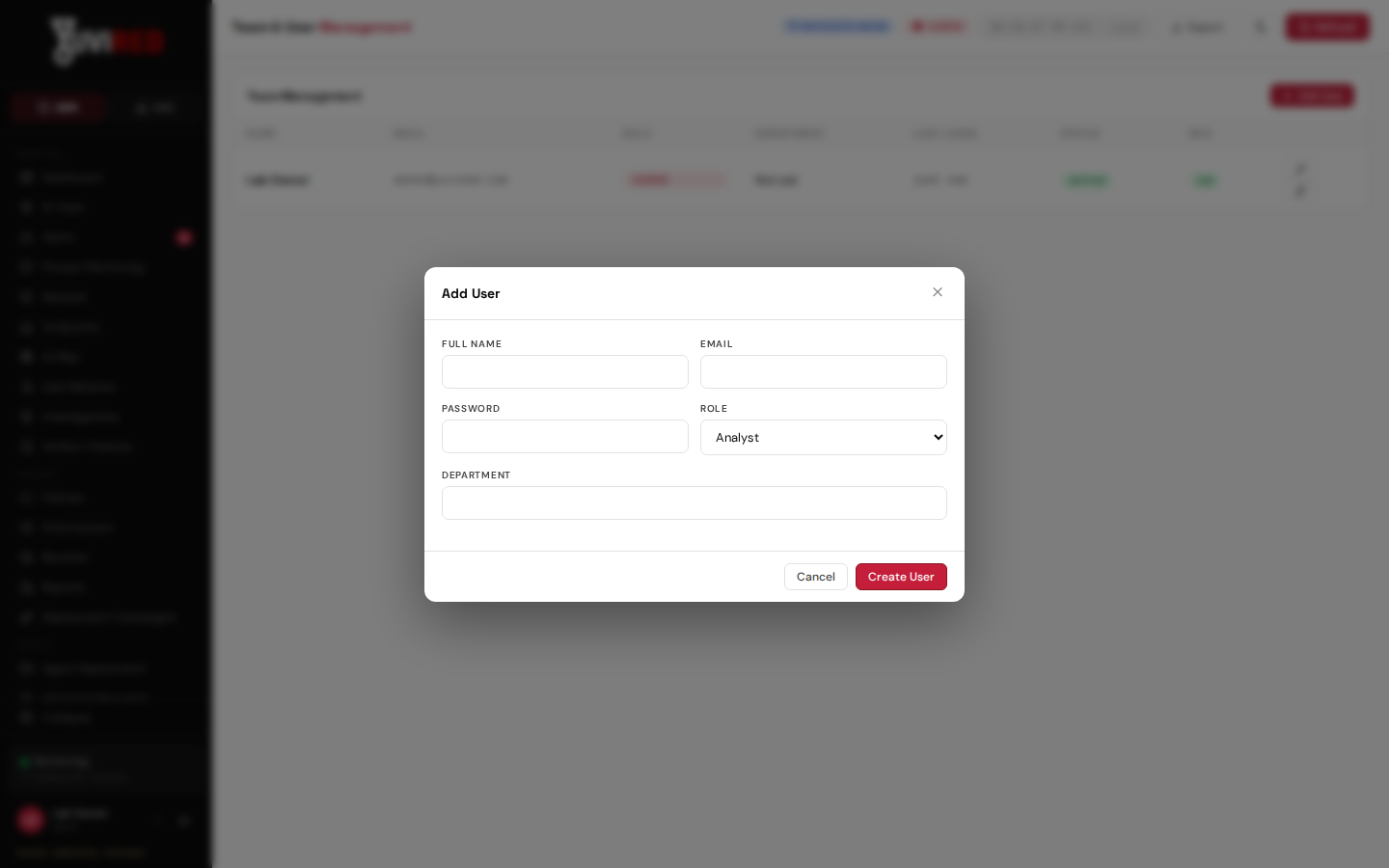
The Add User dialog on Team / Users. Choose the role carefully; it decides what the person can change.
You should see: the person appears in the table. Give them the password by a safe route.
6.3 Remove or deactivate a user
- Deactivate (keeps the account and its history): the edit icon in the person's row, set Status, Save. The person's next page load shows Session Expired and they cannot sign in.
- Delete (the bin icon): their past actions stay in the audit log by email. This cannot be undone.
You cannot delete or deactivate yourself, nor the last active administrator.
6.4 Multifactor authentication
- By default, accounts with the Admin role must use MFA. You can also require it for Analyst: Configuration, section Security & Access, row Require multi-factor sign-in for, tick the role, Save Changes.
- A person turns MFA on with the shield icon at the bottom of the sidebar (My security): **Enroll an authenticator app, scan the code, type the 6-digit code, **Enable MFA, and save the 10 recovery codes (shown once).
- The phone and the server must have the right time. A code is only valid for the current 30 seconds.
6.5 Sessions
To end every session of a person without changing their password, an administrator can use
POST /api/v1/users/<id>/revoke-sessions (no console button). Deactivating the account also ends
sessions.
7. Data handling
Read the product's own statement first: What YuviRed collects and where it goes (the data notice),
shown in the console under Legal and served at
https://<server>:8443/static/legal/data-notice.html. This section is the administrator's side of it.
7.1 What is kept, and for how long
The figures below are the defaults (from the data notice and docs/RETENTION.md).
| Data | Default | You can change it |
|---|---|---|
| Raw telemetry (all kinds) | 30 days | Yes (Raw telemetry) |
| Daily summaries | 13 months | Yes (Daily summaries) |
| AI agent signals | 120 days | Yes (AI agent signals, 0 keeps forever) |
| Closed alerts not tied to an investigation | 365 days | Yes (Closed alerts) |
| Prompt Monitoring event rows | 90 days | Yes (AI prompt/output events) |
| Original prompt samples (only if you turned them on) | 24 hours | Yes (Original prompt samples) |
| Decided adoption requests | 30 days | Yes |
| AI agent (AMS) messages, events, ended instances | 30, 180 and 90 days | Not in the console |
| Report files | 30 days | Yes (setting retention.report_file_days) |
| Audit log | Kept until you purge it | Yes (Audit log, days; 0 means keep forever) |
| Endpoints | Until an administrator removes them | n/a |
| Server log files | 5 files of 10 MB each, rotating | No |
Open alerts, and closed alerts linked to an investigation, are never deleted by age. The cleanup job
runs 5 minutes after the service starts and then once every 24 hours (not at a fixed time of day). The
settings behind the table are named retention.raw_days, retention.rollup_months,
retention.agent_signal_days, retention.alert_days, retention.ai_content_event_days,
retention.adoption_request_days, retention.audit_log_days, retention.report_file_days
(with retention.report_storage_mb, 2048), and retention.ams_message_days,
retention.ams_event_days, retention.ams_instance_days; the audit log lists changes to them.
7.2 Change a retention window
- Left menu, Admin, Configuration.
- Click the Data & Retention section chip.
- Change a value. Raw telemetry and Daily summaries must be at least 1. Day-based windows accept 0 for "keep forever".
- Click Save Changes. Shortening a window asks you to confirm.
You should see: "Saved 1 setting(s)". To see the effect first, scroll to Telemetry Retention and click Run now (dry run): a green message says how many rows would be removed and nothing is deleted. Run now deletes (it asks to confirm and cannot be undone).
Shorter retention does not remove anything copied elsewhere, such as a copy of the data folder.
7.3 The audit log
The audit log is kept forever by default. Setting Audit log to a number of days turns purging on.
Only do that when you copy the log elsewhere. The log can be exported through the API route
GET /api/v1/audit/export?format=csv|json|cef (permission to read the audit log; there is no export
button for it in the console, and this was not verified from the Lite console).
7.4 Delete one computer's data
- Left menu, Endpoints. In the computer's row click the red bin icon (Remove endpoint; you need the administrator role).
- The dialog Remove endpoint "<name>"? shows the real counts of what will be deleted and what stays. Read it.
- Click Remove endpoint.
What removing an endpoint deletes: the computer record and everything the database keeps under it: its raw telemetry and all its alerts (whatever their status, even an open alert under investigation; the dialog shows both counts), plus its other per-computer rows (extension changes, rotation records and the like, which the database removes with the computer record).
What it does not delete:
- Prompt Monitoring event rows (they keep a copy of the computer name and user name). The dialog counts them as preserved.
- Records of AI agents (AMS): they are archived and detached (counted in the dialog).
- Investigations (they stay, unlinked; counted in the dialog).
- Audit log entries that name the computer (the removal itself is written to the audit log as
endpoint.delete). - Reports already generated, and any copy of the data folder.
The agent on that computer is not told and is not removed. It keeps running, its next check-in is refused, and it does not enroll again by itself (its Add Computer download is dead after 24 hours). Uninstall the agent from the computer (section 4 of Uninstall). "Decommission" keeps the data and frees the license seat.
There is no feature to find or erase everything about one person, or to export everything about one person. You assemble such an answer by hand, and you can delete by computer.
7.5 Exports
- Reports page: generate a report and download it (files kept 30 days).
- Tables: the Export button on a page exports the page's table to CSV. Prompt Monitoring has an Export CSV button for people with the permission.
- Audit log: through the API (7.3).
Exported files are copies and are outside YuviRed's retention. Handle them like the data.
8. Privacy controls
| Control | Where | Default |
|---|---|---|
| Original prompt text ("raw capture", Mode 3) | Configuration, Inspection Depth, Keep Original Prompt Samples, Prompt Content Capture | Off. Needs all of: Inspection Depth set to full, raw capture on, a secure connection. Stored encrypted, 24 hours, every view audited. |
| Masked fragments | Prompt Content Capture | On: the first 4 and last 4 characters of a matched value |
| Per-computer exclusion | Never keep samples from endpoints tagged | Empty |
| Connectors for AI tools (AMS) | AMS, Coverage & Connections | Off. Previews up to 2 KiB and replies up to 8 KiB are stored unencrypted. |
| Extension force-install from your server | Configuration, Remote Browser Extension Wiring | Off, and without effect in this release: the Lite server does not serve a signed extension package, so the setting answers "disabled" to every computer. Installing from the browser stores automatically is planned. |
| Browser consent | Extension options page | Each person ticks a box, unless your administrator records consent by policy |
| Who sees data | Team / Users | See 6.1 |
The Legal page. Left menu, Admin, Legal shows the legal documents that ship with the
product, the Acceptance records (who accepted the license terms at install), and an **Employee notice
preview** filled from Configuration: Organization Name and Privacy contact. Set both before
you give the notice to people. The notice text is a template: you are responsible for telling the
people you monitor, and for your own legal basis. The Legal documents are also at
https://<server>:8443/static/legal/.
Full-disk encryption. Most data (computer names, telemetry, alerts, masked samples, AMS text) is stored unencrypted in the database. Use full-disk encryption on the server and on every copy.
9. Getting help
Email support@yuvired.com. Write a clear subject for a problem, and use the exact subject "Privacy request", "Security report" or "Legal notice" for those. Postal address: YuviRed LLC, 4030 Wake Forest Rd Ste 349, Raleigh, NC 27609, United States. No response time is promised for Lite or Pro.
What to send
- The YuviRed version and build number (console footer) and the installation ID.
- What you did, what you expected and what happened, with the time (and time zone).
- A screenshot of the message, with names you do not want to share removed.
- For an install or service problem, the support collector ZIP (see Collecting diagnostics).
What the support collector is. A script installed with the server, at
C:\Program Files\YuviRed\support\collect-install-evidence.ps1. It only reads. It writes one ZIP on
the Desktop of the administrator who ran it. It leaves out the secrets file, the database password
file, the HTTPS private key, the identity folder, the database files and the agent's state and
settings files, and blanks known secret formats in the text it includes. It is installed on the server
only; to use it on another computer, copy the file there.
What to check and remove before sending. Open the ZIP and read it. It contains computer names, Windows and product versions, file lists with names and sizes, service state and the text of the server logs. It can name your server and your administrator's Windows account. Remove anything you do not want to share. The redaction covers known formats only.
Do not send the config folder, yuvired.env, a copy of the database, an MFA code or recovery
code, a password, or an activation code that is still unused.
Security reports. If you think you found a security problem, use the subject "Security report" and give the facts, not the data.