

Administrator guide
Endpoints: adding, checking, updating and removing computers
For the person who administers a YuviRed server. Describes YuviRed 1.0 with endpoint agent 1.8.2 and browser extension 0.5.5. Windows only: endpoints are Windows 10 and 11 and Windows Server.
What an endpoint is
An endpoint is a Windows computer that runs the YuviRed Endpoint Agent (the Windows service named
SyntinelRedAgent, display name "YuviRed Endpoint Agent"; the service name, the state folder
C:\ProgramData\SyntinelRed and the native messaging host com.syntinelred.native_host carry the product's
earlier name; it will change in a later release). The agent reports to your own YuviRed server, never to
YuviRed LLC. Each enrolled computer is one row on the Endpoints page. Lite allows 10 computers (the server
itself does not use a seat) and 5 AI agents under Agent Monitoring System (AMS); other editions are in the
licensing guide.
The agent collects metadata only. Eight kinds of telemetry are sent: process, network, browser_ai,
extension, software, local_ai, dns and agent_signal. The exact contents are in the data notice
(https://<server>:8443/static/legal/data-notice.html). Give people the notice before you install anything: see
monitoring-disclosures.md.
Add a computer (Add Computer)
Purpose. Put the agent on another Windows computer and enroll it with your server.
Prerequisites.
The server must be switched to network mode. A new server answers only on the computer it is installed on (127.0.0.1). No other computer can enroll until you do this once, on the server, in PowerShell opened as administrator:
$py = "C:\Program Files\YuviRed\runtime\python.exe"
$yr = "C:\Program Files\YuviRed\runtime\yuvired_service.py"
& $py $yr network --name yuvired.northwind.example
Use a DNS name that every computer can resolve, or a fixed IP address. Prefer the DNS name. Every Add Computer download points agents at this name. Do not change it later: agents trust the server's certificate for that name and lose the server if the name or address changes (see "Troubleshooting"). The command restarts YuviRed and waits until it is ready; allow up to 7 minutes.
& $py $yr network --statusshows the binding, the firewall profile and whether the firewall rule exists.& $py $yr network --offgoes back to the local-only setting. The command opens one firewall rule: TCP port 8443, Windows network profiles Domain and Private only. A network Windows has classed as Public is never opened. The server's own agent is skipped in network mode and holds no seat.- You are signed in to the console with an account that can manage endpoints (administrator).
- A free computer seat: the page shows "Computers: 3 of 10".
- On the target computer: a local administrator account and a network path to
https://yuvired.northwind.example:8443. - The people who use that computer have been told (notice, see the disclosures reference). Running the installer confirms that your organization may monitor the computer and has told its users.
Steps.
- In the console, open Agent Deployment (left menu).
- Find the Add Computer panel ("Download an installer for another Windows computer on this network"). It shows the server address, "Computers: x of 10", "AI agents: x of 5" and the certificate SHA-256 fingerprint.
- Set Computers this download may enroll (1 to the number of free seats).
- Select Download installer. Your browser saves
YuviRed-Add-Computer.zip. - The download is valid for 24 hours. The zip holds
YuviRed-Agent.msi,enrol.yuvired(server address, the server's certificate and a short-lived token),Install-YuviRed-Agent.cmd,Uninstall-YuviRed-Agent.cmdandREADME.txt. Treat it as a secret:enrol.yuviredis a key to your server. Copy it to the target computer over a channel you trust. - On the target computer, open PowerShell as administrator. Do the remaining steps in that window, not in File Explorer. (Do not use right-click, Run as administrator on the file: Explorer may offer to "give you access" to the folder, which makes the installer refuse it.)
Make the install folder, which only administrators can change. The command is in the zip's
README.txt:$d='C:\ProgramData\YuviRed-Install'; if (Test-Path $d) { 'That folder already exists. Delete it, then run this again.' } else { $s=New-Object Security.AccessControl.DirectorySecurity; $s.SetSecurityDescriptorSddlForm('O:BAD:P(A;OICI;FA;;;SY)(A;OICI;FA;;;BA)'); [void][IO.Directory]::CreateDirectory($d,$s); 'Ready: ' + $d }(The version in
README.txtalso reads the folder back to prove it was made safely. Copy it from there.) It must printReady: C:\ProgramData\YuviRed-Install.- Unzip into it:
Expand-Archive -Path "$HOME\Downloads\YuviRed-Add-Computer.zip" -DestinationPath C:\ProgramData\YuviRed-Install(change the path if the zip is elsewhere). - Run the installer:
& C:\ProgramData\YuviRed-Install\Install-YuviRed-Agent.cmd
What the installer does. It refuses to run unless it is elevated and unless the folder and every file in it can be
changed only by SYSTEM, Administrators or TrustedInstaller (it stops with "Nothing was installed" otherwise). It then
installs the agent silently from the MSI into C:\Program Files\YuviRed Agent, configures it from enrol.yuvired
(the token goes into one protected file, never onto a command line), deletes enrol.yuvired, installs the Windows
service SyntinelRedAgent (delayed automatic start, restart on failure), registers the native messaging host for
Chrome, Edge and Firefox, writes no browser policy (the extension's store ids are empty in this release, so it
prints "Browser extension: not in the Chrome and Edge stores yet. Add it by hand as the install guide shows."),
and waits up to 90 seconds for the server to accept the computer. The monitoring notice
is installed as C:\Program Files\YuviRed Agent\NOTICE.txt. The agent keeps its state in
C:\ProgramData\SyntinelRed (readable by SYSTEM and Administrators only) and its log in
C:\ProgramData\SyntinelRed\logs\syntinel-agent.log.
What you should see. The window prints "Installing or updating the YuviRed agent. This can take a few minutes." and ends with "Done. Check that this computer is listed under Endpoints on the server.", the monitoring notice location and the four browser steps (see extensions.md), then "Press any key". If Windows asks for a restart it says so. If it ends with "This computer is NOT enrolled yet", read the line above it (see "Troubleshooting").
How to confirm. See the next section.
Afterwards. Delete YuviRed-Add-Computer.zip from the Downloads folder and every other copy once all the
computers it was for are added. To stop a download early: open Deployment Campaigns, open the campaign named
"Add Computer" followed by the date and time (UTC) the download was made, and choose Revoke. Computers it already
added keep working. A download does not reserve seats: a computer takes a seat when it first connects, and the
server refuses it if none is free.
Common problems. "The folder is not safe": delete the folder and make it again with the command in step 7.
Code 1618: another installation is running, wait and run again. Not elevated: open PowerShell as administrator. Log:
%TEMP%\YuviRed-Agent-Install.log.
Rollback. Run & C:\ProgramData\YuviRed-Install\Uninstall-YuviRed-Agent.cmd (see "Remove an agent"), then remove
the computer under Endpoints to free its seat.
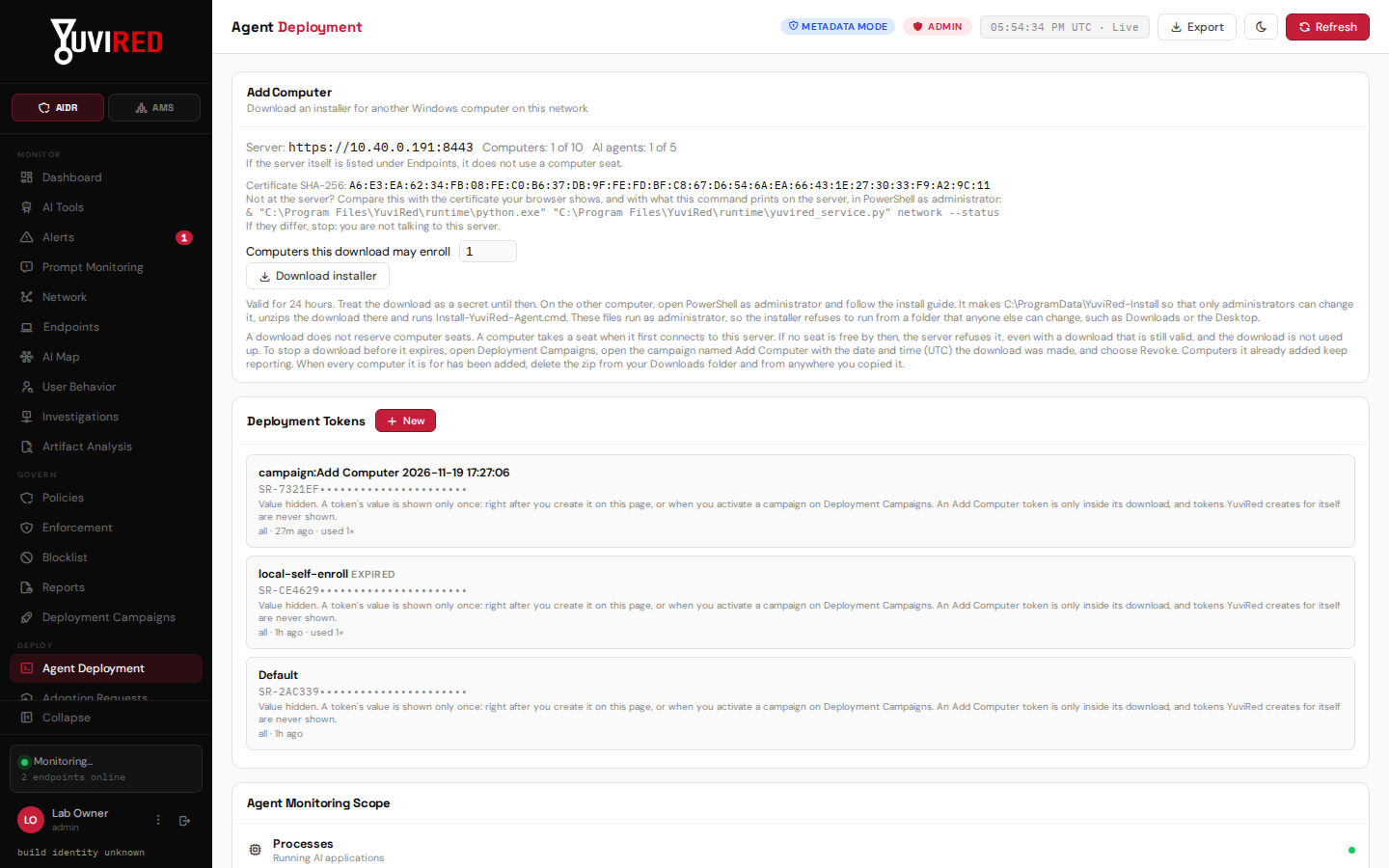
The Add Computer panel. Set the number of computers the download may enroll, then choose Download installer. Captured in the YuviRed lab; your screen shows your own server's address.
Centrally managed deployment (group policy, Intune, other tools)
What is supported: the Add Computer download, run as administrator on each computer, as above.
What is not supported, plainly:
- There is no MSI property for the enrollment token. The token travels only inside
enrol.yuvired, never on a command line, so runningYuviRed-Agent.msialone (including through a Group Policy software package or an Intune line-of-business app) installs the agent without connecting it to your server. YuviRed warns against it. - A custom install folder (
INSTALLDIR) andmsiexec /farepair are not tested. - No group policy template, Intune package or silent-switch script for enrollment is shipped. The download expires after 24 hours and enrolls at most the number of computers you chose (up to 10).
- The scripts and the MSI are not Authenticode-signed; a computer that allows only signed code can block the agent.
If your management tool can run Install-YuviRed-Agent.cmd elevated from a folder only administrators can change, it
may work, but YuviRed has not tested that route. Test on one computer first.
Confirm an endpoint is connected
Steps.
- Open Endpoints. The page title reads "Enrolled Endpoints" with the total.
- Find the computer by name. The columns are Hostname, User, OS, Agent, IP, Risk, Last Seen, Status.
- Agent should read v1.8.2. Status shows a dot and one of three words.
| Status | Meaning |
|---|---|
| Online | the last check-in was 180 seconds ago or less |
| Stale | the last check-in was between 180 and 600 seconds ago |
| Offline | more than 600 seconds ago, or never |
The agent checks in every 60 seconds, so a new computer normally shows Online within a few minutes. The installer waits up to 90 seconds for acceptance. The filter above the table (All status, Online, Stale, Offline) and the sort "last seen" help in a larger list. The refresh button on a row asks the agent to re-read its settings at its next check-in (about 60 seconds).
On the computer. In PowerShell: Get-Service SyntinelRedAgent should show Running. The log should contain
"Registration OK" and then "Check-in OK" lines.
What a check-in carries, and offline devices
Every 60 seconds the agent runs its collectors and sends one batch (at most 2,000 items): the eight telemetry kinds, the computer name, the signed-in user name (domain removed), one IP address, the Windows version and the agent version, plus a short health report about the agent. At start and then every tenth cycle (about every ten minutes), and when you press the row's refresh button, it also pulls its settings.
The server can answer with settings, a refresh flag, a request to upload the agent log tail, approved response actions and AMS commands. There is no remote command execution.
Offline computers. If the computer is off or cannot reach the server, the console shows it Stale, then Offline, and keeps its last data. **Nothing is queued while it is away: a check-in that cannot be sent is dropped and that cycle's telemetry is lost.** After more than three failures in a row the agent slows down, to at most one try every 300 seconds, and keeps trying. When the server is reachable again it resumes by itself. (The AMS part keeps up to 5,000 events on disk and sends them when it can.)
An offline computer still holds its seat. If the server is not yet activated after the 7 day window, or a paid license has ended, the console locks, but enrolled computers keep reporting and YuviRed only monitors.
Update an agent
A Lite agent is installed from the MSI, and MSI-installed agents do not update themselves, whatever the setting Automatic Agent Updates says. To move a computer to a newer agent (and a newer extension):
- Install the new YuviRed server build (the signed in-place upgrade). Your computers, policy and settings are kept.
- On the server, make a new Add Computer download (a new zip carries the newer MSI).
- On each computer, repeat steps 6 to 9 of "Add a computer". The MSI installs over the old version and the computer keeps its identity and uses no second seat. The new download also replaces the extension files; see extensions.md.
Upgrading the server does not update the agent running on the server itself.
Endpoint credential rotation
What it is. Each agent authenticates with its own secret credential. Rotation replaces it without reinstalling. The server issues a new credential, the agent saves it and proves it works, and the old one stops being accepted (both work together for a 30 minute overlap).
When to use it. After you suspect a credential was exposed, when a computer is handed to another person, or on a routine schedule you set yourself. It needs agent 1.7.20 or newer; agent 1.8.2 qualifies.
Steps.
- Open Agent Deployment and scroll to Endpoint Credential Rotation (administrators only).
- Choose Rotate Credentials for All Endpoints, or tick computers in the list and choose **Rotate Credentials for Selected Endpoints**.
- In the dialog choose a Window (default 7 days; 1, 3, 14 or 30 days are available) and select **Confirm Rotation**.
What you should see. A row appears under Rotation Operations. Online computers rotate on their next check-in. Offline computers stay visibly pending, with a reason, and finish when they reconnect, until the window ends. A completed row means the new credential was verified and the old one rejected.
Common problems. A computer pending for "waiting for agent 1.7.20 or newer" runs an older agent. A pending row on an online computer reads "waiting for the endpoint's next check-in (about once a minute)"; on an offline computer "endpoint is offline; the rotation starts automatically when it reconnects". "The set of eligible endpoints changed since you opened this dialog": the count was refreshed, confirm again. A failed row has Retry.
Rollback. There is none; rotation is one way. If a computer fails to complete after Retry, remove it and add it again.
Decommission and delete
The console has one control: the red Remove endpoint button on an Endpoints row (administrators). Decommission
exists only in the server's interface for programs (POST /api/v1/endpoints/{id}/decommission, and /reactivate)
and has no button in this release.
| Decommission (API only) | Remove endpoint (console) | |
|---|---|---|
| Seat | freed | freed, if the computer used one |
| History, alerts, audit trail | kept | telemetry and alerts deleted permanently |
| Agent on the computer | refused with HTTP 410, backs off (at most one try every 300 seconds) and keeps its identity | its check-ins are refused; while the Add Computer download it was installed with is still valid (24 hours from the download) the agent can enroll again, on its next recovery attempt or restart, as a new row that takes a seat; after that it stops reporting for good |
| Undo | reactivate (takes a seat again) | cannot be undone |
Remove endpoint shows counts first. Telemetry and alerts are deleted. AI content events are kept but unlinked; AI agent records are archived; open investigations stay open but become unlinked. Select Remove endpoint in the dialog to confirm. Uninstalling the agent tells the server nothing: the row and the seat stay until you remove them. Uninstall the agent on the computer first, then remove the row, so the computer cannot enroll itself again.
Remove an agent from a computer
- Preferred: run
& C:\ProgramData\YuviRed-Install\Uninstall-YuviRed-Agent.cmdfrom an administrator PowerShell (keep the folder from the install). It prints "The YuviRed agent has been removed from this computer." and deletes the download files. - Or: Settings, Apps (Add or Remove Programs), choose YuviRed Agent, then Uninstall. This does not report what its cleanup could not remove.
- Remove the computer under Endpoints to free the seat.
The removal deletes the service, the program files, the browser registration and C:\ProgramData\SyntinelRed (state and
logs). If the cleanup did not finish the script lists what is left (exit code 3). A browser extension loaded by hand
must be removed in edge://extensions or chrome://extensions. Install and removal logs stay in %TEMP%
(YuviRed-Agent-Install.log, YuviRed-Agent-Uninstall.log).
Troubleshooting
| Symptom | Likely cause and fix |
|---|---|
| The agent cannot reach the server (installer ends "NOT enrolled", exit 7, log "Cannot reach backend") | Check three things. (1) The server is still in local-only mode: on the server run network --status; if it says loopback, run network --name <DNS name or fixed IP>. (2) The server's network is on the Public Windows profile: the firewall rule covers Domain and Private only; set the network to Private or Domain. (3) The name does not resolve from the computer: test Resolve-DnsName yuvired.northwind.example and Test-NetConnection yuvired.northwind.example -Port 8443. |
| Service not running | Get-Service SyntinelRedAgent; then Restart-Service SyntinelRedAgent and read the log. The installer prints this command after a failed enrollment. It works for 24 hours after the download was made. |
| 401 or 403 in the agent log | The server refused a credential. After a registration refusal the log gives the reason, for example "deployment token expired" or "enrollment cap reached" (make a new download), or "license seat limit reached" (remove a computer you no longer use, then restart the service). A 403 on a check-in means the credential no longer matches: rotation or a removed row. Reinstall from a new download. |
| Token expired | The download is 24 hours old, was revoked, or has added all its computers. Make a new download. |
| 410 in the log | The endpoint was decommissioned through the API. Reactivate it, or reinstall. |
| 402 in the log | Only a demo license produces it (expired, revoked or invalid). A Lite or Pro license lock does not stop check-ins; it locks the console and refuses new enrollments. |
| Time skew: "TLS certificate time check failed: check this computer's clock" | The computer's clock is wrong. Fix the time and restart the service. |
| TLS: "TLS certificate not trusted" | The agent trusts only the server's own certificate from enrol.yuvired. The certificate or address changed after the download. Make a new download and install it over the old one. |
| Seats show full | Open Endpoints and remove a computer you no longer use. |