

Administrator guide
Installation guide
This guide covers everything about putting the YuviRed server on a Windows computer: requirements, download and verification, the interactive and unattended installs, what the installer creates, upgrade, repair and removal, and the record of your acceptance of the legal terms. For the shortest path, use the Quick start.
Product and versions documented: YuviRed 1.0, installer 1.0.322.1608, app 1.0.0, endpoint agent 1.8.2, browser extension 0.5.5.
Requirements
| Item | Requirement |
|---|---|
| Server operating system | Windows Server 2022 or 2025, or Windows 10 (version 1809 or later) or 11 Pro; 64-bit. The installer itself refuses anything else with "YuviRed Lite requires 64-bit Windows 10 (1809) or later." It needs .NET Framework 4.7.2 or later, which every supported Windows ships |
| Monitored computers | Windows 10 and 11, Windows Server |
| Browsers (extension) | Chrome and Edge. Firefox is not supported |
| Permissions | You must be a local administrator on the server. The installer asks once for elevation |
| CPU, memory, disk | Tested configuration (the lab server running this release): Windows Server 2025 Standard, 4 logical processors, 4 GB of memory, 64 GB disk. Recommend at least that. After a fresh install with one enrolled computer, the YuviRed service and its bundled database used about 490 MB of memory, the program files about 251 MB and the data folder about 71 MB; Windows plus YuviRed used about 10 GB of the disk. The data folder grows with the number of computers and the retention settings. YuviRed has not published a formal minimum |
| Server stays on | Computers report to it continuously. Run it on a computer that is on and not asleep |
| Not a domain controller | The network command warns when the computer is a domain controller and refuses unless you pass --allow-domain-controller. Use a dedicated server |
Network:
| Direction | Port | Purpose |
|---|---|---|
| Inbound to the server, from your monitored computers and from administrators' browsers | TCP 8443 | The console and the endpoint check-in. Not open until you turn on network mode |
| Outbound from the server | TCP 443 to https://activate.yuvired.com | Activation (once) and the daily check-in. No internet: use a license file |
| On the server only (loopback) | TCP 5440 | The bundled PostgreSQL database. It listens on 127.0.0.1 only and is never reachable from the network |
Network mode. A new server starts in loopback mode: it binds 127.0.0.1:8443, only a browser on the server itself reaches the console, and no other computer can enroll. To let others in, run on the server, in PowerShell as administrator:
$py = "C:\Program Files\YuviRed\runtime\python.exe"; $yr = "C:\Program Files\YuviRed\runtime\yuvired_service.py"
& $py $yr network --name server.northwind.example     # a DNS name, or a fixed IP such as 192.0.2.10
& $py $yr network --status                            # shows the bind, firewall profile and rule
& $py $yr network --off                               # back to loopback, rule removed
network --name writes config\network.conf, adds an inbound Windows Firewall rule named
YuviRed Server (TCP 8443) for the Domain and Private profiles only, and restarts the service.
Keep the window open: it prints "Restarting YuviRed. Keep this window open: this usually takes a
minute or two and can take up to 7 minutes." and ends with exit code 0 when the server is ready
again. The server's own agent is skipped in network mode. If the server's network is classed
Public, the command tells you so: "This server's network is set to Public, so Windows Firewall blocks
port 8443 and no other computer can connect. YuviRed does not open the Public profile. ..." and
prints the Get-NetConnectionProfile and Set-NetConnectionProfile ... -NetworkCategory Private
steps to move only the trusted network to Private. The rule allows any remote address: to restrict
which computers may connect, use a firewall outside the server. Prefer a DNS name: agents trust this
server's certificate, and if you enroll by IP address and the address later changes, you must run
network with the new address and make a fresh Add Computer download on each computer. After the
command, the console address is https://<name>:8443. network --status also prints
"certificate SHA-256: ..." (the value the Add Computer panel shows, for comparing with what a
browser presents) and warns when the running server applies another setting than the saved one or
when the certificate does not yet carry the configured names.
First-time account creation is accepted only from a browser on the server itself, even in network mode.
Download and verify
Purpose: be sure the file is the one YuviRed LLC published.
- On https://yuvired.com/download enter your work email address and company name and ask for the verification code. A free email address is refused with the message "Use your work email address. Free email addresses cannot download YuviRed Lite. If your business has no work email address, contact us."
- The email "Your YuviRed verification code" has a 6-digit code. Enter it on the page within 30 minutes. A wrong or old code says "That code is not right, or it has expired. Ask for a new one."
- The page then gives you the download and your activation code. The email "Your YuviRed Lite activation code" repeats both: "The code works for 7 days, until <date> UTC, and activates one server." and "This link works until <date> UTC." for the download.
- Limits per company for automatic Lite codes: 2 servers, 2 verified people, 3 codes per day. A third person or server, or a fourth code in a day, shows a message that ends "the YuviRed team will reply by email", with a form where you tell YuviRed why you need more.
Verify the signature. Windows Explorer: right-click
YuviRed-Lite.exe, Properties, **Digital Signatures** tab, select the signature, Details: "This digital signature is OK", signer YuviRed LLC. PowerShell:Get-AuthenticodeSignature .\YuviRed-Lite.exe | Format-List Status, StatusMessage, SignerCertificate signtool verify /pa /v .\YuviRed-Lite.exe # needs the Windows SDK; exit code 0 means verifiedStatus must be
Validand the signer subject must name YuviRed LLC.Verify the SHA-256. The value is shown on the download page; this guide writes it as
<published SHA-256>and never contains it:(Get-FileHash .\YuviRed-Lite.exe -Algorithm SHA256).Hash -eq '<published SHA-256>'It must print
True.
How to confirm: both checks pass. Common problems: the status is NotSigned or HashMismatch, or the
hash differs: delete the file and download again; if it repeats, email support@yuvired.com. A
SmartScreen warning that names an "Unknown publisher" means the file is not signed: do not run it.
Rollback: delete the file.
Interactive install
Purpose: install the server with the installer window. Prerequisites: the verified file, local administrator rights, no other YuviRed installation of a newer version on this computer.
- Double-click
YuviRed-Lite.exe. The red window YuviRed Lite Installer opens on **License Agreement**, with the agreement text in a scrolling box. - Read it, then tick I have read and agree to the YuviRed License Agreement. Install is enabled only by that checkbox. Cancel closes the installer without changing anything.
- Choose Install. At the Windows prompt (User Account Control) choose Yes. The prompt names the publisher; for a signed build it is YuviRed LLC.
- Installing YuviRed Lite shows a progress bar and the live checklist: Preparing installation, Installing YuviRed, Configuring database, Starting services, Securing installation, Verifying YuviRed. Each step is ticked only when it really happens. Do not close the window; closing is refused while the install runs. Windows may first install the Microsoft Visual C++ runtime if a recent one is missing; that can ask for a restart.
- Installation Complete appears only after YuviRed has proven itself ready twice: the installer package waits until the server is ready and stays ready for 15 seconds, and then the window checks both services, the database and web ports, and the health check. It shows a green check, "YuviRed Lite installed successfully", Service: Running and Status: YuviRed Ready, the note "Documentation: https://yuvired.com/docs. On this server after setup: https://localhost:8443/static/docs/ (Help in YuviRed). Legal documents: the Legal page in YuviRed.", and the buttons Finish and Open YuviRed. If the Visual C++ runtime needed a restart, the page adds "Windows needs to restart to finish installing a Windows component; YuviRed Lite will also be available after the restart."
- Choose Open YuviRed. Your browser opens https://127.0.0.1:8443/. See Setup.
How to confirm: in PowerShell, Get-Service YuviRed, YuviRedPostgres, YuviRedAgent shows Running; the
console loads.
Common problems:
- Installation Failed, "The installation could not be completed. Nothing from this attempt is left running; you can run the installer again." The page shows a Support code and a **Log file** path and a Close button. Run the installer again. If it fails again, run the support collector (below) before you reboot or uninstall, and email the ZIP to support@yuvired.com.
- "YuviRed was installed but is not answering on this computer (...). The services and their logs were kept for diagnosis.": the package finished but the window's own final check failed. Collect support evidence and email it.
- "A newer version of YuviRed Lite is already installed on this computer. To install this version, remove the newer one first."
- "An earlier YuviRed installation that this installer cannot upgrade was found on this computer. Remove it first, then run this installer again." (services named like YuviRed's exist that no installation record explains).
- "The license agreement could not be loaded from this installer package, so it cannot be accepted. Please download YuviRed Lite again.": the downloaded file is damaged; verify and download again.
- The browser warns that the connection is not private: expected, see Setup.
Rollback: a failed install is rolled back by the installer. To remove a finished install, see "Remove YuviRed".
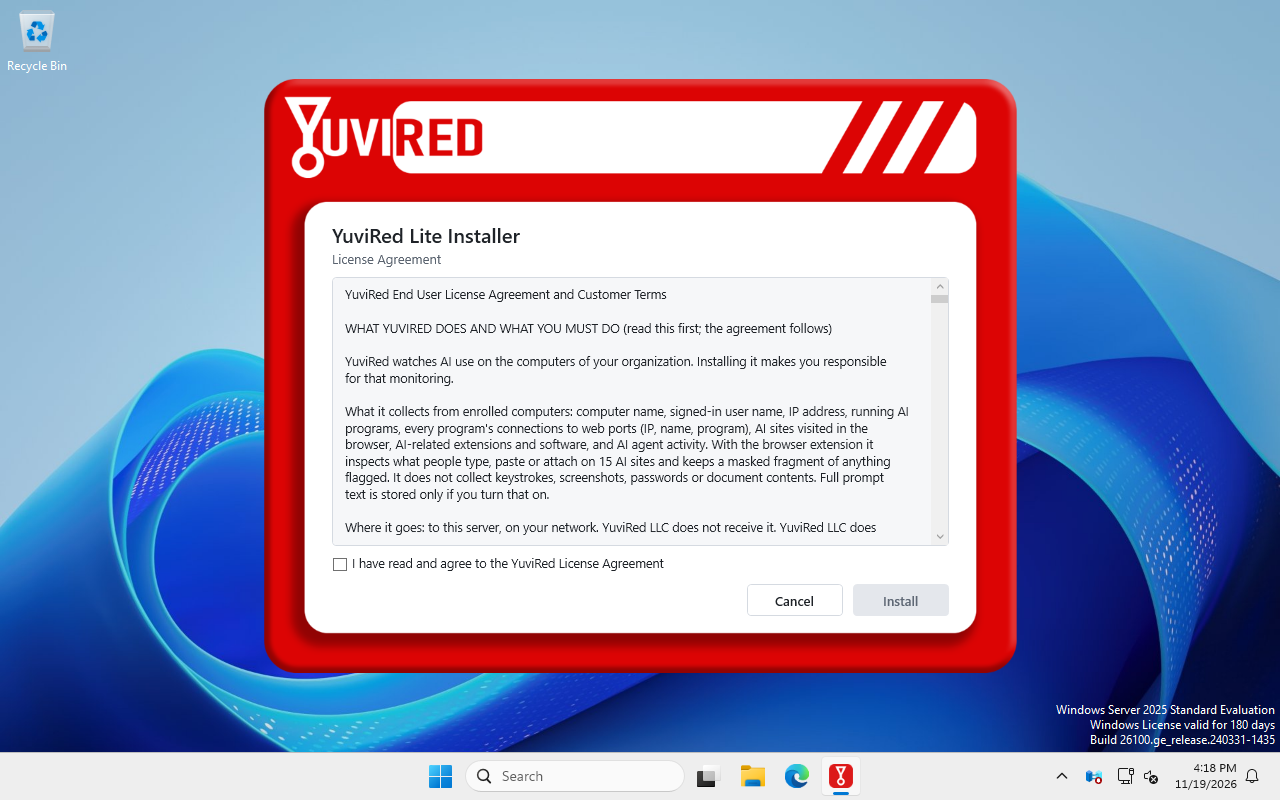
The first installer page. Install stays greyed out until you tick the agreement box. Captured in the YuviRed lab; the Windows evaluation watermark is not part of your screen.
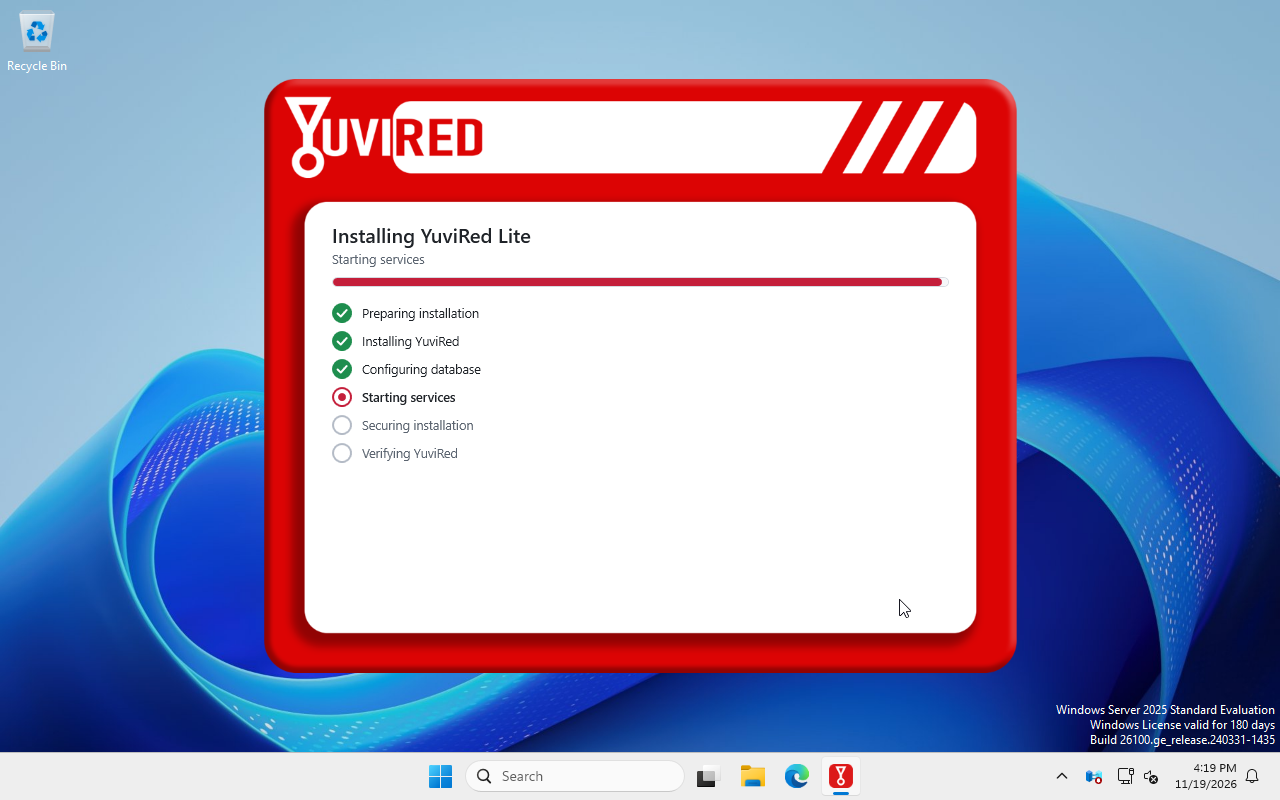
The progress page. The installer works through the checklist; wait until it finishes. Captured in the YuviRed lab; the Windows evaluation watermark is not part of your screen.
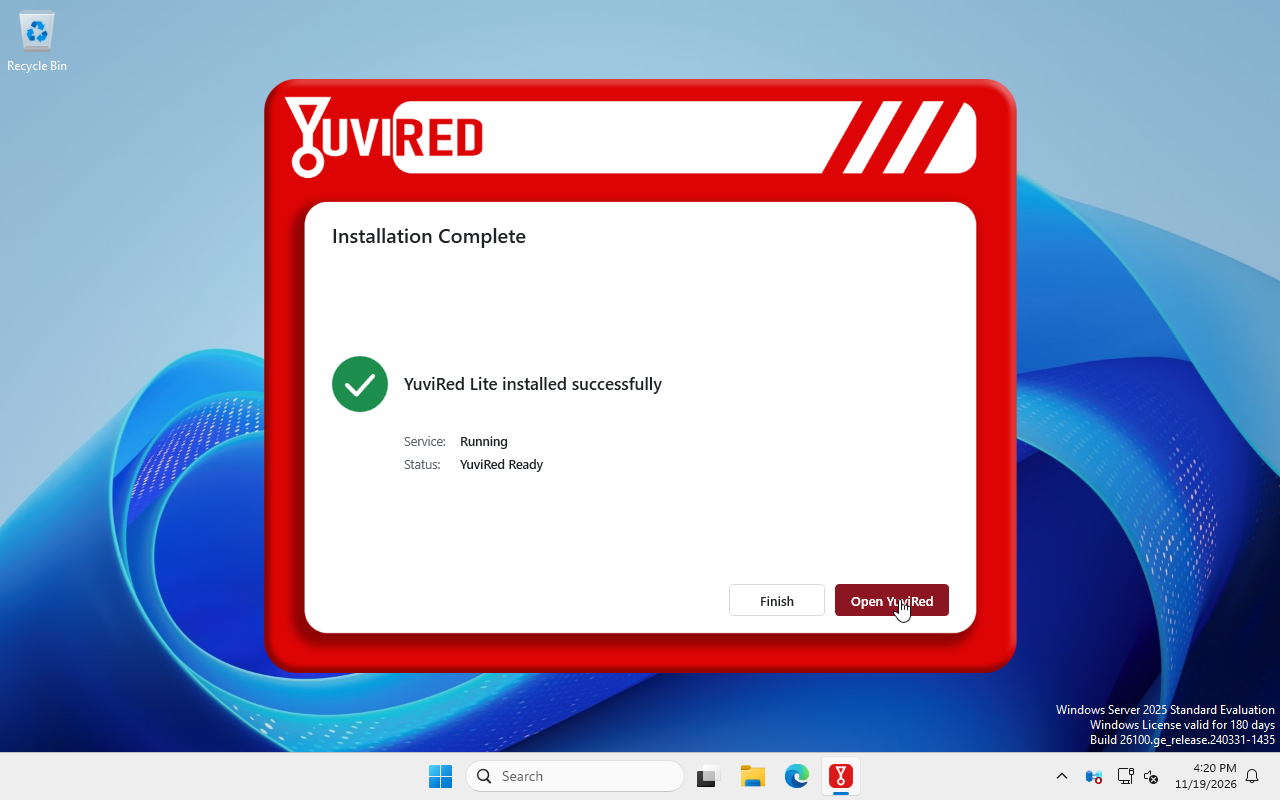
The completion page. Service Running and Status YuviRed Ready tell you the install worked. Captured in the YuviRed lab; the Windows evaluation watermark is not part of your screen.
Unattended install
Purpose: install without a window, for a deployment tool or a script. An unattended install records that an authorized administrator accepts the YuviRed End User License Agreement (version 1.0) and the Monitoring and Data Notice, so you must say so on the command line. Run it in PowerShell as administrator:
.\YuviRed-Lite.exe /quiet ACCEPT_EULA=1 /log C:\Temp\yuvired-install.log
$LASTEXITCODE
/passive ACCEPT_EULA=1 is the same with a progress window and no questions.
| Exit code | Meaning |
|---|---|
| 0 | Installed |
| 3010 | Installed, a Windows restart is needed to finish (a standard Windows code, usually from the Visual C++ runtime) |
| 5101 | Refused: ACCEPT_EULA=1 was missing. Nothing was changed and no service was installed. The log says "YuviRed setup: unattended installation requires ACCEPT_EULA=1, which records that an authorized administrator accepts the YuviRed End User License Agreement (eula 1.0) and the Monitoring and Data Notice" |
| 1602 | Cancelled before it finished |
| other | A standard Windows Installer or installer-engine code; send the log to support |
The parameter name is matched without regard to case; the value must be exactly 1. Upgrade
behavior: an unattended upgrade of a computer that already has the acceptance record (below) does
not need ACCEPT_EULA=1. Removal (/uninstall /quiet) never needs it. Without /log, the
installer writes its log to the %TEMP% folder of the account that ran it, in a file named like
YuviRed_Lite_*.log. The account recorded in the acceptance record is the one that ran the
installer (for a deployment tool running as the system account it reads `<computer or
WORKGROUP>\SYSTEM`).
How to confirm: exit code 0, the three services Running, and legal-acceptance.json exists with
"mode": "silent" (lab-verified on this release: a run without the parameter exited 5101 with no
service and no record; with it, exit 0, services Running, record written with mode silent and
installer version 1.0.322.1608).
Common problems: exit 5101 (add the parameter); running without administrator rights (the install fails at elevation: start PowerShell as administrator).
What the installer creates
Folders:
| Location | Holds |
|---|---|
C:\Program Files\YuviRed\ | The program: runtime\ (embedded Python), pg\ (the bundled PostgreSQL 16), versions\<version>\ (the application), trust\ (public keys and addresses, no secrets), support\ (the support collector), browser\ (the browser native-messaging host), agent-code\ (the server's own agent, copied at each start) |
C:\ProgramData\YuviRed\ | Your data, created once and kept across upgrades and removals: identity\, config\ (settings, the TLS certificate and key, generated secrets), pg\ (the database), logs\, status\, agent\ (the server's own agent) |
C:\ProgramData\SyntinelRed\logs\ | The log of the server's own agent, syntinel-agent.log (the product's earlier name; it will change in a later release) |
Services:
| Service | Runs as | Notes |
|---|---|---|
| YuviRedPostgres | NT SERVICE\YuviRedPostgres, automatic | The database, on 127.0.0.1 port 5440 |
| YuviRed | NT SERVICE\YuviRed, automatic | The console and the API, on port 8443 (loopback until network mode) |
| YuviRedAgent | LocalSystem, automatic (delayed) | YuviRed Endpoint Agent for the server itself; skipped in network mode |
Other items: the Microsoft Visual C++ 2015-2022 x64 runtime if missing (kept at removal); the bundle's
copy under C:\ProgramData\Package Cache (Settings, Apps uses it to uninstall); registry keys for the
browser native-messaging host under Chrome, Edge and Mozilla; the Application event log sources
YuviRed and YuviRedAgent; and, once you run network --name, the firewall rule
YuviRed Server (TCP 8443).
The certificate. First start creates a self-signed certificate (ECDSA P-256, valid 825 days) for the
computer's name, localhost and 127.0.0.1, plus the names you give to network. Its key stays in
C:\ProgramData\YuviRed\config and is protected by permissions. It is not installed into any Windows
trust store, which is why browsers warn once. Agents trust exactly this certificate through the
enrollment file they receive.
There is no administrator password to look up: you create the account at first run. Four secrets (a signing key, an encryption key, a token pepper and the database password) are generated once and never shown.
Upgrade in place
Purpose: move to a newer version, keeping your data. Prerequisites: the new YuviRed-Lite.exe,
verified as above. YuviRed never installs an update by itself: after the daily check-in, a banner
says "YuviRed <version> is available. This server runs <current version>. Nothing is installed
automatically." with Download and Dismiss.
- Run the new
YuviRed-Lite.exeover the existing install (interactive, or/quiet; an unattended upgrade of a computer that holds the acceptance record needs noACCEPT_EULA=1). - The installer detects the existing installation before anything changes. An older or same-version
installation is upgraded in place: the previous version is removed inside the new install and
C:\ProgramData\YuviRedis kept (accounts, computers, policy, network settings, certificate, installation ID and license). The interactive window shows the same License Agreement page first; the checklist's "Installing YuviRed" step covers the replacement. - A newer installation stops the installer on the first screen with "A newer version of YuviRed Lite is already installed on this computer. To install this version, remove the newer one first."
How to confirm: the License panel and the console footer show the new version; Endpoints still lists your computers; the Legal page still shows the original installer acceptance (an upgrade never rewrites it). If the upgrade cannot finish, the installer shows "The upgrade could not be completed. The previous YuviRed installation and your data were left in place; you can run the installer again."
Not verified in this documentation pass: an in-place upgrade between two released versions on a
customer computer (the detection and the wording are in the installer; the lab ran upgrades between
pre-release builds, and this release is the first production installer). Take a manual copy of
C:\ProgramData\YuviRed (stop the YuviRed services first) before any upgrade, because Lite ships no
backup command.
Repair
Settings, Apps offers no Repair for YuviRed: the package disables the Windows Installer repair and
modify entries. To fix a damaged installation, run the same or a newer YuviRed-Lite.exe again; the
installer treats a same-version installation as an upgrade in place and keeps your data. This is not
lab-verified; if it does not help, collect evidence and email support@yuvired.com. (Not verified:
whether Settings, Apps shows a "Modify" or "Change" entry for the YuviRed Lite package itself; if it
does, use the installer file instead.)
Collect support evidence
If an install fails, do not reboot, uninstall or clean up first. Run, as administrator,
C:\Program Files\YuviRed\support\collect-install-evidence.ps1 (or the copy beside the EXE). It makes
one redacted ZIP on your Desktop. Look through it, then email it to support@yuvired.com.
Remove YuviRed
Open Settings, Apps, choose YuviRed Lite, Uninstall; or run
YuviRed-Lite.exe /uninstall /quiet (no window, no questions). An interactive removal shows the
window Removing YuviRed Lite with the steps Preparing removal, Stopping services, Removing
YuviRed, and ends on Removal Complete, "YuviRed Lite was removed from this computer", with "Your
data, settings and logs were kept in C:\ProgramData\YuviRed. Installing YuviRed Lite again on this
computer uses them." and "Computers you added keep their agent. Remove it on each computer with
Uninstall-YuviRed-Agent.cmd, or from Settings, Apps." The removal does not delete your data and has
no option to. Deleting C:\ProgramData\YuviRed yourself makes the next install a new server with a
new Installation ID that must be activated again. The full procedure, including the agents, is in
Uninstall.
The acceptance record
Every install records who accepted the legal terms. File:
C:\ProgramData\YuviRed\status\legal-acceptance.json. Its fields: document_id ("eula"),
document_version ("1.0"), accepted_at (UTC), mode ("interactive" or "silent"), account (the
Windows account that ran the installer), authority ("deploying administrator"),
installer_version and recorded_by ("installer"), plus a history list. A record of the same
document version is never overwritten: an upgrade or a repeated install keeps the original
acceptance. If a later release ships a new version of the agreement, the new acceptance becomes the
current record and the earlier one moves into history. Example from the lab (silent install of
this release): mode silent, account WORKGROUP\SYSTEM, installer version 1.0.322.1608.
To see it in the console: open Legal, panel Acceptance records: "Installer acceptance:
version 1.0, accepted <time> by <account> (silent)" or "(interactive)", and "Console acceptance:
version 1.0, accepted <time> by <email>". The console line is written when the owner accepts at
setup; it also appears in the audit log as legal.accept.
Not verified in this guide
- A formal minimum for CPU, memory and disk: YuviRed has published none. The figures above are the one tested configuration and what it measured; a larger fleet or longer retention needs more disk.
- Repair behavior, whether Settings, Apps shows a Change entry, and an upgrade between two released versions on a customer computer.
- The exact wording of the yuvired.com download page (this guide follows the emails and service messages in the code).
- Exit code 3010 from an unattended install: expected from the Windows Installer engine when the Visual C++ runtime schedules a restart, not reproduced in the lab.