

Administrator guide
Licensing guide
This guide explains how a YuviRed server is licensed: the 7-day activation window, activation codes, the license file route, the limits and what counts against them, renewals and upgrades, expiry, revocation, the daily check-in, a server moved to new hardware, every state of the license screen, and how to recover when the console is locked.
Editions: Lite is free and never expires (10 computers plus the server itself, and 5 AMS agents; AMS is Agent Monitoring System). Pro is US$1,500 per year (50 computers, 50 AMS agents), with no trial and no grace period at expiry. Enterprise is custom. One installer serves all editions; the license decides which one runs.
How activation works
A new server works for 7 days with Lite limits so you can try it. Within those 7 days you activate it once. After day 7 an unactivated console shows only the license screen until you activate. Computers already enrolled keep reporting, and the browser extension only monitors (it never blocks) until the server is activated. New computers and new AI agents are refused while the server is locked.
While the 7 days run, every signed-in user sees an amber banner: "This YuviRed server is not activated. You have 6 days left to activate it. After that, the console is unavailable until it is activated." with Activate now. The count is whole days left, rounded down, so it reads 6 right after install, then "1 day left", then "less than 1 day left". In Configuration, the License panel shows Not activated and the days left.
Only the owner account created at first-time setup can activate, redeem a code or import a license file; an Admin added later in the console cannot (see Setup).
A server activated once never gets the 7 days again. A server that never held a license (for example one upgraded from a pilot build) gets its 7 days from the first start of this version; get a code the same way as a new server.
Get an activation code (Lite)
- On https://yuvired.com/download enter your work email address and company name, ask for the verification code, and enter the 6-digit code from the email within 30 minutes.
- The page gives you the activation code, and the email "Your YuviRed Lite activation code" repeats it: "The code works for 7 days, until <date> UTC, and activates one server." It is valid once, for one server. Ask for a new one if it expires.
Limits per company for automatic Lite codes: 2 servers, 2 verified people, and 3 codes per day. Beyond that you see one of: "Two people at your company already use YuviRed Lite. To add another person, tell us why you need it and the YuviRed team will reply by email."; "Your company already has 2 YuviRed Lite servers. To add another server, contact YuviRed support and tell us why you need it."; or "Your company has reached today's limit for YuviRed Lite downloads. Tell us what you need and the YuviRed team will reply by email." Each has a form for your reason.
Activate with a code
Purpose: turn the server into a licensed YuviRed Lite (or Pro or Enterprise, with that edition's code). Prerequisites: signed in as the owner account created at first-time setup; the code; the server can reach https://activate.yuvired.com on TCP port 443.
- Choose Activate now on the banner, or open Configuration, find the License panel and choose Activate or import license. The screen Activate YuviRed opens and says "You have 6 days left to activate this server. After that, the console is unavailable until the server is activated."
- Note the Installation ID (with Copy; the toast says "Installation ID copied"). It identifies this server. Support may ask for it. It is not a secret.
- Under Activation code type the code and choose Activate. Under the field: "Activating sends YuviRed this server's installation ID, computer name, Windows version and YuviRed version."
What you should see: the toast License activated; the License panel shows the badge Active, the title YuviRed Lite, Licensed to (your company), Plan YuviRed Lite, Expires Never, Serial filled in, Installation ID, Last check-in Not yet (until the first daily check-in), the counters Computers used and AI agents used, and the line "YuviRed Lite is free and never expires."
Only the owner account can activate. Anyone else sees "Only a YuviRed administrator can activate this server. Sign in with the administrator account created when YuviRed was installed." If you leave the code empty: "Enter the activation code."
Common problems (the text under Activation code, then "Need help? Email support@yuvired.com and include the installation ID."):
| The screen says | What it means and what to do |
|---|---|
| That activation code is not valid, was already used on another server, or has expired. | A code works once, for one server, 7 days. Check the typing; ask for a new code |
| YuviRed could not be reached. Check this server's internet access and try again, or use a license file. | The server cannot reach activate.yuvired.com on port 443, or a proxy replaces certificates. Fix that or use the license file |
| Activation is temporarily unavailable. Try again later, or use a license file. | YuviRed's signing service is down. The code is not used up; try later |
| Your company already has 2 YuviRed Lite servers. To add another server, contact YuviRed support and tell us why you need it. | Use the contact YuviRed link at the bottom and give your reason |
| Too many activation attempts. Try again in an hour. | Wait an hour |
| Online activation is not set up on this server. Use a license file instead. | This build has no activation address; use the license file |
| YuviRed sent an unexpected answer. Try again in a few minutes. / YuviRed could not activate this server right now. Try again in a few minutes. | A fault on YuviRed's side or on the way; retry |
Rollback: none needed; a refused code changes nothing.
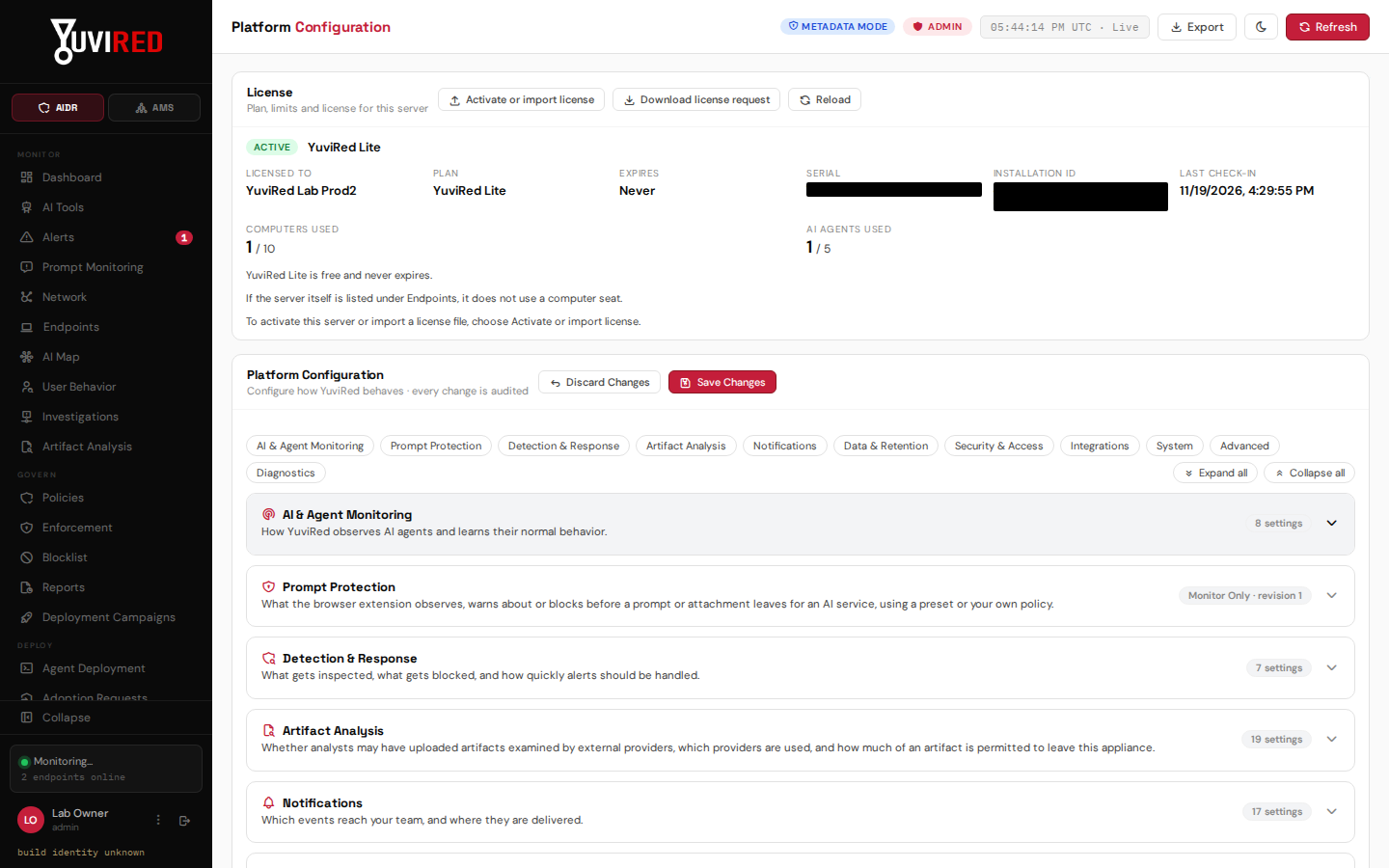
The License panel. It shows the plan, the state and how many computers and AI agents you are using. Serial and installation ID are covered.
Activate with a license file (no internet on the server)
Prerequisites: your activation code, the server's Installation ID, and any computer with internet access.
- On the server's activation screen, note the Installation ID.
- On the internet-connected computer, open the license file link in your YuviRed email. The page **Get a YuviRed license file** says "Use this page for a YuviRed server without internet access. You need the activation code from your YuviRed email and the installation ID shown on the server's activation page."
- Enter the Activation code and Installation ID, then choose Download license file ("This sends YuviRed the activation code and the installation ID."). The page is at https://activate.yuvired.com/license-file.
- Carry the file to the server. On the activation screen, under License file ("For a server without internet access, or when YuviRed sends you a license file. ..."), choose **Upload license file** and pick it. Accepted types: .txt, .lic and .yuvired-licence. A file that is too large is refused ("That file is too large to be a YuviRed license file."). The file is plain text: a few comment lines for you (plan, company, expiry, serial) and one license token; do not edit it.
What you should see: the same License activated result. If the console is still locked afterwards: "The license was stored, but the console is still locked. Email support@yuvired.com."
If the license-file page refuses: it shows the reason, "Need help? Email support@yuvired.com and include the installation ID.", and for a server-allowance refusal a form ("Tell us why you need another server and the YuviRed team will reply by email.") with Your work email, Company, Why you need another server and Send to the YuviRed team. If the service is down: "The YuviRed license service is temporarily unavailable. Try again later."
When YuviRed makes a license by hand (Pro, Enterprise, or special cases), choose **Download license
request** on the same screen or in the Configuration License panel. It saves
yuvired-license-request.txt with the Installation ID and the YuviRed version; email it to
support@yuvired.com. YuviRed returns a license file bound to that Installation ID.
Limits, and what counts
- Computers. Lite 10, Pro 50, plus the server itself, whose own agent takes no seat in any edition. A computer takes a seat when it first connects after its Add Computer installer runs, not when you download the installer. A download does not reserve seats. If no seat is free, the server refuses the computer, even with a valid download, and the download is not used up.
- AI agents (AMS). Lite 5, Pro 50. These are seated AMS agents.
- A computer counts while it is enrolled, including a quarantined one. The console frees a seat when you remove the computer under Endpoints (there is no separate "decommission" control; a removal deletes that computer's history). Removing a computer that is reinstalled later takes a seat again.
- The License panel shows Computers used and AI agents used, and warns "Every computer seat is in use. A new computer is refused until one is free. To free one, open Endpoints and remove a computer you no longer use. Removing it deletes that computer's history."
- Existing computers are never cut off by a limit: they keep reporting.
Renewals and upgrades (Lite to Pro)
Lite never expires and needs no renewal. Pro and Enterprise are requested at https://yuvired.com/request (or by email to support@yuvired.com). YuviRed approves the request, you pay, and only then is the license issued as a code or a license file. There is no trial. Renewal is manual: request it the same way.
To move a server from Lite to Pro, activate the Pro code or license file on the same server, as above. A new license with a different serial supersedes the old one cleanly; the old record and its audit entry stay. Your computers, data and settings stay. A server that has had a paid license never takes a free Lite license again: the refusal reads "this server has held a Pro or Enterprise license, so it does not take a free Lite license. Contact YuviRed to renew the paid license".
Reminders: 30, 14 and 7 days before a Pro or Enterprise license ends, a banner says "Your YuviRed Pro license ends in <N> days (<date>). When it ends, the console is unavailable until a new license is activated. Enrolled computers keep reporting, and YuviRed only monitors until then. To renew, email support@yuvired.com." with License.
Expiry
A Pro or Enterprise license that ends locks the console: there is no grace period and no fallback to Lite. The screen titled Your YuviRed license has expired says "This YuviRed license has expired. The console is unavailable until a new license is activated. Enrolled computers keep reporting, and YuviRed only monitors until then." It shows the plan and end date, and the link **Request or renew a Pro or Enterprise license** (https://yuvired.com/request), "or email support@yuvired.com." Activate the new code or file on this same screen.
Revocation
- By YuviRed. The server learns of it at its daily check-in. The screen **This YuviRed license was revoked** says "YuviRed revoked the license for this server. The console is unavailable until a new license is activated. ... If you think this is a mistake, email support@yuvired.com." Email with the Installation ID. A new code or file (a new serial) unlocks it; the revoked license can never be used again.
- On this server. The Windows server's License panel has no revoke control in this release (the Revoke Active License button belongs to the Linux appliance's panel and is hidden here), and the server refuses to revoke a Lite license at all ("the free YuviRed Lite allowance cannot be revoked"). If a Pro or Enterprise license is ever revoked locally through the programming interface, the screen reads "This YuviRed license was revoked on this server. The console is unavailable until a new license is activated. ..." and a new license unlocks it.
The daily check-in, and what it sends
After activation (not during the 7 days), the server contacts https://activate.yuvired.com about once a
day. It sends exactly six facts: the format name (yuvired-checkin/1), the Installation ID, the
YuviRed version, the license serial, the number of computers, and the number of AI agents. It never
sends computer names, user names, addresses, prompts or anything a computer did. When you activate,
it sends the activation code, the Installation ID, the computer name, Windows version and YuviRed
version. YuviRed also sees the internet address your server connects from and keeps a keyed hash of
it in hourly counters to limit attempts; those rows are deleted after an hour. Your monitoring data
never goes to YuviRed.
If YuviRed cannot be reached, nothing changes: the server keeps working and Last check-in in the License panel keeps its last value (Not yet until the first success). The reply can revoke this server's license or name a newer version, shown as a cyan banner: "YuviRed <version> is available. This server runs <current version>. Nothing is installed automatically." with Download and Dismiss (hides it for that version in this browser).
A server moved to new hardware (server_changed)
The server binds its license to its hardware identity. If the virtual or physical hardware changes (for example a VM restored or imported as a new VM, some hypervisor upgrades, or a copy), YuviRed treats it as a different server and locks the console. The screen This server needs a new license says "This server's hardware changed, so YuviRed treats it as a copy of another server. The console is unavailable until a new license is activated for this server. Enrolled computers keep reporting, and YuviRed only monitors until then. If you moved or restored this server, email support@yuvired.com with the installation ID shown on this screen." The server now has a new Installation ID.
- If it is a copy of another YuviRed server, shut the copy down. Do not activate it.
- If you moved or restored it, email support@yuvired.com with the new Installation ID.
- Activate the new code or license file YuviRed sends. The old license file is refused, and moving the server back does not bring it back.
Snapshot restores, host moves, and changes to network card, MAC address, CPU or memory do not change the identity. The Add Computer panel may also show "This server now runs on different virtual hardware. If it was moved or restored, confirm below. If it is a copy of another server, do not confirm: stop this copy. Computers already enrolled keep reporting either way." with the button **This server was moved or restored**. On a licensed server that button does not unlock anything: it answers "This server needs a new license because its hardware changed. Activate a new license on the license screen." The new license is the only way through.
If the screen says "YuviRed could not finish checking this server's hardware. Restart the YuviRed service,
then try again.", restart the service (Restart-Service YuviRed in PowerShell as administrator) and open
the license screen again.
Every state of the license screen
While the server is locked, every page shows only the license screen; its title names the state.
| Title | Message | What to do |
|---|---|---|
| Activate YuviRed | This YuviRed server is not activated. The 7 days to activate it have ended, so the console is unavailable until you activate it. Enrolled computers keep reporting, and YuviRed only monitors until then. | Activate by code or file |
| Your YuviRed license has expired | This YuviRed license has expired. The console is unavailable until a new license is activated. ... | Renew at https://yuvired.com/request |
| This YuviRed license was revoked | YuviRed revoked the license for this server. ... (or "revoked on this server") | See Revocation |
| This YuviRed license could not be verified | This YuviRed license could not be verified. The console is unavailable until a valid license is activated. | Activate a new code or file; if it fails, email support with the Installation ID |
| This server needs a new license | This server's hardware changed ... | See above |
| YuviRed license | Opened from Configuration while the license is in force: "Activate this server, or import a new license file." | Close it, or import a new file |
Badges in the License panel: Active, Ends soon, Expired, Revoked, Not valid, Not activated (amber during the 7 days, red after), Server changed; the title beside it reads Not activated, YuviRed Lite, YuviRed Pro, YuviRed Enterprise or Needs a new license. One more case: a Lite license that is "not valid" does not lock the console; the panel says "This license is not valid on this server, so new computers are refused. Activate a new license, or email support@yuvired.com with this server's installation ID."
Recovery when locked
- Read the title and message on the license screen; find it in the table above.
- Note the Installation ID (Copy). Nothing else is needed to ask for help.
- Activate a valid code or license file on the same screen, signed in as the owner account; **Sign out** is there if you are on the wrong account. Sign-in still works while locked; every other page answers with the license screen.
- If you cannot activate, email support@yuvired.com with the Installation ID and the exact message.
- Meanwhile, enrolled computers keep reporting and their data is kept. It is visible again once a new license is activated. A browser block an administrator applied earlier stays until rolled back, and no new blocking action is delivered while locked.
What YuviRed receives from your server
Only license facts, described above. Your monitoring data, computer names, users and prompts stay on your server. The full statement is the Privacy Policy on the Legal page.
Not verified in this guide
- The Pro and Enterprise purchase screens on yuvired.com and the exact wording of the download page (this guide follows the process owner-approved in the facts sheet and the messages and emails in the activation service, not the website pages).
- The expired, revoked, not-verified and server-changed screens were read from code; the lab ran the activation window, a code activation and a license-file activation on this release, not those states.