

Administrator guide
Reports
YuviRed produces two reports, each downloadable on its own, plus a live on-screen overview:
- Executive Summary: a concise leadership overview of activity, risks, protection and recommended actions, for executives and security leads. Usually 2 to 4 pages as a PDF. The first page stands on its own.
- Auditor's Report: detailed findings, evidence, configuration history and supporting records for auditors and technical reviewers.
- Live overview: the older on-screen summary with CSV, HTML and print options (section 8).
Both reports describe what YuviRed recorded. Neither is a certification, and neither says that your organization complies with any law or standard. The example company is "Northwind Dental"; all names and numbers in examples are made up.
1. Before you start
- Where. Choose Reports in the left menu (AIDR or AMS list) and stay on the Reports tab, the first tab. The Live overview tab is the second.
- Permission. You need
reports.read(every built-in role has it). Some sections need more (section 6). A section your role may not see is still listed and marked "Not included: your role cannot view this", so a report never hides that something was left out. Ask an Administrator to generate it if you need those sections. - Data. A report can only describe computers that run the YuviRed agent and reported in the period.
2. Make a report in four steps
Procedure: make an Executive Summary for November
Purpose. Give the practice owner a one-page-first overview of the month.
Prerequisites. reports.read. At least a few days of data.
Steps.
- Choose the report type. In New report, under Report type, pick Executive Summary ("About 2 to 4 pages"). Optionally type a Report title (optional), for example `Northwind Dental, November 2026`. Leave it blank for an automatic title.
- Choose the period. Set Start date
2026-11-01and End date2026-11-30, or press a quick range: Last 7 days, Last 30 days, Last 90 days, This month, Last month, This year. Set Time zone (it starts as your computer's; type to search, for exampleAmerica/New_York). A line under it says "That is 30 days." The report covers the whole first day and the whole last day in that time zone and handles daylight saving changes. - Choose the file format(s) under "Executive Summary file formats", for example PDF. Each format you tick makes its own file.
- Leave Compare with the previous period of the same length ticked. The report then also shows what changed since the previous 30 days and says plainly when the two periods cannot fairly be compared.
- Optional: open Optional filters and Privacy options (section 3).
- Press Preview. Read it: it names the report type, shows the exact period, how many computers are included, which areas are included or left out and why, rough record counts and known gaps.
- Press the button that says what it will make, Generate Executive Summary (PDF).
What you should see. A toast "Report RPT-000012 started" and the page scrolls to Report history, where the new row shows its progress. You can leave the page while it runs.
How to confirm. When the status reads complete, press Download next to each file. Open the PDF: the first page lists the period, the time zone and the key indicators.
Common problems.
- "The period is longer than 400 days." Choose a shorter period.
- "You already have reports being generated." You can run three at once and the server runs ten in total; wait for one to finish.
- The report failed. The row shows the reason. An internal error shows a short reference; send it to support@yuvired.com. If the server restarts while a report runs, it is marked failed; generate it again.
3. Choices that shape a report
3.1 Report type and sections
- Executive Summary always covers every area you are allowed to see.
- Auditor's Report has All sections ticked by default. Untick it to choose some of these sections:
| Section | What it covers |
|---|---|
| Monitoring coverage | Which computers reported, how well, and the hour-by-hour visibility of each |
| AI inventory and usage | AI tools, websites, extensions and services seen and their classifications |
| AI agent activity | AMS: agents found, approvals, interventions and messages |
| Prompt protection | Prompt findings and outcomes from the browser extension |
| Policies and settings | Active policies and recorded setting changes |
| Alerts and response | Alerts, their handling, and response actions |
| Administration and accountability | Who did what: accounts and audit entries |
| Evidence quality and limitations | How complete the data is and what the report cannot say |
Detail level (Auditor's Report): Summary (up to 25 rows per table in the PDF and Word files), Standard (200) or Complete (every row; can make a long report). The data files (CSV, Excel, JSON and the ZIP package) always hold every record.
3.2 Filters
Optional filters limit the report to some computers, groups, users, AI tools, AI agents, severities, policies, types of sensitive information, or event types (for example "AI websites visited in a browser", "AI programs running", "Network connections to AI services", "AI service name lookups (Windows)", "AI browser extensions", "AI services running on the computer", "AI software installed"). The tick-box Include lab and test computers is off by default: lab and test computers are left out. A counter next to "Optional filters" shows how many are active.
Users filter. Prompt protection records name their own user and are filtered by it. Other records do not name a user, so they are filtered by the computer's last signed-in user. A report for one person can therefore include things another person did on a shared computer.
3.3 Privacy options
| Option | Default |
|---|---|
| Include user names | On |
| Include IP addresses | Off |
Include masked samples of sensitive information (partly hidden values such as 4111********1111) | Off |
| Include analyst notes | Off |
Passwords, keys, tokens and prompt text are never included, whatever you tick. Notes and masked samples can still be sensitive; leave them off for reports that leave the practice.
3.4 Date and time handling
You pick whole days in a time zone; the report covers the first day from 00:00 and the last day to 23:59 in
that zone. Times in the report carry the zone and its offset, for example 2026-11-03 14:05:00 -05:00.
The maximum period is 400 days. The comparison period is the period of the same length just before.
3.5 Formats
| Format | Executive Summary | Auditor's Report |
|---|---|---|
| Branded leadership briefing: key indicators, takeaways, coverage, AI activity, sensitive information, protection in effect, findings, response, comparison, recommended actions, limitations | Complete branded report: contents, sections, findings with evidence references, appendices, page numbers | |
| Word (.docx) | Editable copy of the PDF | Editable copy of the PDF |
| Excel (.xlsx) | Summary sheet, comparison, recommendations, limitations and the summary tables | One sheet per dataset, plus summary, findings, evidence index, data dictionary, limitations and glossary |
| CSV files (.zip) | One CSV per summary table, plus report_metadata.json | One CSV per dataset, including the evidence index and data dictionary |
| JSON | Structured summary | The whole report as structured data |
| ZIP package | The summary documents and data, with manifest.json and SHA256SUMS.txt | Everything for the auditor: documents, datasets, evidence index, manifest and checksums |
Each report type has its own list of formats; switching type never carries the other type's choices over. Every format made from one report comes from the same snapshot of data, with the same totals. One format gives one file; the ZIP package is optional.
4. Reading a report
4.1 Section status
Each section says which of these applies: Evidence available; No matching activity observed (YuviRed was watching and saw nothing); Evidence missing or not collected; Feature disabled; **Not supported in this edition; **Outside YuviRed's scope; Not included: your role cannot view this; **Partial evidence; **Not selected for this report. Missing evidence is never shown as zero. A section says "No matching activity observed" only when the computers in scope reported during the period and the records for that time are still kept. If records may have been deleted under retention, or no computer reported, it says "Evidence missing or not collected" instead.
4.2 Executive Summary numbers
Each key indicator says how it is counted and what it is out of. Example (made up): "Prompts with sensitive information: 7, counted once each even when a prompt matched several rules; out of 412 prompts to supported AI sites." Rules of reading:
- "Prompts with sensitive information" counts each prompt once. The Auditor's Report shows both records (one per matched rule) and submissions (distinct prompts).
- A warning the person accepted is shown as "sent after a warning", never as prevented.
- Monitor Only means nothing was warned or blocked by design; the summary says so rather than implying protection.
- A block is counted only when the browser extension reported that it stopped the prompt. A response action counts as having taken effect only when it ran in Enforce mode and succeeded; a dry run changes nothing and is not counted as an effect.
- Proposed owners in the recommended actions are suggestions, not assignments.
4.3 Findings and evidence references
Findings (F-001, F-002, ...) are listed most serious first. Each answers: What happened? Why does it matter? What evidence supports it? What did YuviRed do? What remains unresolved? What should you do next? "Confirmed" means the records show it directly; "suspected" means the records match a pattern (for example an AI agent's behavior). Evidence references (such as E-ALR-00001) point to one record in the data files; Appendix D, the Evidence index, lists each one with its dataset, record id, when it happened and when YuviRed received it.
4.4 Appendices (Auditor's Report)
A Methodology (how counts are made, duplicates and delayed records), B Glossary, C Limitations, D Evidence index, E Data dictionary.
4.5 Monitoring, warning and blocking are kept apart
The report never merges "seen", "warned" and "blocked". A person who pressed Send anyway is counted as sent after a warning. Alerts are counted as raised, not as outcomes.
5. The same snapshot, a second report, and re-running
Every report keeps the snapshot of data it was made from, for as long as its files are kept. In the history list:
- An Executive Summary row has Auditor's Report from this snapshot, and an Auditor's Report row has Executive Summary from this snapshot. They use exactly the same data, so every number and every finding reference (F-001...) matches. The new report gets its own number and says "Same snapshot as RPT-...".
- Re-run as new snapshot reads the data again as it is now, so its numbers can differ if records arrived late. It gets a new number and the same choices.
Procedure: make the auditor's companion to a summary
- In Report history, find the Executive Summary row (for example RPT-000012).
- Press Auditor's Report from this snapshot, choose the formats and confirm.
What you should see. A new row, RPT-000013, "Same snapshot as RPT-000012". Its totals match RPT-000012.
6. Who can see what
| Section | Needs |
|---|---|
| Monitoring coverage, AI inventory and usage | endpoints.read |
| AI agent activity | ams.read |
| Prompt protection, Alerts and response | alerts.read |
| Policies and settings | policies.read |
| Administration and accountability | audit.read (the account list also needs users.read) |
| Evidence quality and limitations | reports.read |
Inside a section, some tables need a further permission: Setting and policy changes need audit.read,
Response actions need response.read, Enrollment tokens need endpoints.manage, Background job health
needs config.read. A table you may not view is empty and listed under Limitations.
7. History, downloads and retention of report files
Report history lists every report you made: number (RPT-000012), title, type, period, who made it, when, status, size, and whether its files are still stored. Buttons: Refresh, Download (per file), Cancel (while running), Delete files, Re-run as new snapshot, and the two "from this snapshot" buttons.
- Retention of report files. Files are kept for 30 days by default (setting
retention.report_file_days), and the total is capped at 2 GB (retention.report_storage_mb; the oldest files go first). The history entry stays after the files are deleted. Download anything you need to keep. The ZIP package is the form to archive. - Delete files removes the stored files and keeps the history entry. It cannot be undone, but you can re-run the report (the numbers may differ).
- Administrators (
reports.manage) can tick Show reports by everyone. Everyone else sees only their own. - Generating, downloading, cancelling and deleting reports are recorded in the audit log (report number, formats and sizes only, never the report contents).
- Making a report never changes any monitoring or protection setting.
Checking that a file has not changed
The audit package lists a SHA-256 checksum for every file. On Windows: certutil -hashfile report.pdf SHA256.
Compare the result with the line for that file in SHA256SUMS.txt. Checksums show whether a file changed
since the package was made. On their own they do not prove who made it, that it is complete, or a chain of
custody.
8. The Live overview tab
Live overview is the older on-screen summary built from live data. A drop-down chooses **Executive summary** or Administrator report. Buttons: Refresh, CSV, HTML, Print / PDF. It describes the situation now, not a period, and does not keep a snapshot. Use the Reports tab for anything you need to file or hand to someone else.
9. What a report cannot show
- Computers without the YuviRed agent.
- The text people type to AI (never stored in a report), and what AI agents are told.
- Encrypted network traffic.
- Activity before YuviRed was installed, and records deleted under retention.
- Hour-by-hour visibility of each computer is recorded from this version on; earlier hours are reported as unknown.
10. Common problems
| You see | Why | What to do |
|---|---|---|
| A section reads "Evidence missing or not collected" | No computer reported, or the records were purged under retention | Check the Endpoints page and the retention settings |
| A section reads "Not included: your role cannot view this" | Your role lacks the permission in section 6 | Ask an Administrator to generate it |
| A number differs between two reports of the same period | One was re-run later and records arrived late | Use "from this snapshot" to get matching reports |
| Files missing from the history row | Retention deleted them (30 days default, 2 GB cap) | Re-run; consider longer retention |
| The Word file looks different from the PDF | Same content, editable layout | Use the PDF as the reference |
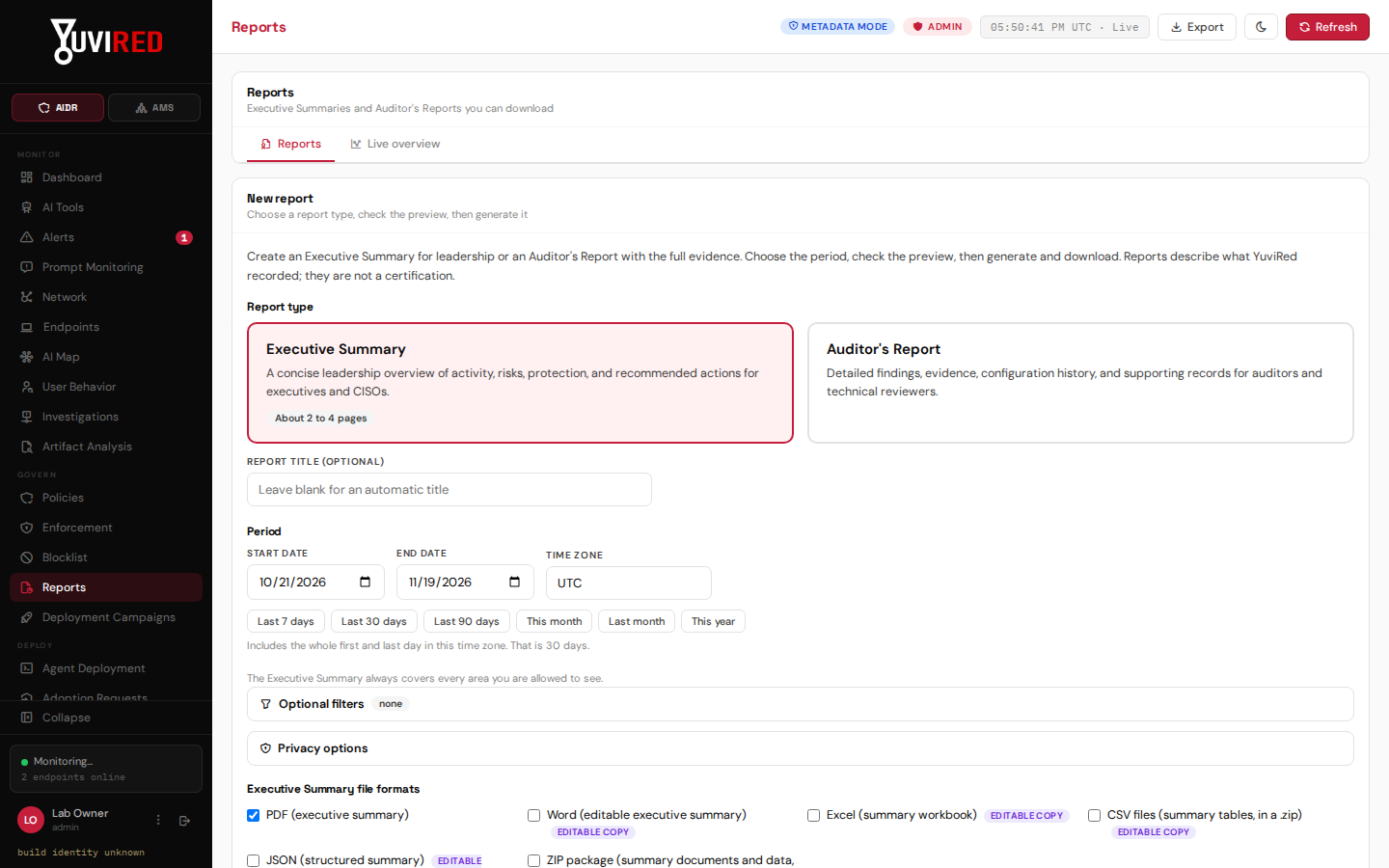
The new report form: pick the type, the period and the file format, then Preview or Generate.
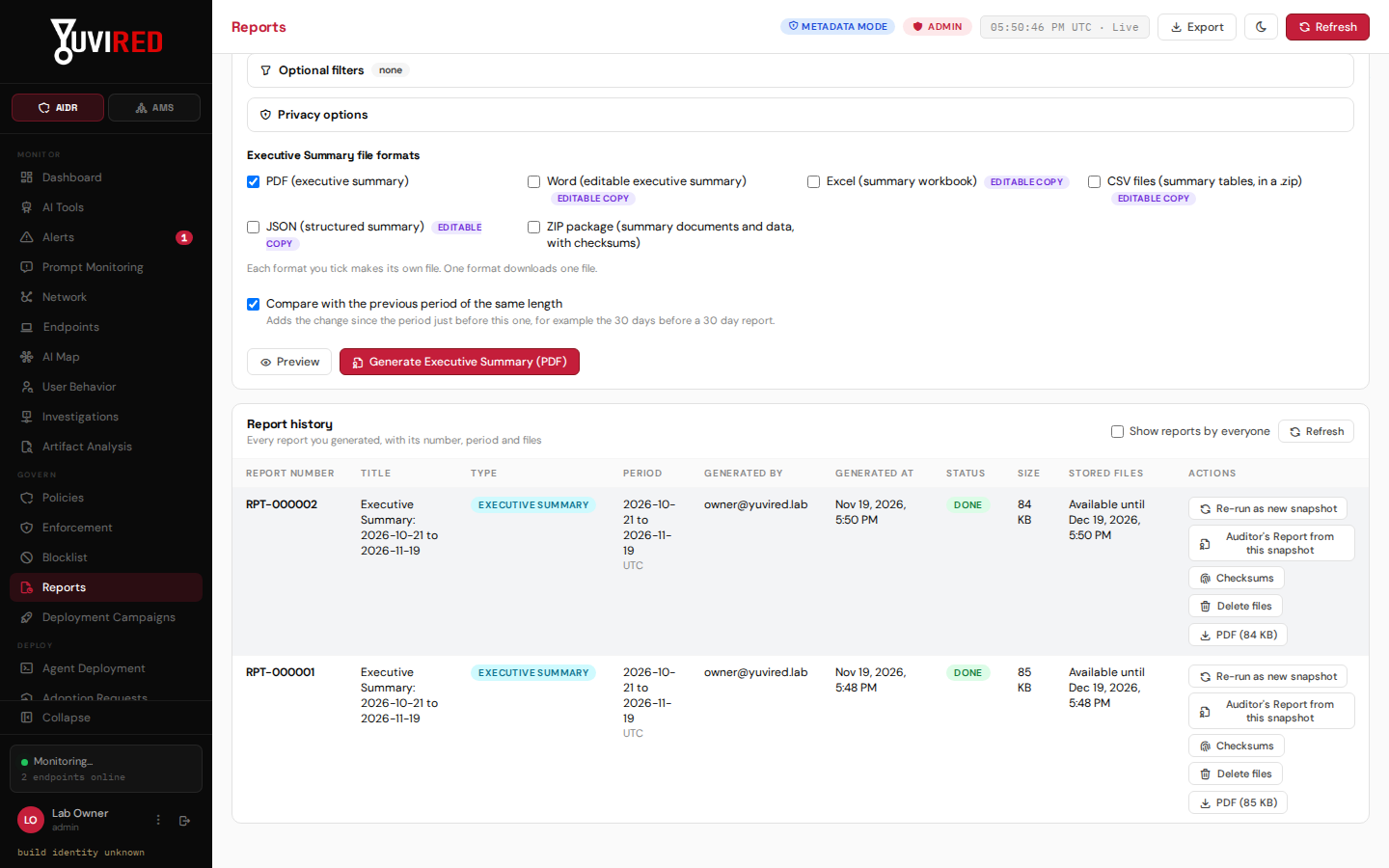
The report history after generating a report. The row shows status Done and the download buttons.